
Getting slides onto your screen
Projector Plus shows your plan and controls on the device you are holding, and sends the output — just the slides — to your screen. This article covers getting that output where it needs to go, on each platform.
Presenting to an external display is free; it is not a premium feature.
iPhone and iPad
Wired. Connect an HDMI adapter and Projector Plus puts the output on the screen automatically. We recommend Apple’s own adapters — iOS updates have a habit of breaking third-party ones.
- Lightning and 30-pin devices: https://support.apple.com/en-us/HT202044
- USB-C iPads: https://support.apple.com/en-us/HT207806
Wireless. Start Screen Mirroring from Control Center and choose your Apple TV or other AirPlay receiver — the same step you would use to mirror any app: https://support.apple.com/en-us/HT204289
You are not left mirroring your controls, though. As soon as that screen appears, Projector Plus takes it over and sends the output to it instead, so your device stays on the plan screen and the congregation sees only the slides.
Android
Use a cable. Connect a display over USB-C or HDMI and Projector Plus detects the second screen and sends the output to it, the same as on iOS — your device stays on the plan screen.
Presenting from an Android device over a cast
Casting mirrors everything, so the trick is to make everything worth seeing. Open Full-screen preview — the full-screen button in the preview, or a pinch outwards — then tap once to hide the controls. The mirror now shows the slide alone, and it is good enough to run a service from.
Know what you are taking on before you rely on it:
- Swipe to change slides — do not tap. Swiping left and right moves through the slides and leaves the controls hidden. A tap toggles the controls back on, and there is no timer: they stay up, on the wall, until you tap again.
- You cannot see your plan. Your device is showing the congregation’s view, so the slide grid, the next item and your notes are all out of sight while you present.
- Logo, Black, Alert, Countdown and play/pause live in the control overlay, so reaching any of them means the congregation sees the controls for as long as you need them.
That is a real trade, and it is worth being plain: an Android phone or tablet over a cast is a workable presenter, not a comfortable one. A cable — or an iPhone or iPad, where Projector Plus sends the output to the AirPlay screen and leaves your controls to you — is the arrangement to choose when you have it.
In a web browser
The browser version opens output as its own window, which you drag to your projector or second monitor.
This is the tidiest setup if you present from a laptop: your plan stays on the laptop screen, only the output window goes to the wall, and nothing else on your machine can appear by accident.

Going full screen — use the ⛶ button
The output window has a small ⛶ Fullscreen button in its top-right corner. Click it and the slides fill the screen with nothing else showing.
Sending it to a livestream or a meeting
Because the output is its own window, streaming software can take just that window — not your whole screen, and not your plan, notes or notifications. In OBS, vMix, Ecamm Live or whatever you stream your service with, add a window capture rather than a display or screen capture. The same applies to a meeting app if you are sharing that way.
Pick the window by its name, not by the category it is listed under. Projector Plus opens three windows — Plan, Output and Confidence — and Output is the one to send. Where they appear in the picker depends on how you are running Projector Plus: from an installed app they are listed as browser surfaces rather than as separate applications, so looking under Window for something called “Projector Plus” will not find them.
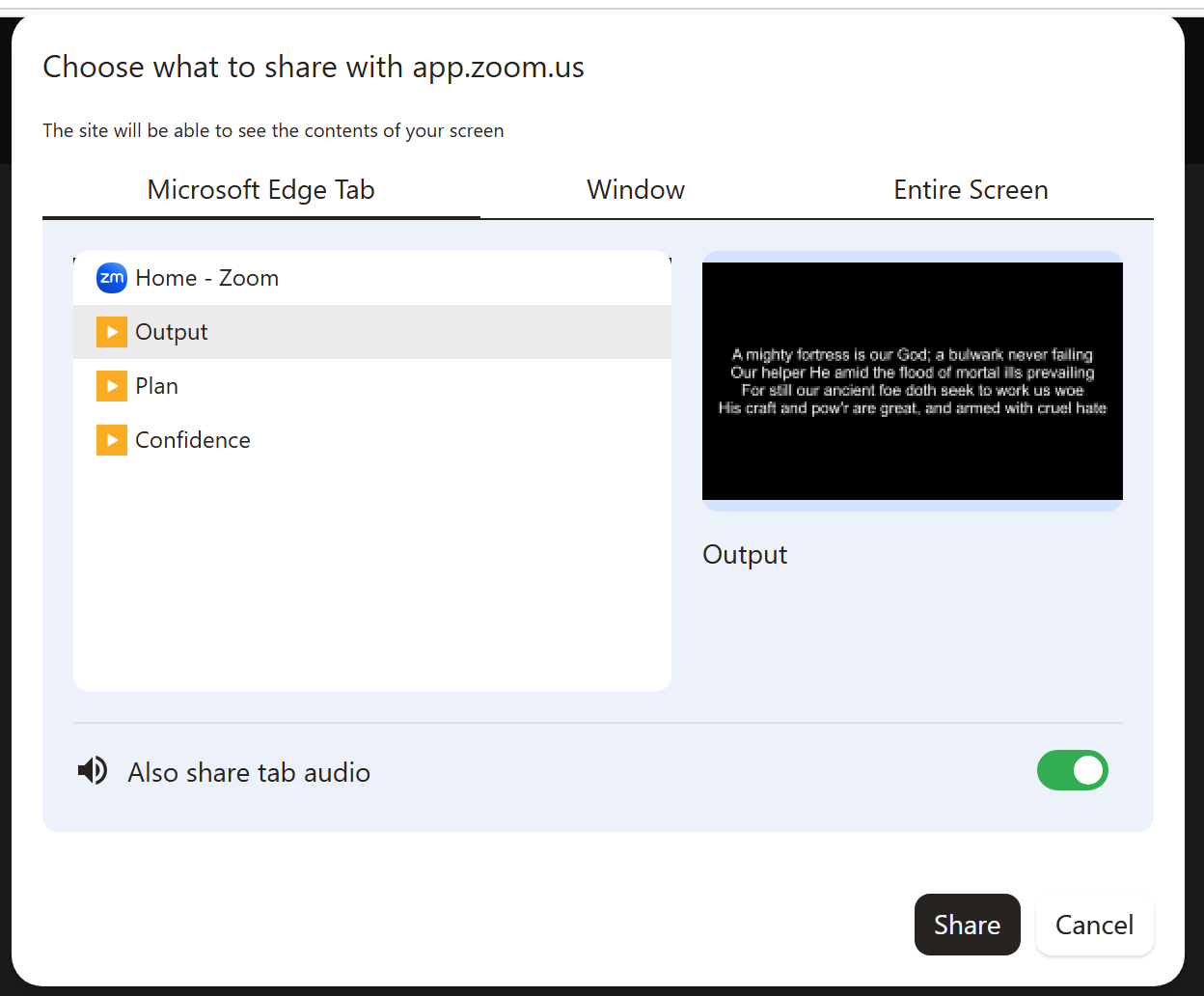
Put the output window full screen with ⛶ first if you want the stream to fill the frame.
It behaves like an app window
Once Projector Plus is installed as an app, the output and confidence windows are part of it rather than strays:
- They close when Projector Plus closes. Quitting or closing the main window takes them with it, so you cannot leave a stale slide on the projector.
- They survive a reload. Refreshing, or taking a new version available update, reconnects them instead of abandoning them. They go blank for a moment on an update — expected, because Projector Plus itself goes back to the first slide.
- Reopening reuses the window rather than piling up duplicates.
- They remember their size, and open at your organization’s aspect ratio, snapping back to it after you finish dragging.
After a restart
If a window was open when Projector Plus last closed, the header button reads Reopen Output — or Reopen Confidence — instead of Output. Click it to bring the window back where it was. Projector Plus offers this once per launch; ignoring it is how you decline.
Full screen is the one thing it cannot restore for you. No browser allows a window to open straight into full screen, so if that window was full screen before, it comes back windowed with a larger prompt in the middle:

One click and you are back. It is deliberately hard to miss, because it is the one step left to do.
Getting the window back on the projector by itself
This is the one to turn on. In Chrome or Edge, Projector Plus can reopen the output window on the display it was last used on, without being asked — the projector window comes back on the projector, not on your laptop screen waiting to be pushed across.
On a fixed setup, that removes the weekly ritual entirely: open Projector Plus, click Reopen Output, and the slides are already where the congregation sees them.
It needs a one-time permission. Go to Settings → Advanced Settings → External Windows → Multi-Display Windows and tap Allow:
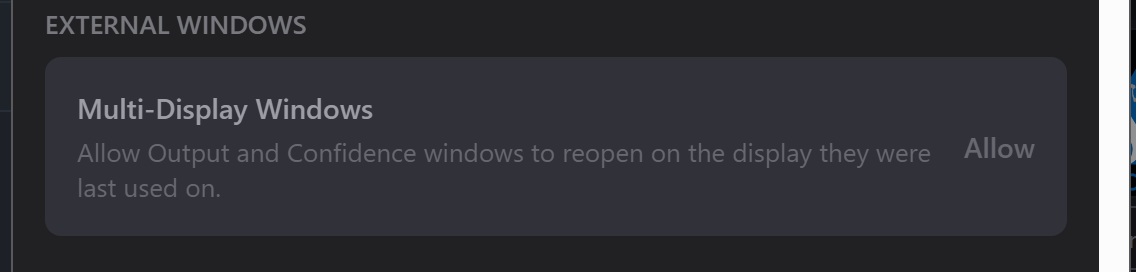
There are two Allows, and you need both. Tapping Allow in Settings asks your browser for the permission, and the browser then asks you:
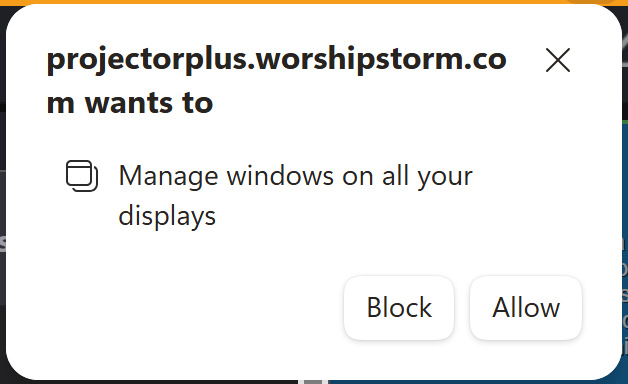
Choose Allow there as well. If you dismiss that prompt — or click Block — the setting in Projector Plus will not take effect, and the window will keep coming back on the wrong screen with nothing obviously wrong.
Once it is granted, the row reads Allowed, which is how you can check it later:
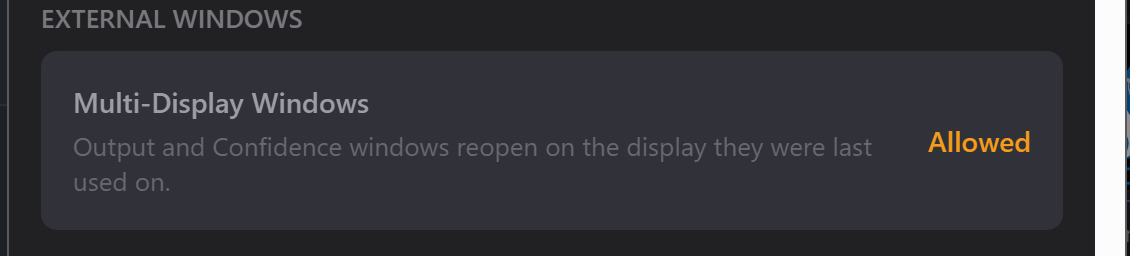
The row only appears in browsers that can do it. Safari cannot — there is no way for any app to ask, so on Safari you drag the window to your projector each time you start.
Matching your screen’s shape
If the output does not fill your screen properly, check the aspect ratio in Settings:
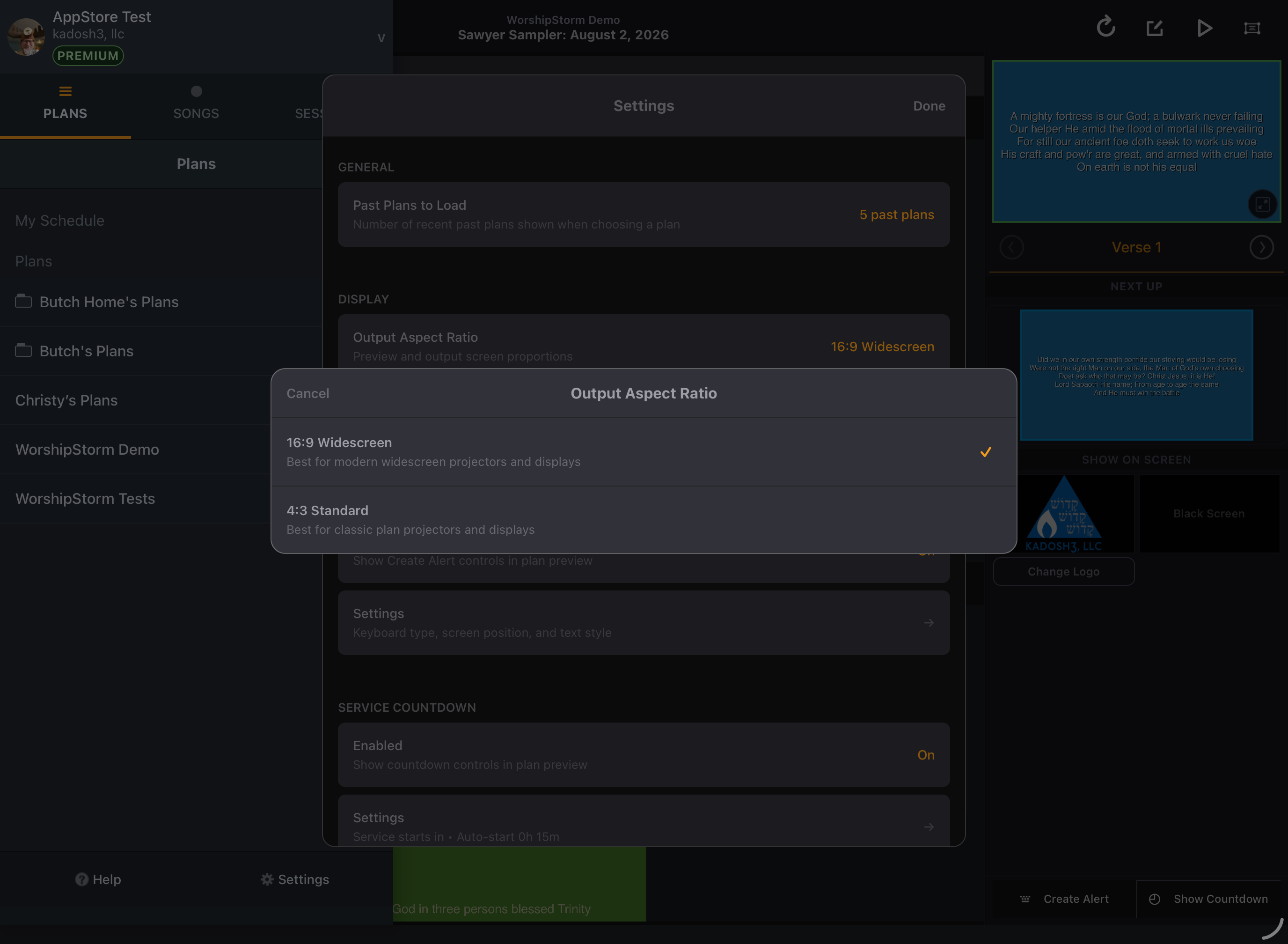
| Setting | Use it for |
|---|---|
| 16:9 (default) | Almost all modern projectors and TVs |
| 4:3 | Older projectors and square screens |
This also controls the shape of the preview on your device, so the preview always shows what your screen will show.
Putting something else on screen
Two buttons let you take the slides off the screen without stopping the presentation.
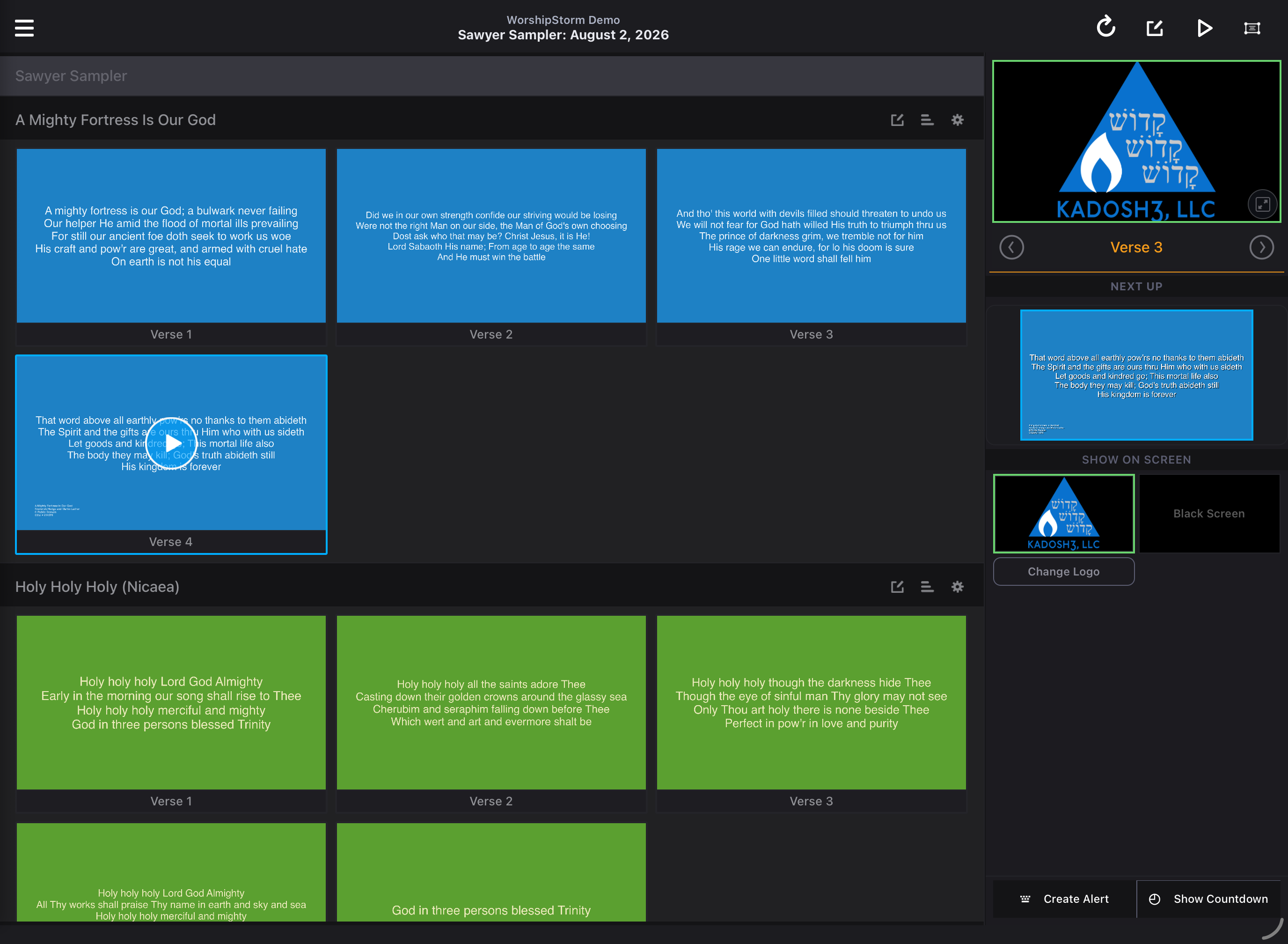
Logo replaces the output with your organization’s logo — useful before the service and between segments. See Setting a logo for your whole organization.
Black blanks the screen entirely.
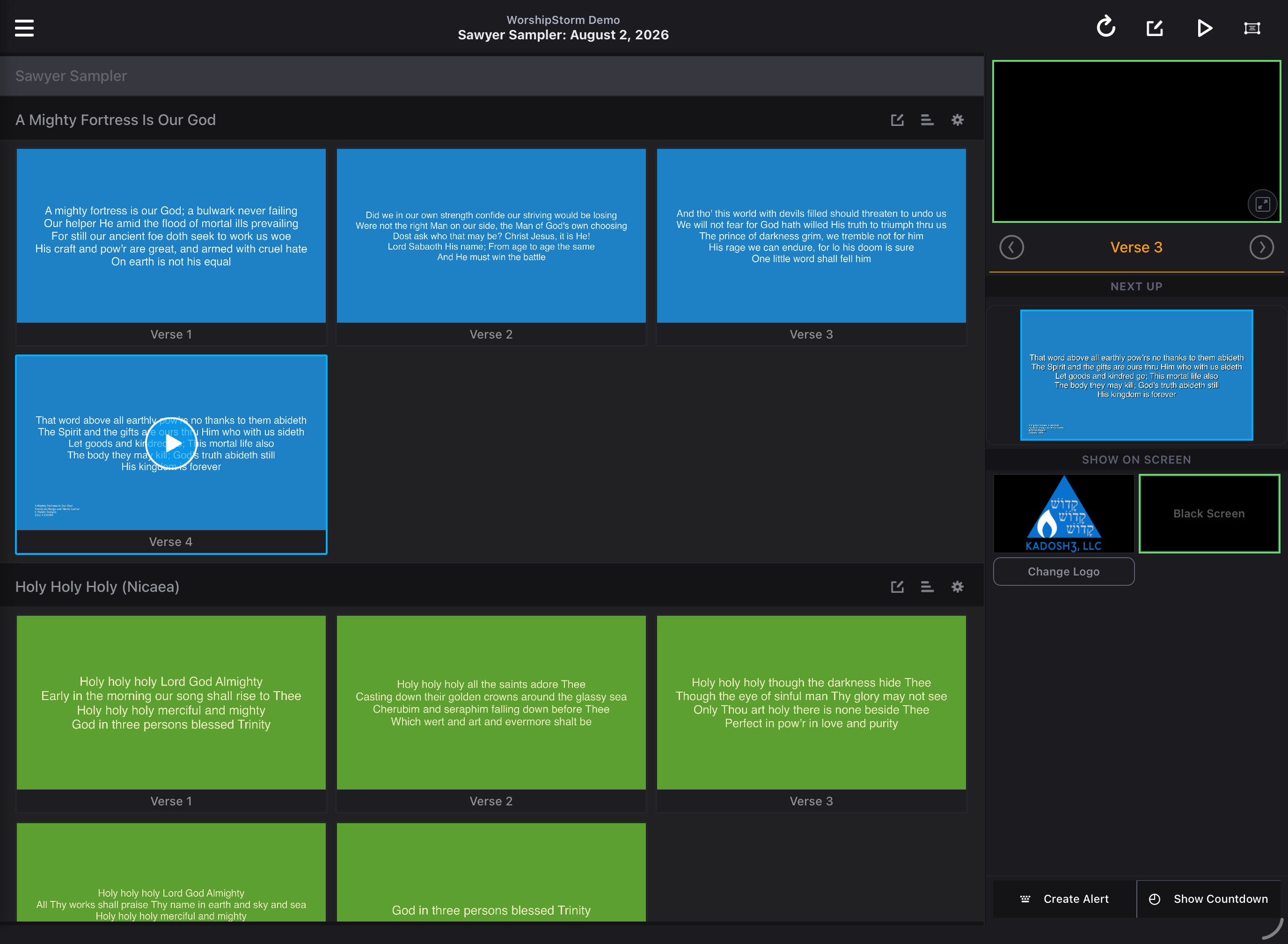
Tap either button again to go back to your slides. Both are highlighted while active, so you can always tell what is on the wall.
If you are broadcasting to the Congregant Viewer, these blank the congregants’ phones at the same time — nobody is left reading lyrics you have taken off the screen.
A confidence screen for the platform
In a browser, Projector Plus can open a second window as a confidence screen for your musicians — showing the current lyrics and what is coming next rather than the congregation’s view — alongside the output window.
The phone and tablet apps have no separate confidence output. They drive one external display and it always carries your normal output. To give your team a confidence screen from a mobile device, run Projector Plus on a second device and join it to a Session in Confidence mode.
See Using a confidence screen.
If nothing appears
- Check the cable or the AirPlay connection first — Projector Plus shows output on whatever display the operating system reports, so if your device is not mirroring or extending, there is nothing for it to use.
- On a wired iOS connection, switching away from Projector Plus and back again is a known workaround when the output does not fill the screen.
- In a browser, make sure the output window was not blocked by a pop-up blocker.