
Setting a logo for your whole organization
Your logo is what Projector Plus shows when you tap the logo button — between songs, before the service starts, or any time you want something on screen other than slides.
In Projector Plus, a logo can be set once for your whole organization and it then applies on every device your team uses. Nobody has to set it up again on the iPad in the back room.
Coming from Projector Classic? Classic’s logo is per-device — each iPad has its own. In Projector Plus it belongs to the organization instead.
Choosing a logo
Open Change Logo from the plan, and pick from the media available to you:
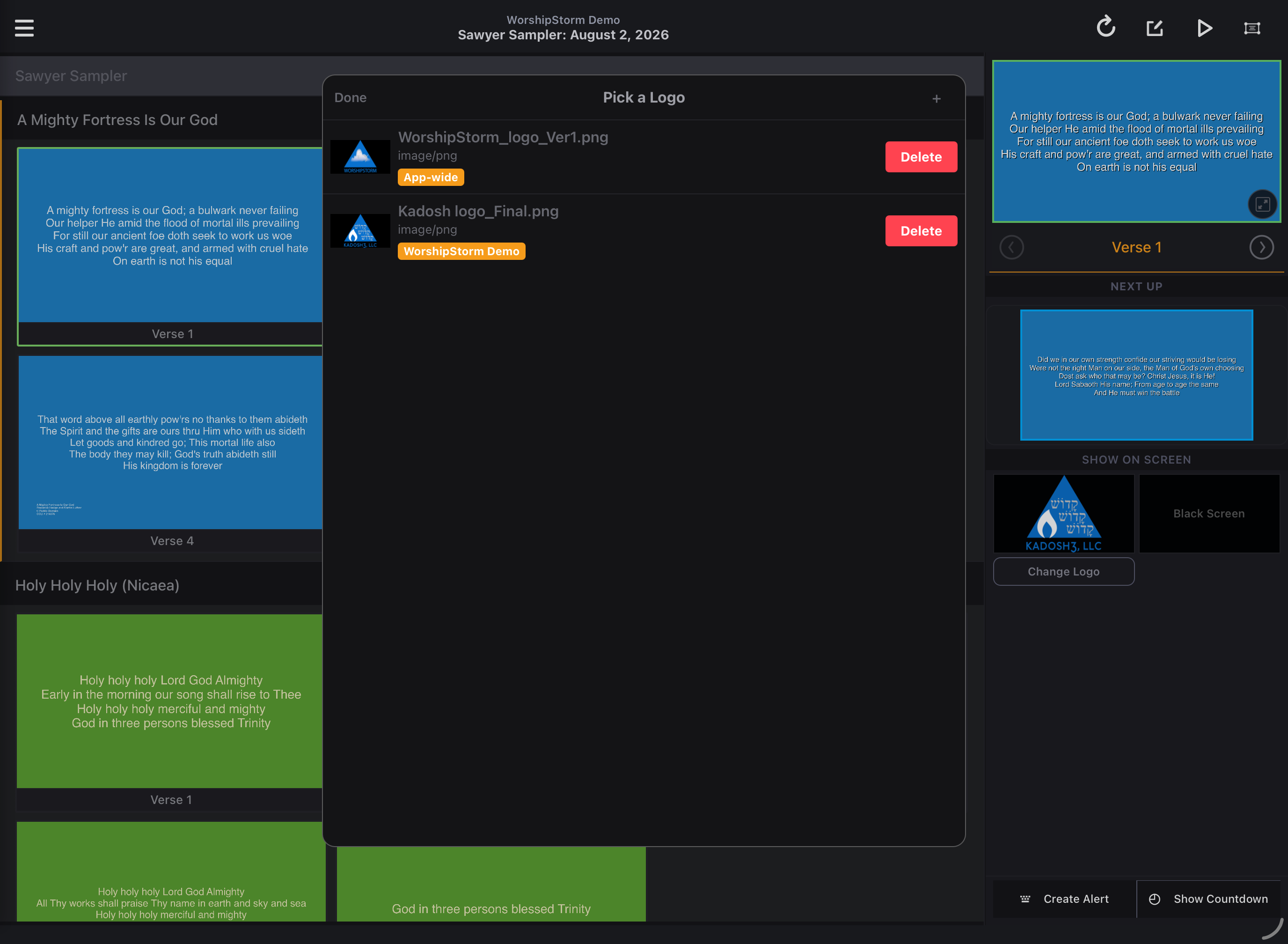
Any logos already set for your organization appear here as candidates, so the usual case — “use the same one we always use” — is a single tap.
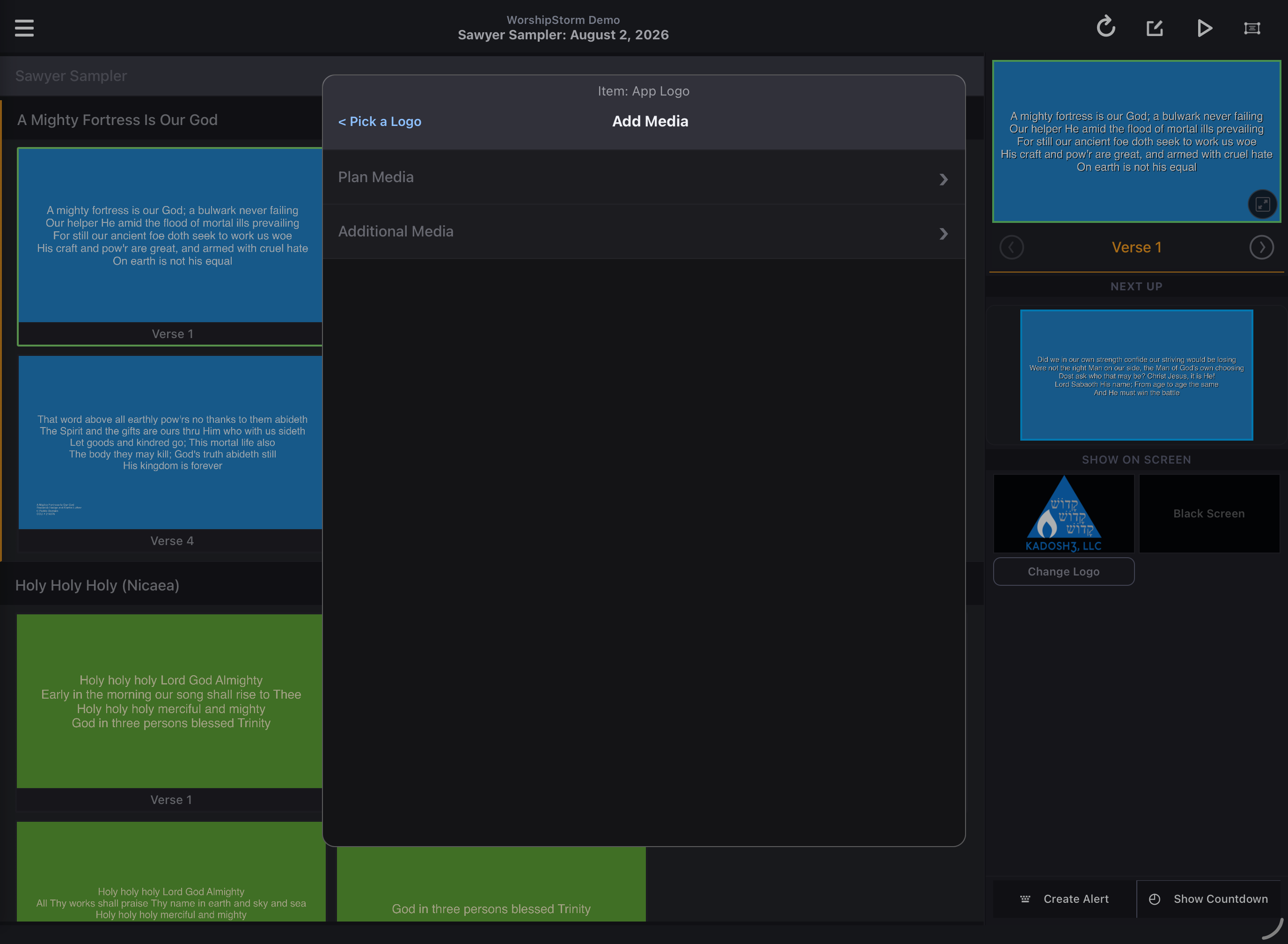
To use something else, add it from your Planning Center media:
Choosing where it applies
After picking a logo, Projector Plus asks Use this logo for…
| Scope | What it means |
|---|---|
| All Service Types (App-wide) | The default logo everywhere in your organization |
| This service type | Overrides the app-wide logo for one service type only |
A service-type logo wins over the app-wide one. So you might set your church logo app-wide, and a different one for a Youth or Christmas Eve service type.
The choice syncs to every device in your organization, so a change made on one iPad shows up on all of them.
Who can change it
Because this affects everyone, it is limited by your Planning Center permission:
| Scope | Required permission |
|---|---|
| App-wide | Administrator or Organization Administrator |
| A single service type | Editor or above |
If you do not have the permission, that option is not offered. This is enforced on our servers as well as in the app, so it holds no matter which device someone is using.
If you need a logo changed and cannot do it yourself, ask whoever administers your Planning Center account.
Showing and hiding the logo
Tap the logo button in the plan to put it on screen, and tap it again to go back to your slides. If you are broadcasting to the Congregant Viewer, showing the logo blanks the congregants’ phones at the same time.