
Click/Tap Slide Behavior
In Projector Plus, tapping (iPad, iPhone, Android) or clicking (in a web browser) a slide plays it immediately. The slide you tap becomes the Now Playing slide and goes straight to your audience.
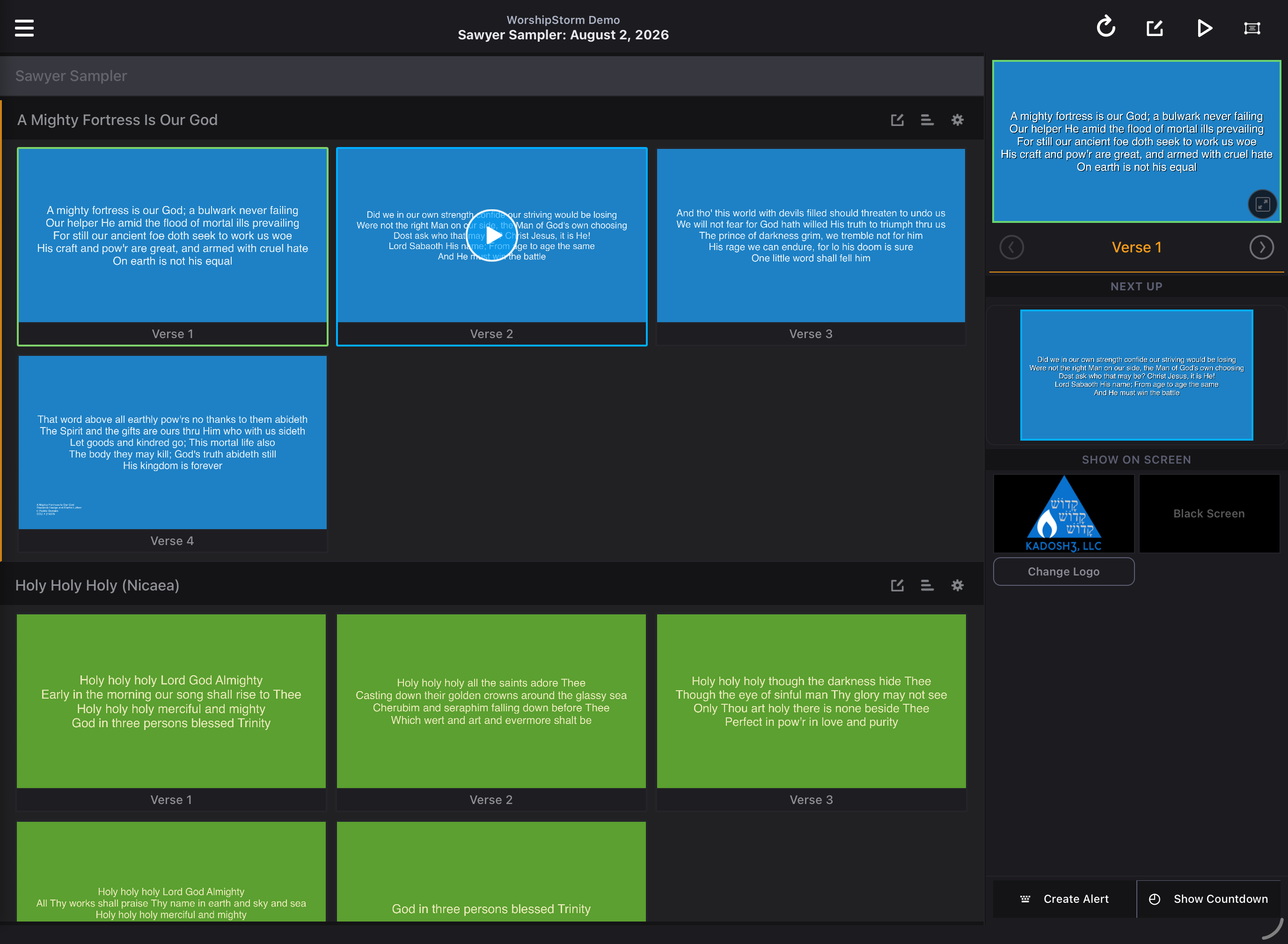
Now Playing and Next to Play
Two slides are marked in the slide grid at any time:
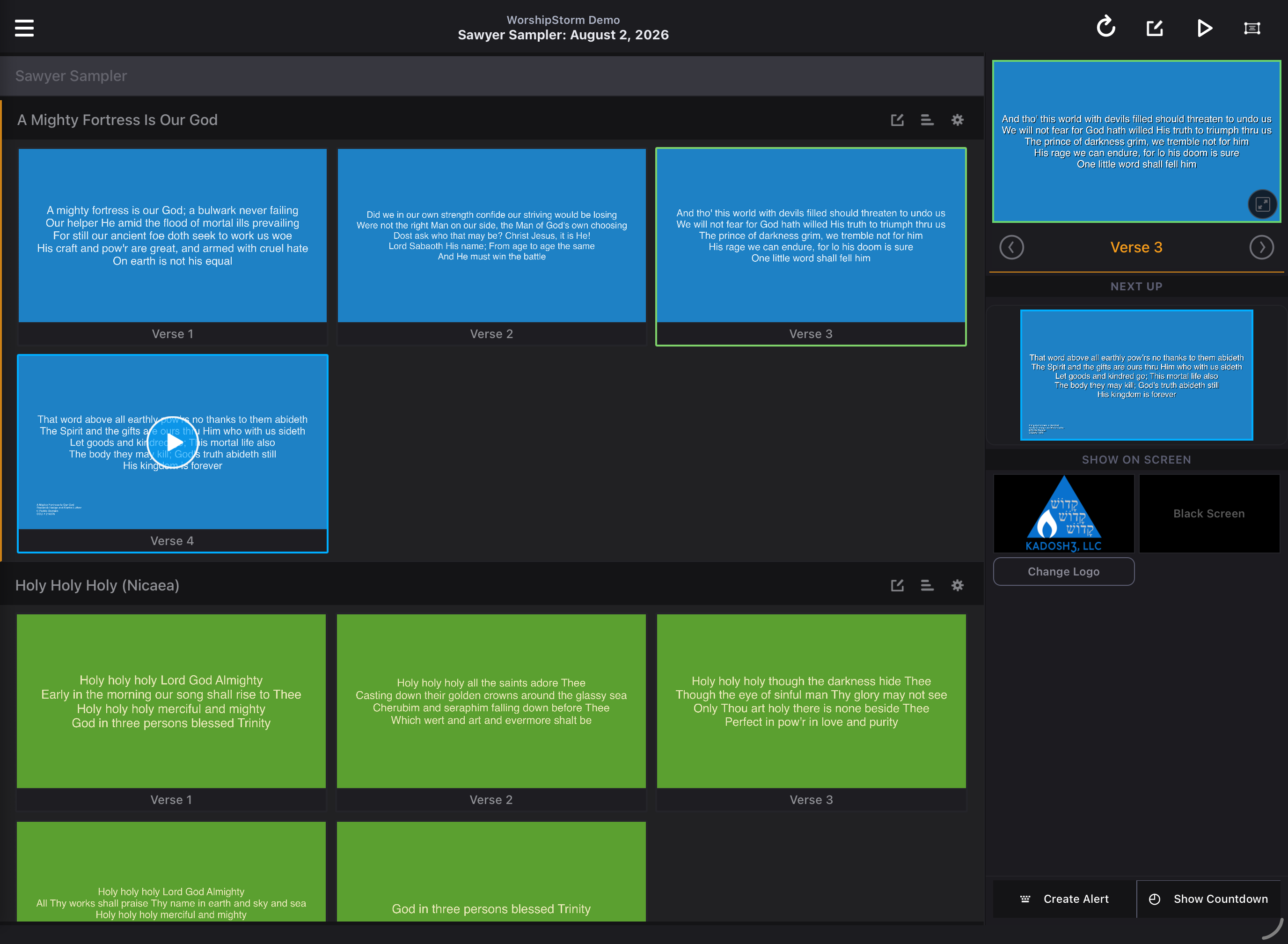
- The Now Playing slide carries a green border, and is the slide showing in the preview window and on your output.
- The next slide in the sequence carries a blue border. This is a look-ahead marker so you can see what is coming — it is not a queue. It moves along on its own as you advance, and nothing is waiting to be released.
Advancing
Move to the next slide by any of:
- tapping or clicking the slide you want — including the blue next-to-play slide
- keyboard shortcuts or a Bluetooth keyboard or foot pedal
- tapping the round › arrow button beside the slide name beneath the preview
- swiping the preview window left or right (on iPad, iPhone and Android — swipe navigation is not available in the web browser version)
There is no “preview before you show it”
The preview window always shows what your audience is seeing right now — the current slide, or your logo or a black screen if one of those overrides is on. It is a monitor of the live output, not a staging area.
That means every tap on a slide goes live immediately, so take care when tapping around the slide grid mid-service.
To see what is coming up without sending it to your audience, read the slide thumbnails in the plan grid and scroll through them. The thumbnails are the only way to look at a slide that is not playing.
Full-screen preview
The full-screen preview shows that same live slide at full size. Open it in either of two ways:
- tap the full-screen button in the preview
- on a phone or tablet, pinch outwards on the preview
Tapping the preview itself does not open it — that is deliberate, since the preview sits beside a slide grid where taps go live.
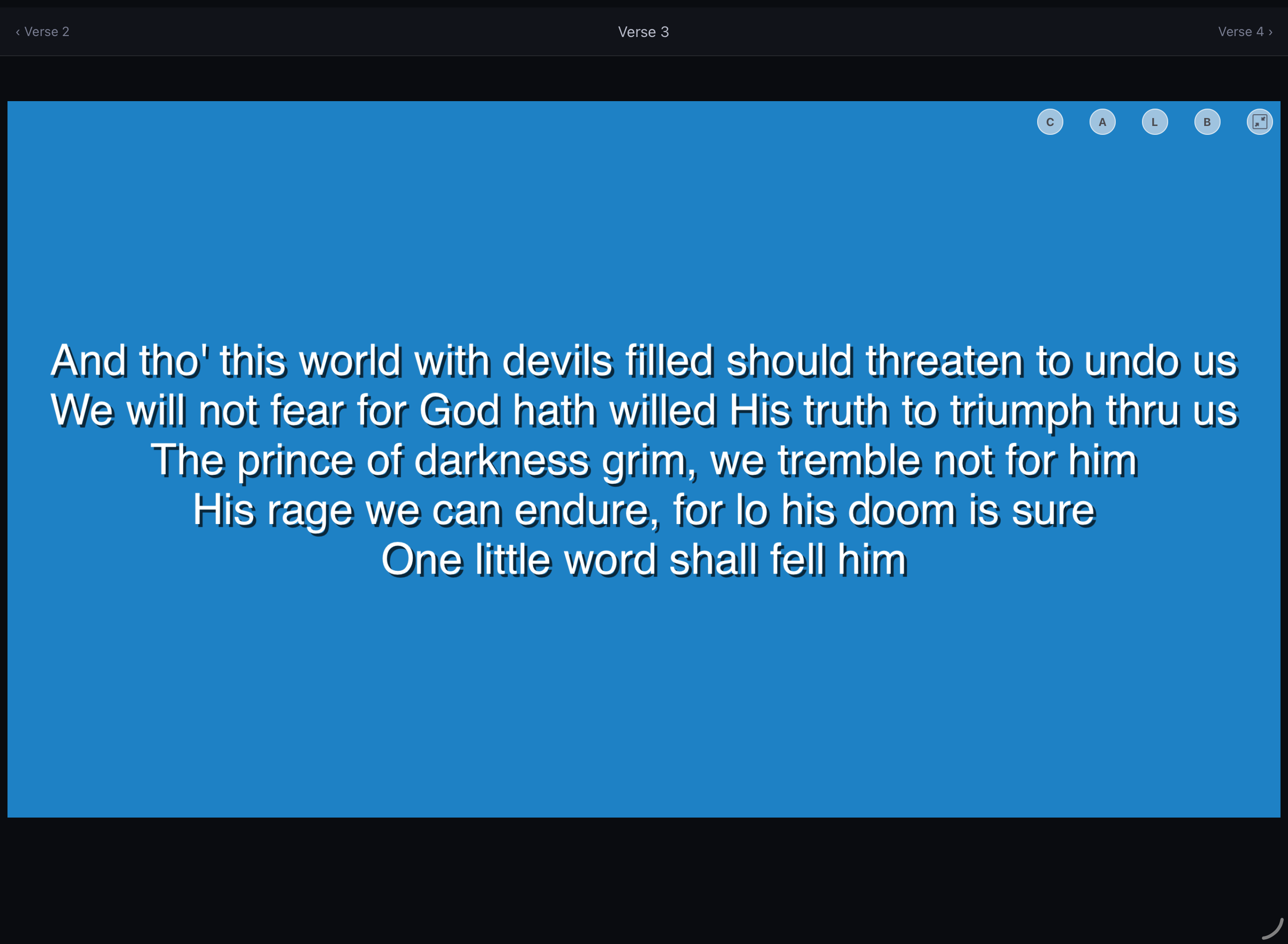
This is a convenience for operating from the audience’s point of view, and for reading small text that is hard to make out in the small preview. It shows the same content as the normal preview — it does not let you look at anything your audience is not already seeing.
Tap once and the controls hide, leaving the slide by itself. Tap again to bring them back — there is no timer, so they stay however you leave them.
To come back out, either tap the exit full-screen button — which is part of the controls, so show them first if you have hidden them — or pinch inwards on a phone or tablet.
With the controls hidden you can still swipe left and right to change slides: a swipe is not read as a tap, so it moves the slide without bringing the controls back. What does need them is the row of buttons over the slide — Countdown, Alert, Logo, Black and play/pause — so reaching any of those means showing the controls first.
That combination is what makes Full-screen preview useful on a device whose whole screen is being mirrored — see Presenting from an Android device over a cast.
Coming from Projector Classic? Classic queues a tapped slide as Next Up by default, and offers a Tapping slide shows immediately setting to change that. Projector Plus always shows immediately, and has no equivalent setting.