
Using Layouts to manage how your slides look
The Layout mechanism is the means by which Projector Plus controls the appearance of slides. Projector Plus is geared toward ease of use, in that once you chose a layout for a plan item, the formatting of the words on each slide is automatic, based on the settings of the chosen layout.
You can choose a layout for each individual item in your plan, or quickly apply one layout for all. Projector Plus provides 5 standard (built-in) layouts. You may also create Custom layouts for each Service Type that you have defined in PCO Services.
Tap the settings icon to the right of any item
Open Item Settings and tap the Selected Layout row. This edits the layout for that item only. To update the layout for all items at once, follow the instructions in the Creating and Editing Custom Layouts article.
The standard layouts
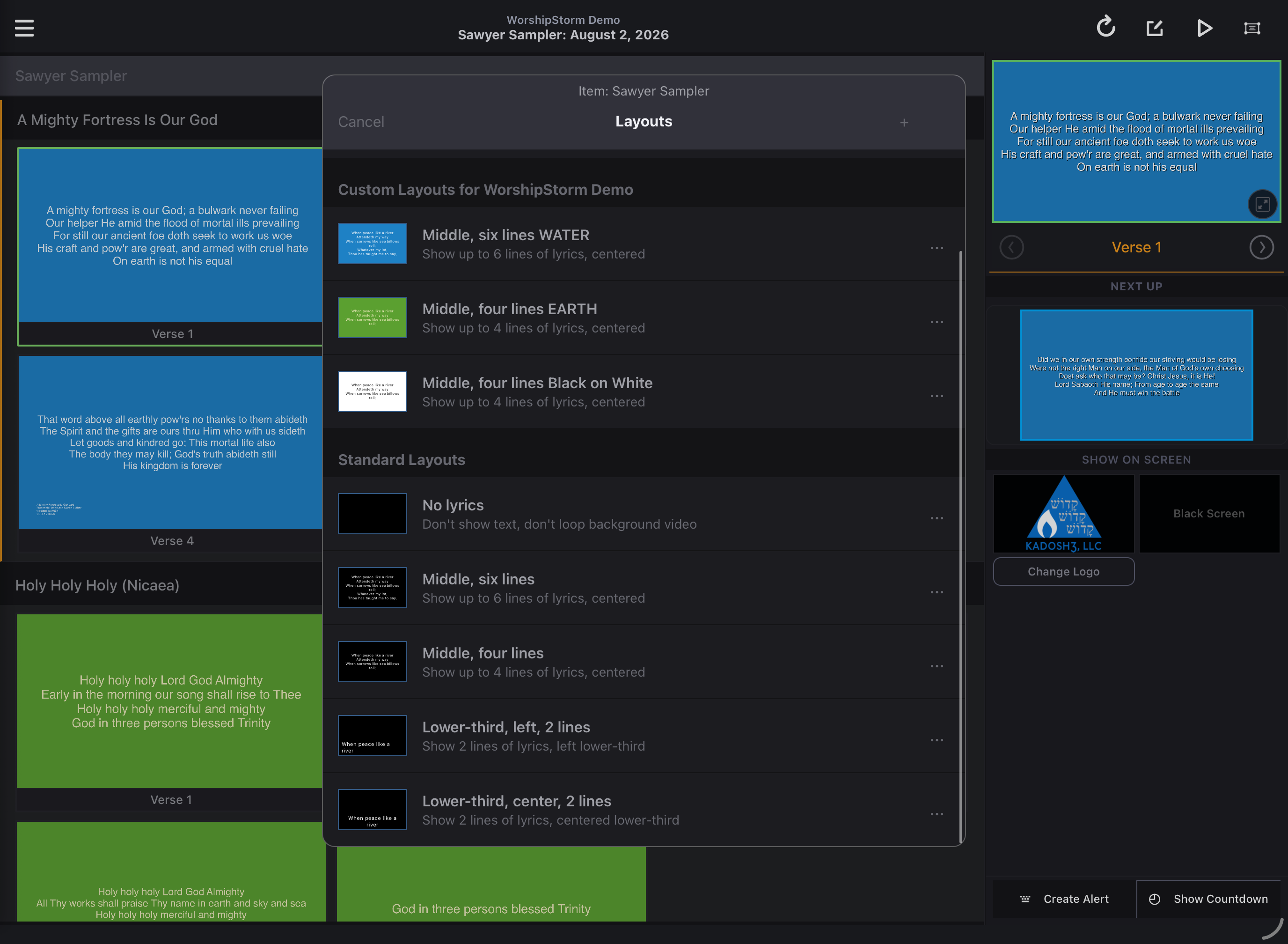
Choose a new Layout
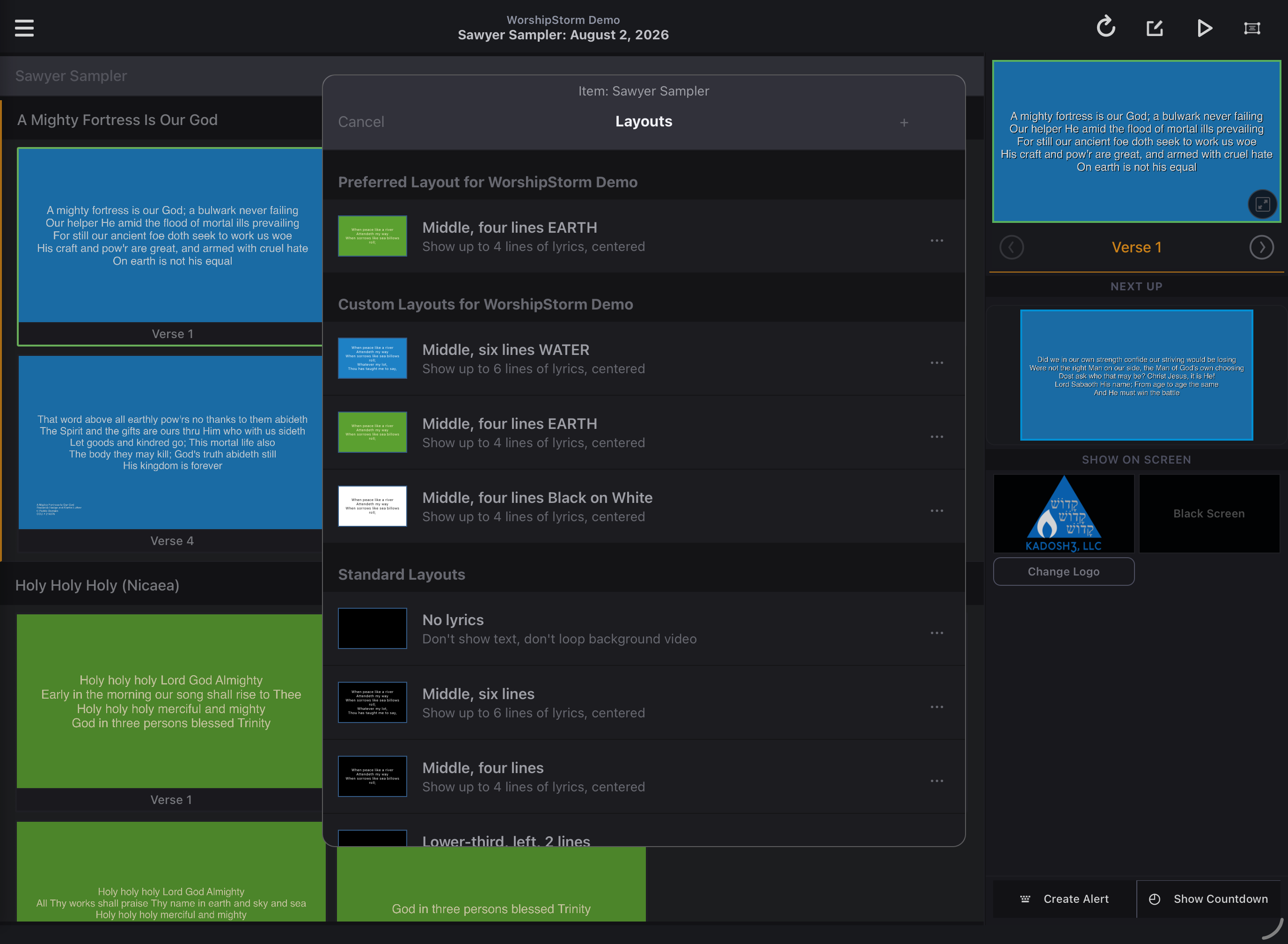
The selected layout is checked. Tap a new layout to select it. In this example, several Custom layouts have already been created, including a six line layout that we want to use for this particular song.
Save Changes
As with other changes made for Item Settings (Setting Slide Backgrounds and Slide Looping), you must tap Save to complete the changes for the item. Tap Cancel (upper left on the Settings view) to abandon changes that were made.
When you choose a new layout, your slides are updated in the background. Sequence sections (Verse, Chorus, etc.) are always started on new slides.
Layouts & Slide Breaks (Song items)
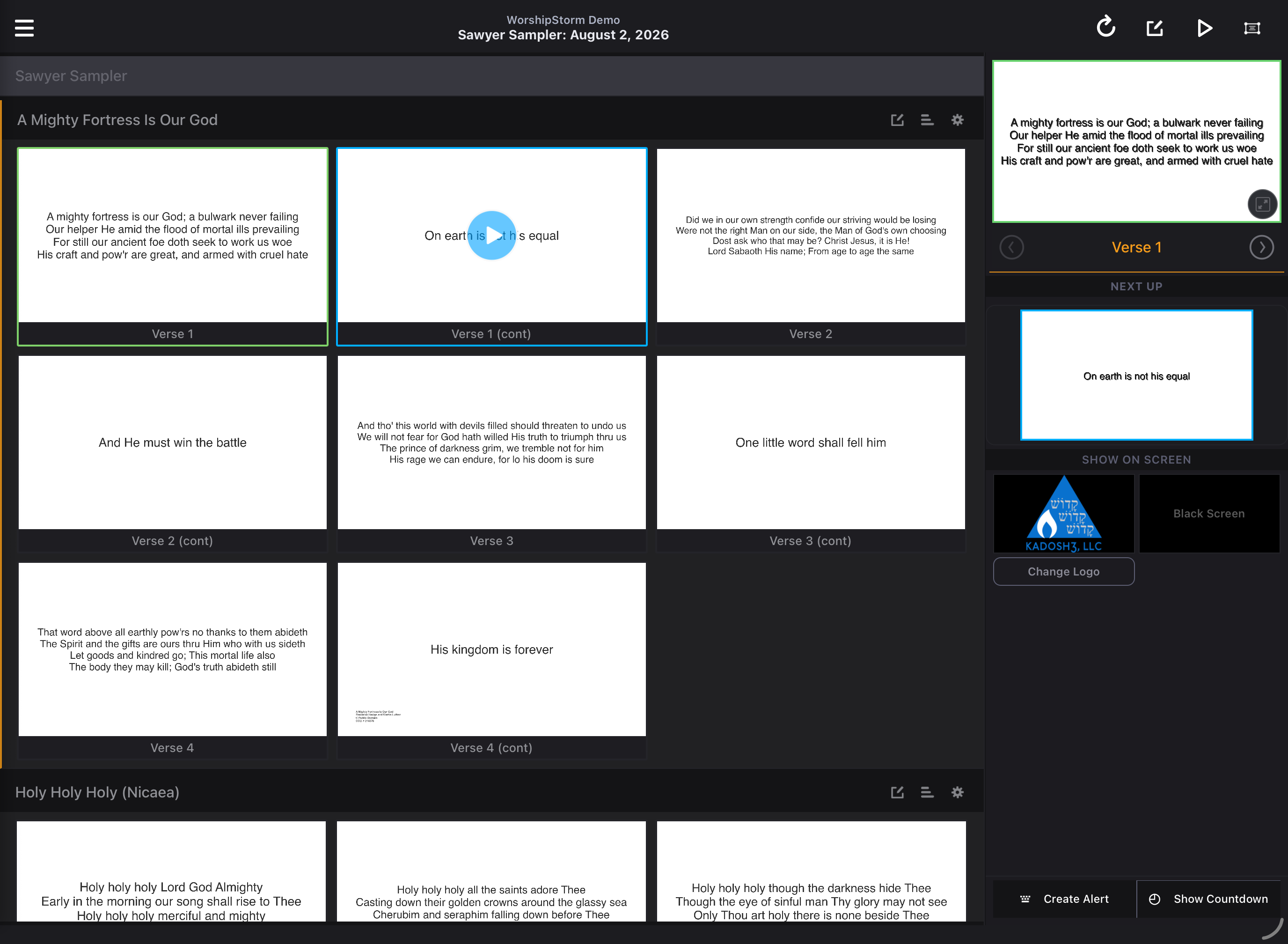
When you choose a new layout, the slide breaks for each section are updated. Every song arrangement can have customized slide breaks that are saved with the arrangement. For example, if you have a 4-line layout that you have customized to have 3 lines on a slide just for the verse, that customization is saved with that song arrangement. So if you switch to a 2-line layout and then later back to the 4-line layout, the slide breaks you had previously customized for the 4-line layout will be retained.
In the example above, we could have stayed with the original four line layout, and edited the Slide Breaks to cause each verse in the song to fit (five lines) on a single slide. So, between using the Layout feature and the Slide Breaks feature, you can customize your song items to appear correctly.
Check out this lesson on Editing Slide Breaks