
Slide Looping
You can turn on Slide Looping for any item to have it automatically advance through that item’s slides every few seconds, or to loop a single video file. This is especially useful for announcement slides before your service starts.
Tap the Settings icon for your item
Tap the gear icon to the right of any item to open Item Settings. Slide looping is also often used to loop a slideshow item consisting of images for announcements, and works well with Custom Slides that each have their own media.
Turn Slide Looping On
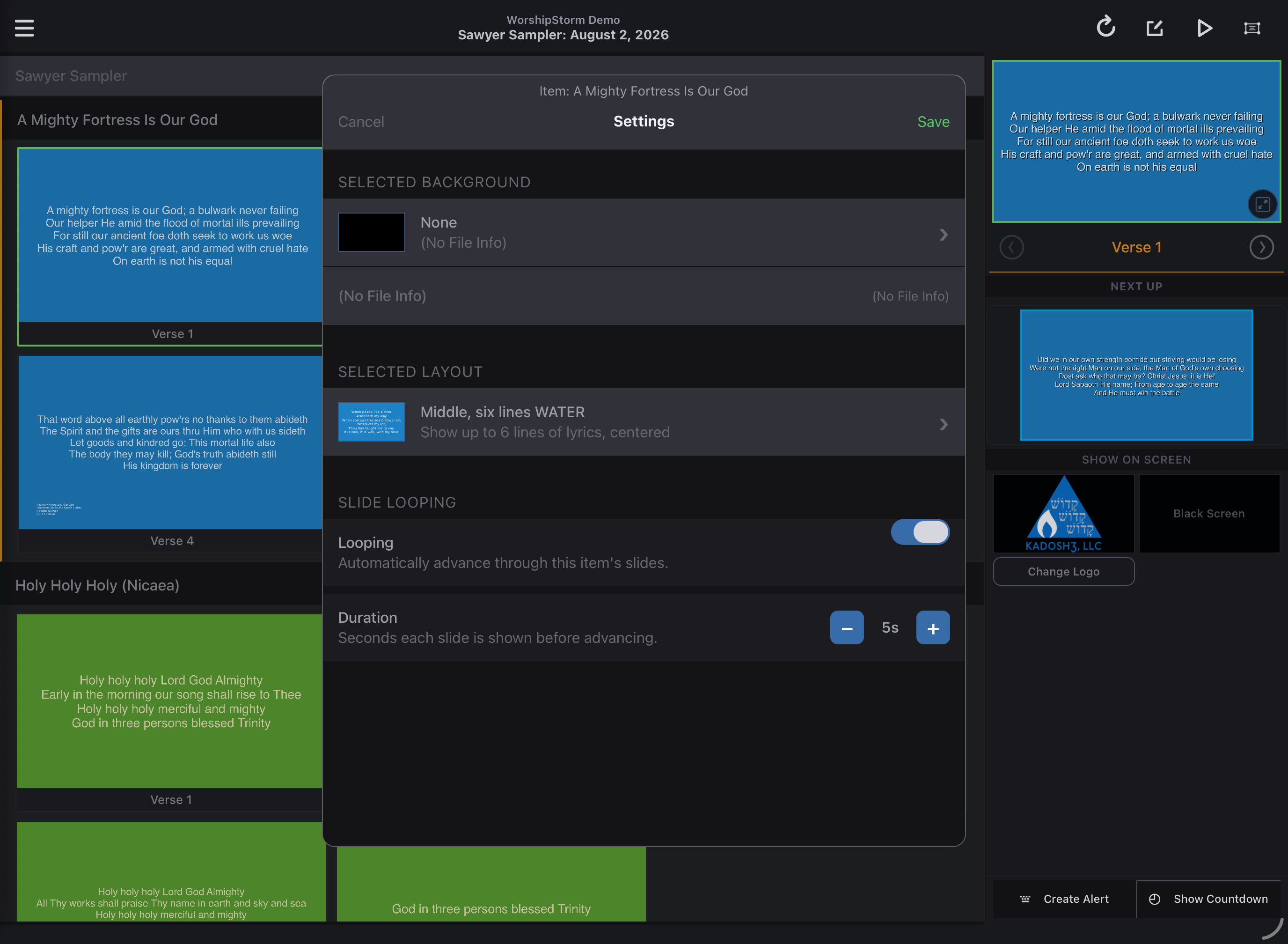
Set Looping Options
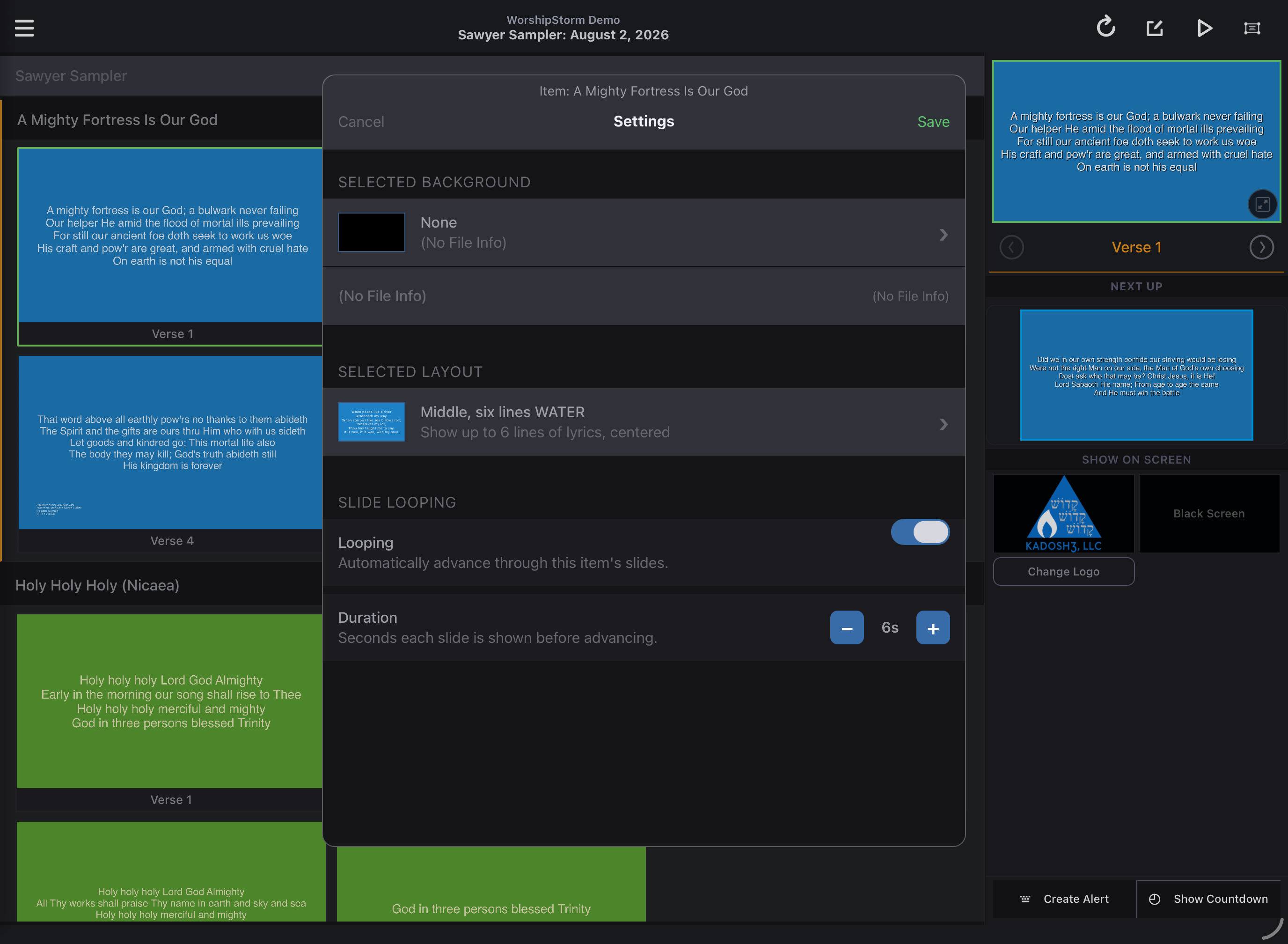
Use the + and − buttons on Duration to set how many seconds each slide displays before advancing to the next one.
Looping Item Icon
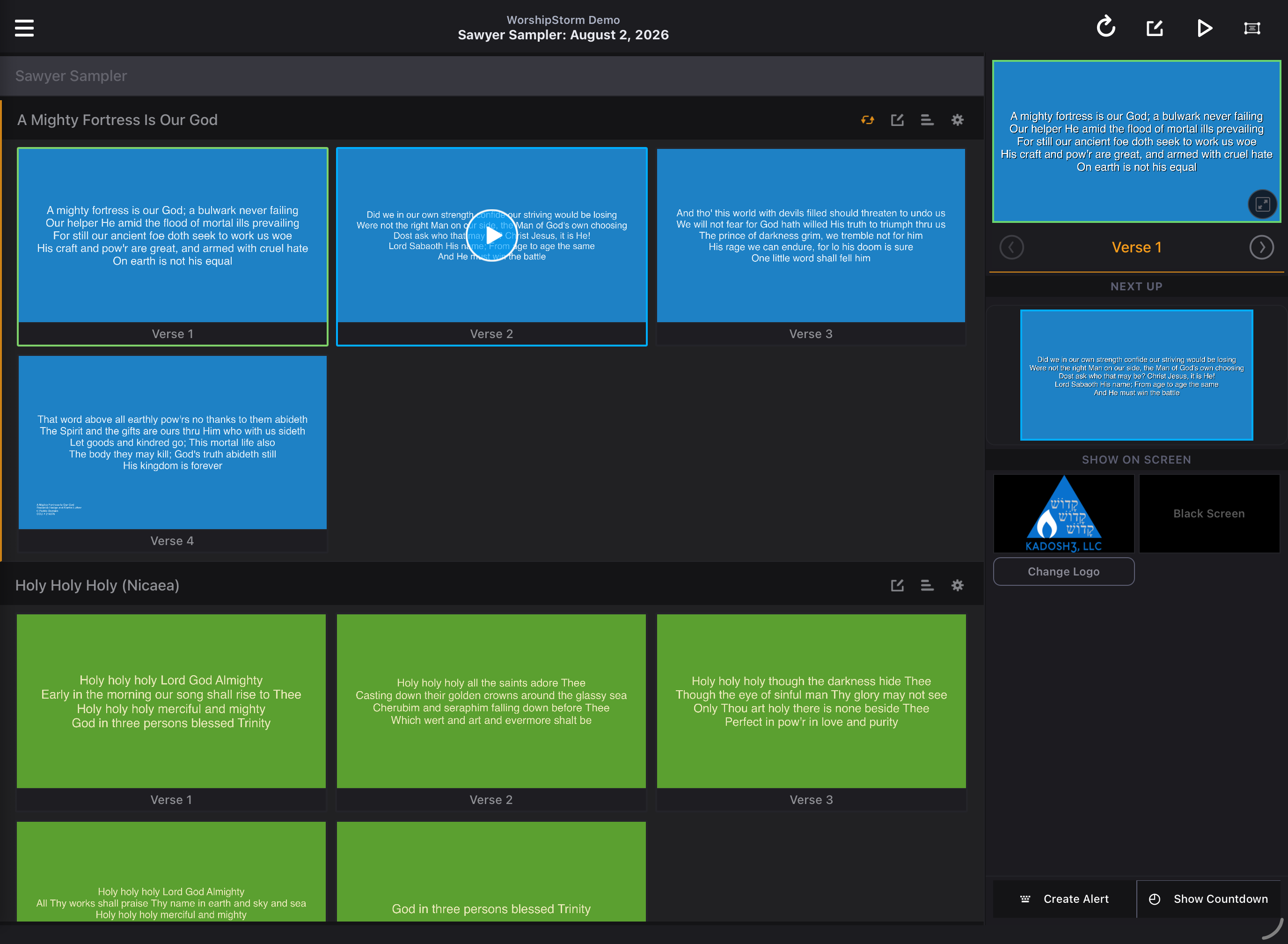
Items with looping turned on show a loop icon to the right of their title in the plan.