
Creating and Editing Custom Layouts
Custom Layouts allow you to specify fonts and positioning to format your slides however you like. You can create an unlimited number of custom layouts for each Service Type and apply them to any slide or all slides in a plan.
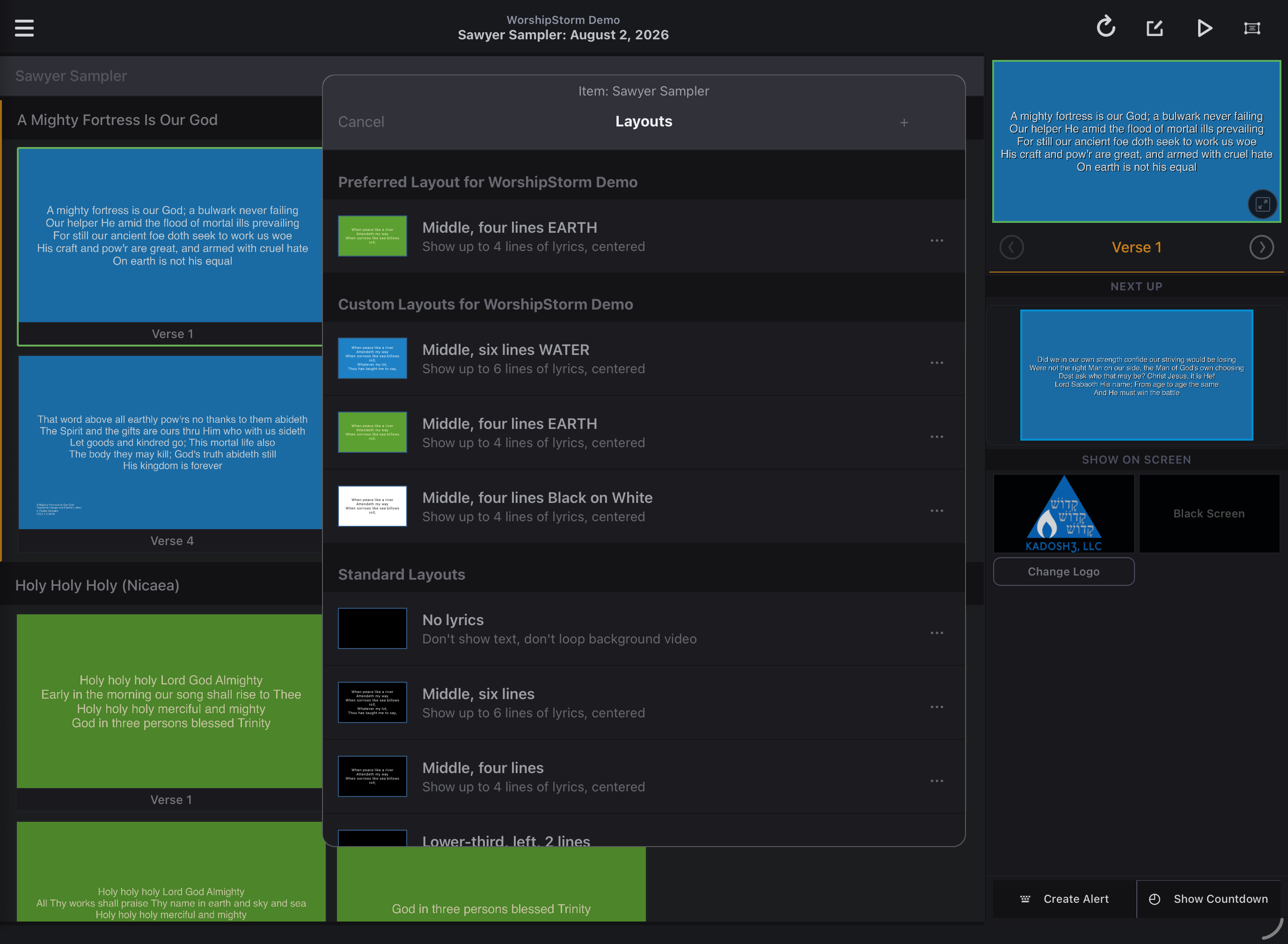
You can also select one of the Custom Layouts for a Service Type as the “Preferred Layout” for the Service Type. The Preferred Layout will be applied to any Song arrangement that does not have a specific layout selected already. The standard 4 line, black background layout is, by default, the Preferred Layout until you make a specific Custom Layout the Preferred Layout.
Go to a plan in Projector Plus and tap the Layouts icon to view all layouts for the Service Type to which the chosen plan belongs. On a tablet the Layouts icon sits in the plan header; on a phone it lives behind the layout options menu:
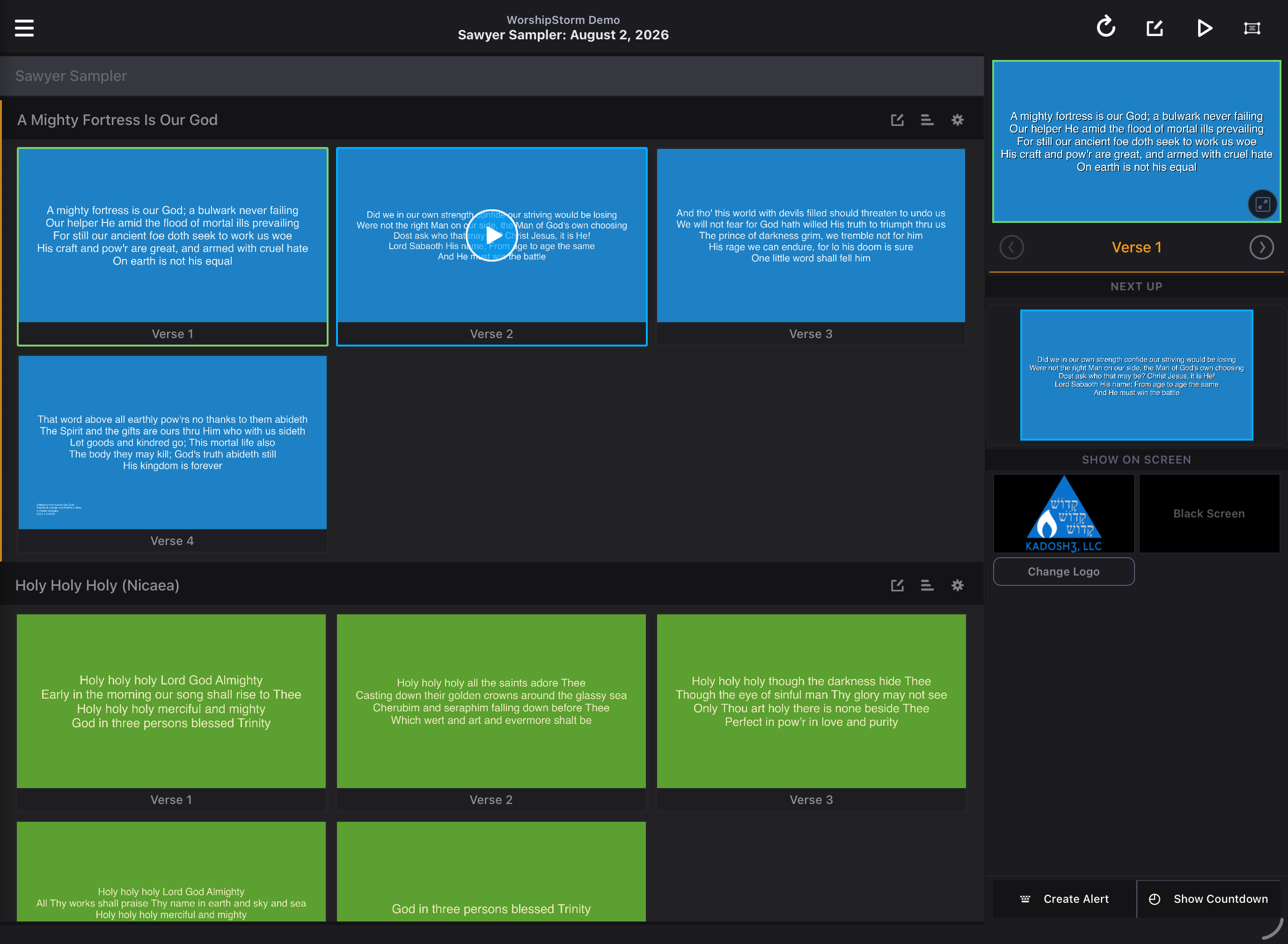
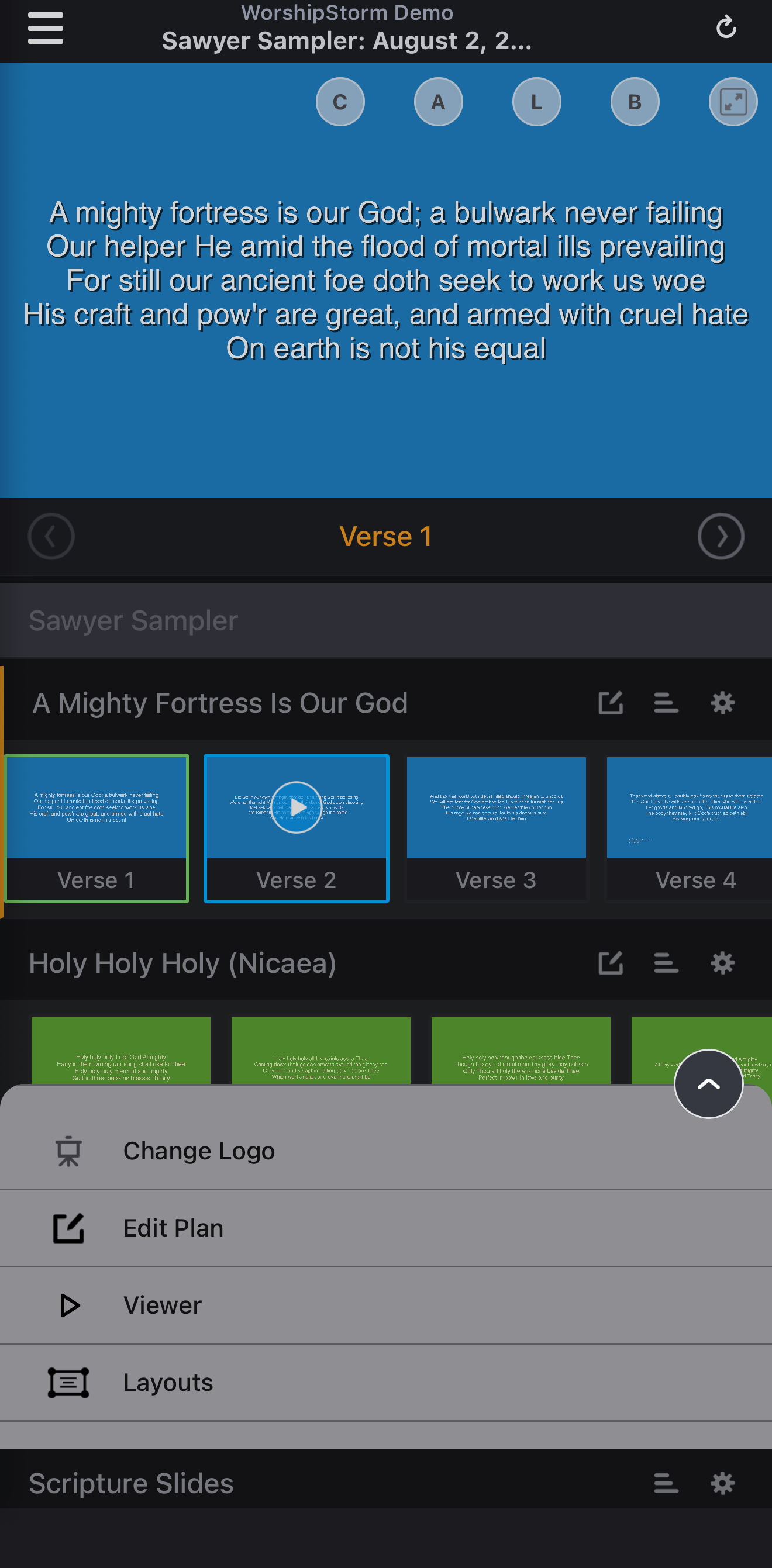
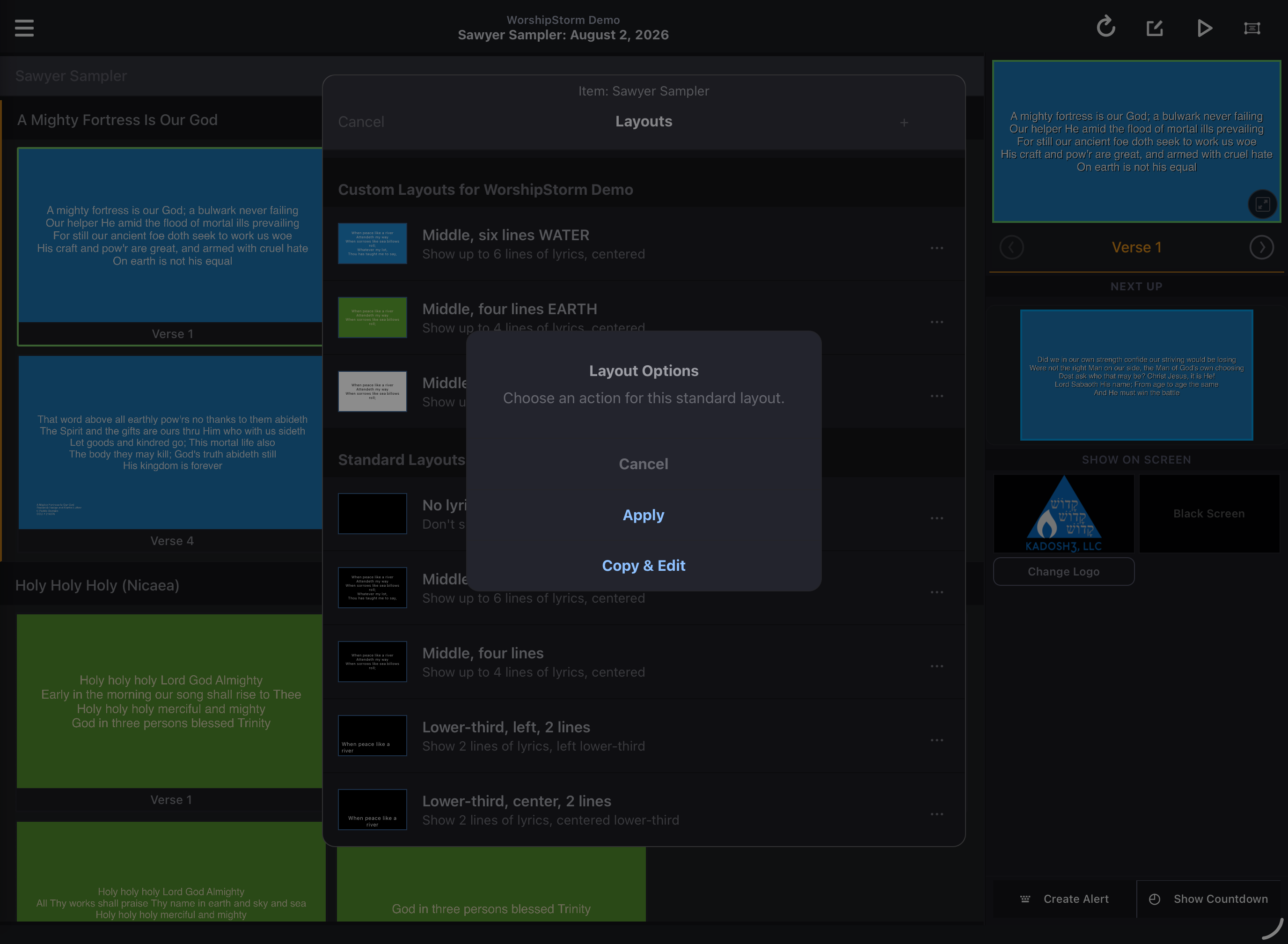
The following steps illustrate creating and editing custom layouts on a tablet. The phone workflow is very similar - only the Layout Editor UI is slightly different to accommodate the smaller screen. Use Default Layouts to create a new layout by tapping the layout and choosing Copy & Edit.
To create a new custom layout from scratch, tap the +.
To edit an existing custom layout that you have already created for the Service Type, tap the layout and tap Edit.
For each of the above actions, you’ll be taken to the Layout Editor, which allows you to edit all the information about the custom layout.
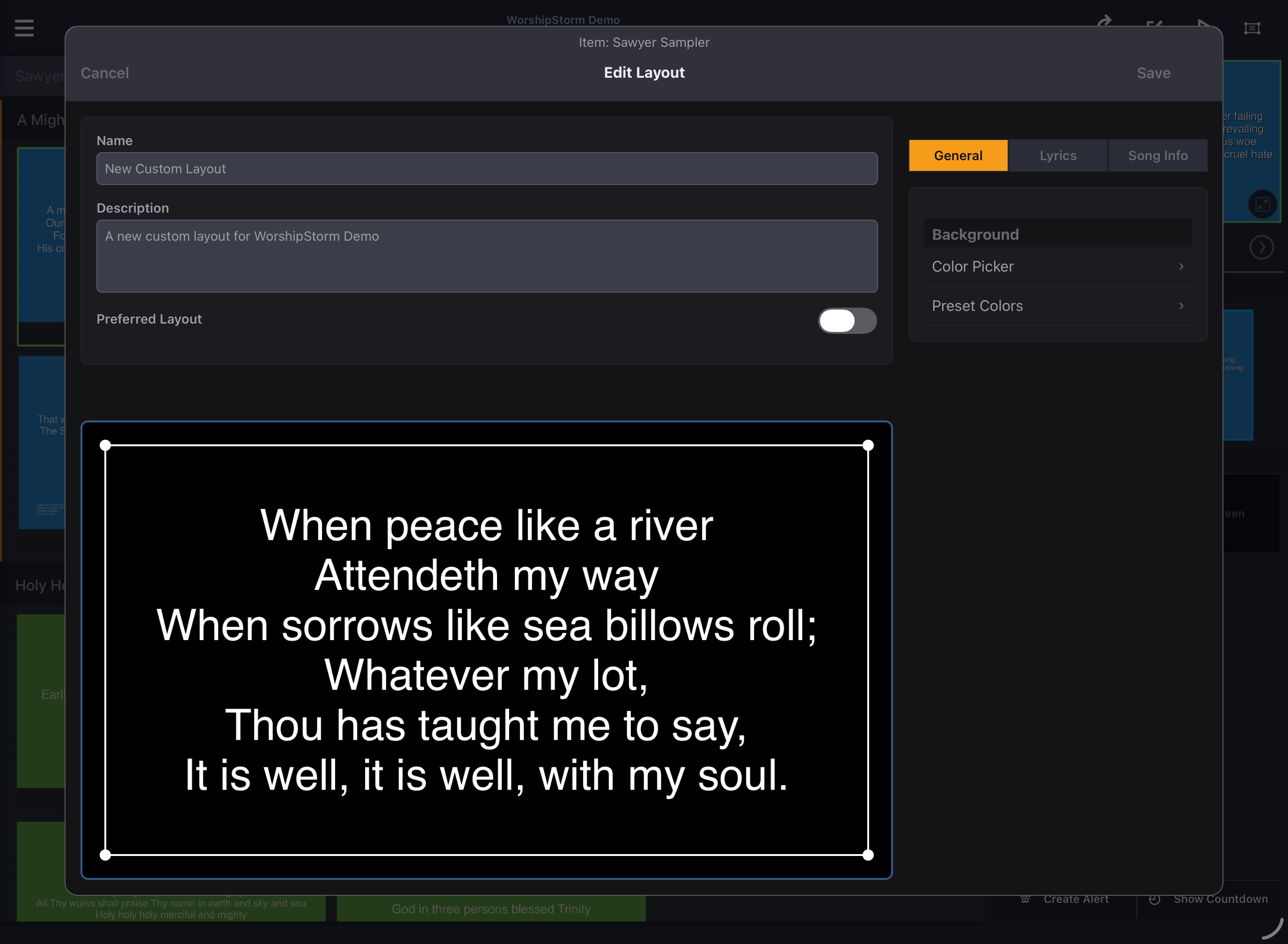
- In this example, I have done a Copy & Edit of the 6 line Standard Layout and added “(Earth)” to the layout name, since I’ll be selecting the preset Earth color scheme later on.
- I also want this new Custom Layout to be the Preferred Layout for this Service Type, so I have toggled the Preferred Layout switch to the ON position.
Once you have made any desired changes to the Name, Description, and Preferred Layout, you can select the tabs (General, Lyrics, Song Info) to make changes to those layout settings.
General: Set the Background
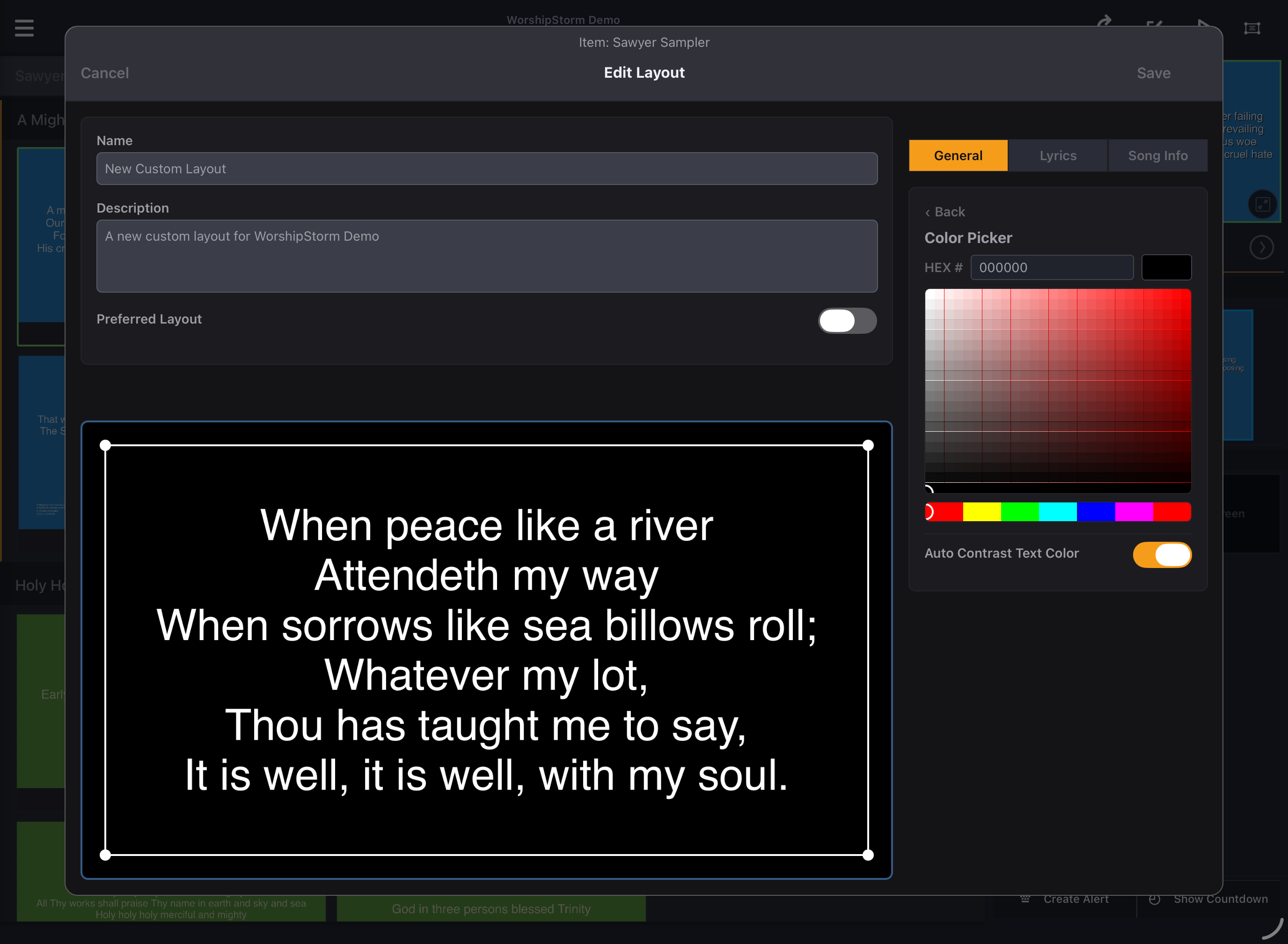
Use the Color Picker to choose a specific color or choose from some of the presets.
Color Picker
-
A numeric representation of the color in Hex form, which is especially useful for copying and pasting an exact color from one place to another.
-
Use the selector on the color graph to choose different colors in the selected hue.
-
Move the selector left or right to change the base hue of the color.
-
If enabled, the text color will automatically change to a contrasting color to your selected background color, so it stays more visible. Don’t worry if you end up with something horrible when you use this setting - you can always change the text color later on in the Lyrics tab.
Preset Colors
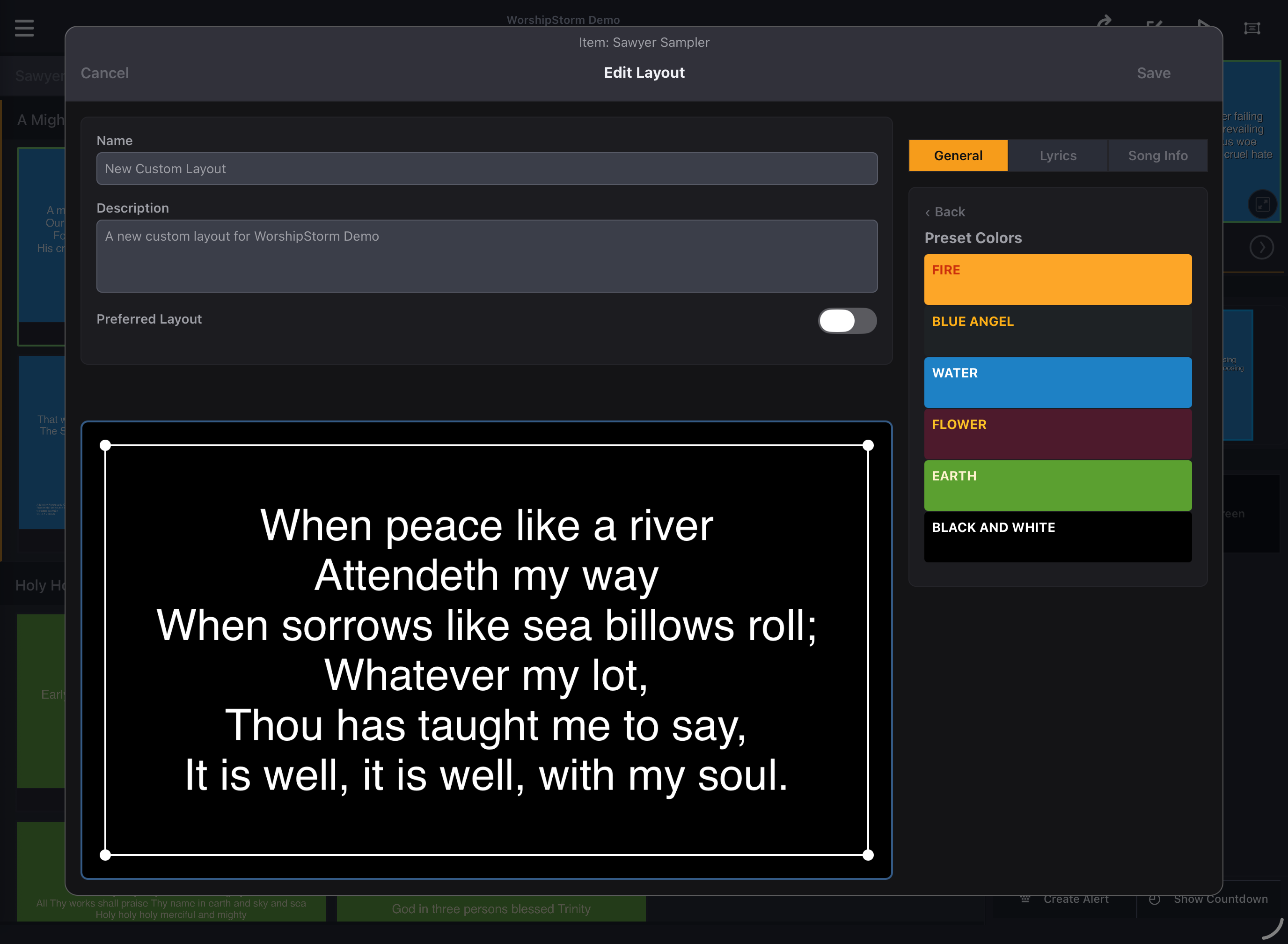
The Preset Color options allow you to choose from a few themes we’ve designed. You can select one then use the other menus to customize the style and color of your text and background. I’ve selected the Earth preset, which is what I really wanted for this new Custom Layout.
Lyrics: Set Text Styles, Placement, and Modification
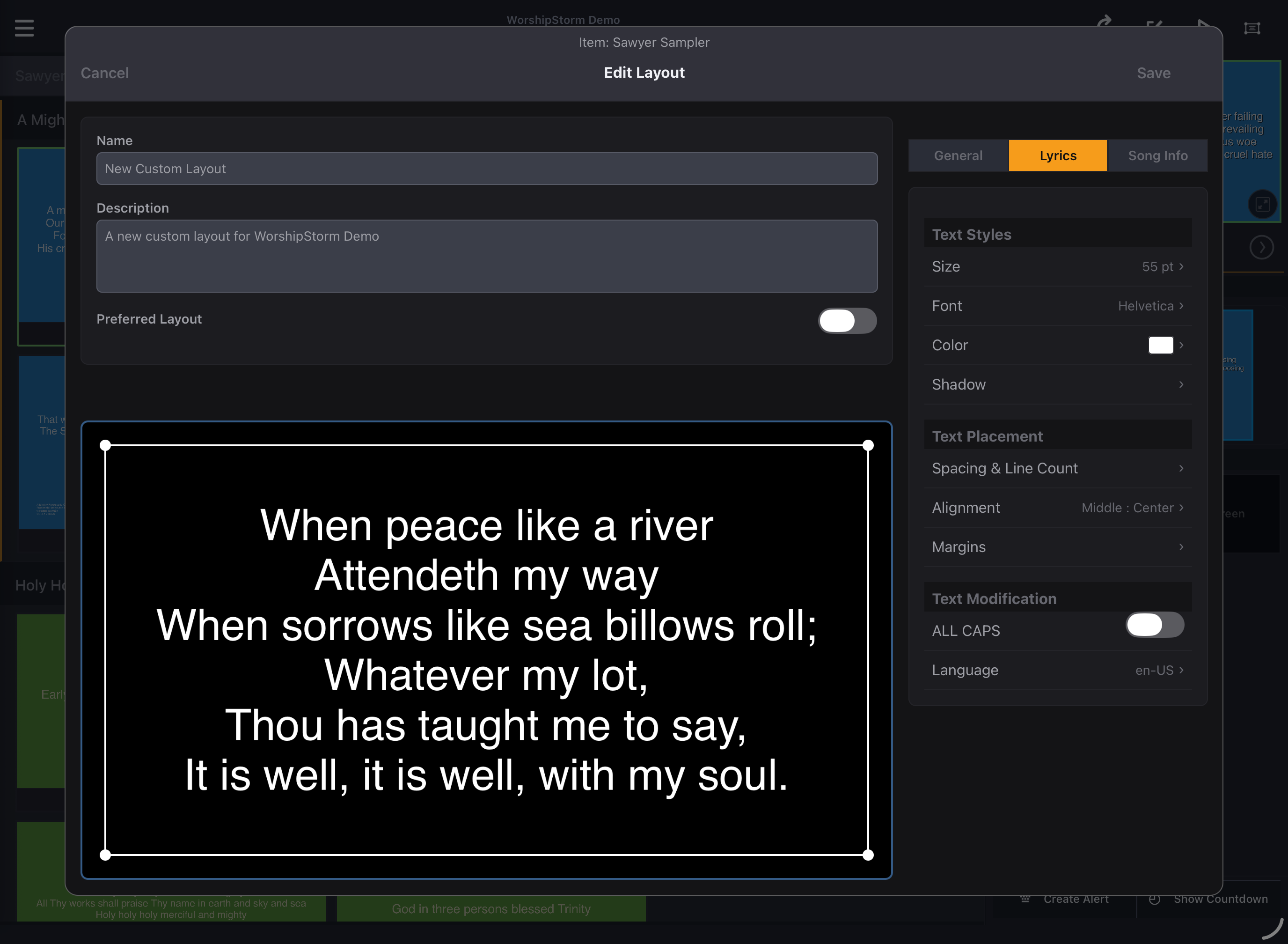
Change anything about the text of the lyrics on the slide.
-
Select the text size, font, color, and shadow for your lyrics.
-
Select the spacing as well as number of lines and where to put the text.
-
Drag the handles around the lyrics to change the margins and positioning of the lyrics or specify using the Margins tab.
-
You can cause the lyrics to be converted to ALL CAPS by selecting this setting. The default Language of your device will be used for capitalization rules, but you can also switch the rules to a different language. In this example, Romanian (US) is selected.
Song Info: Set Text Styles & Placement
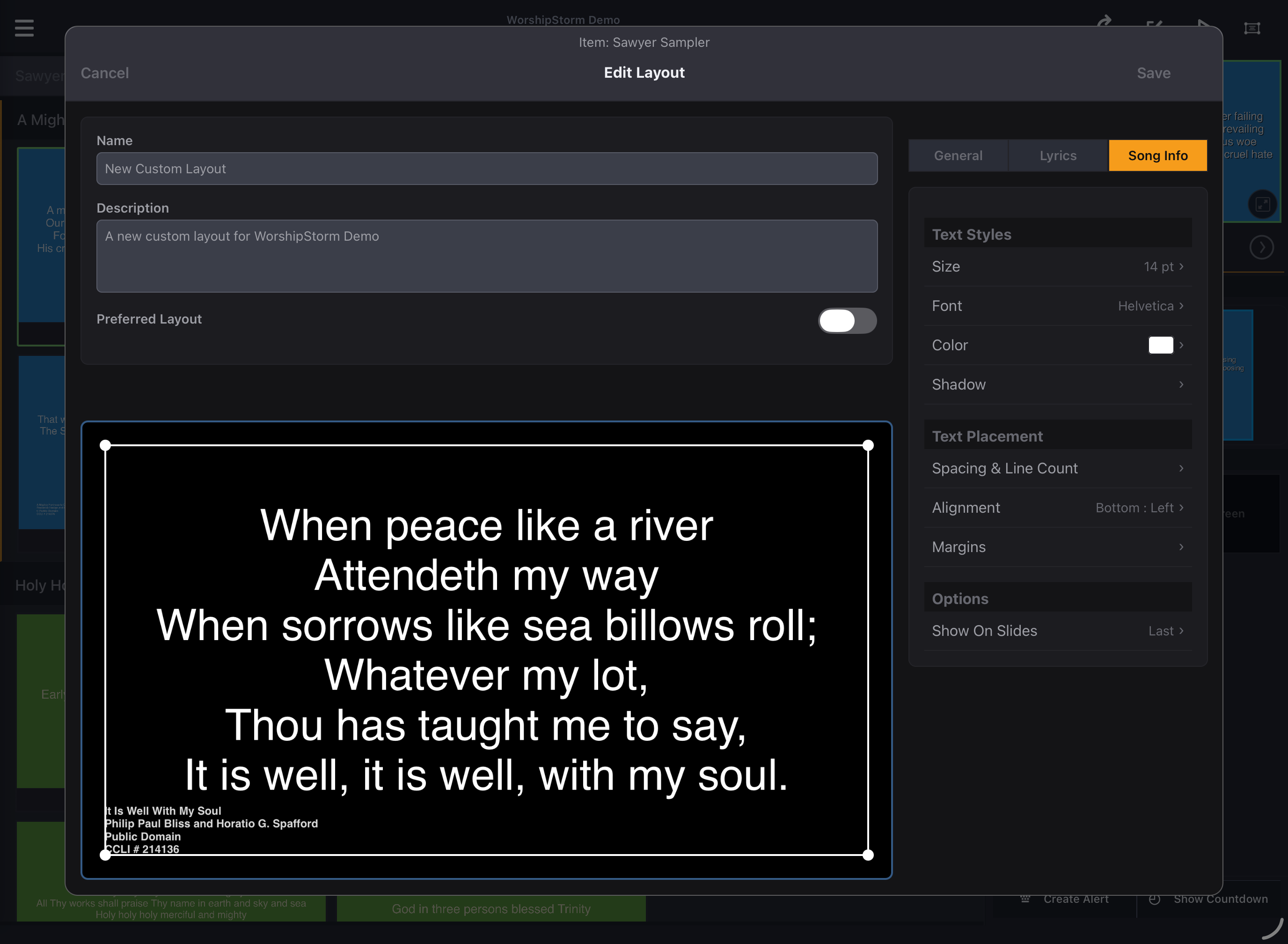
Edits options for the Song Title, Author, and Copyright Information displayed on your slides.
-
Select the text size, font, color, and shadow for the song info (composers, copyright, CCLI #)
-
Select the spacing as well as where to put the text. Song Info is always 4 lines of text (cannot change that).
-
Drag the handles around the lyrics to change the margins and positioning of the lyrics or specify using the Margins tab.
-
Select which slides should have the song information.
Once you’ve set all the information, tap Save to add it to your Custom Layouts.
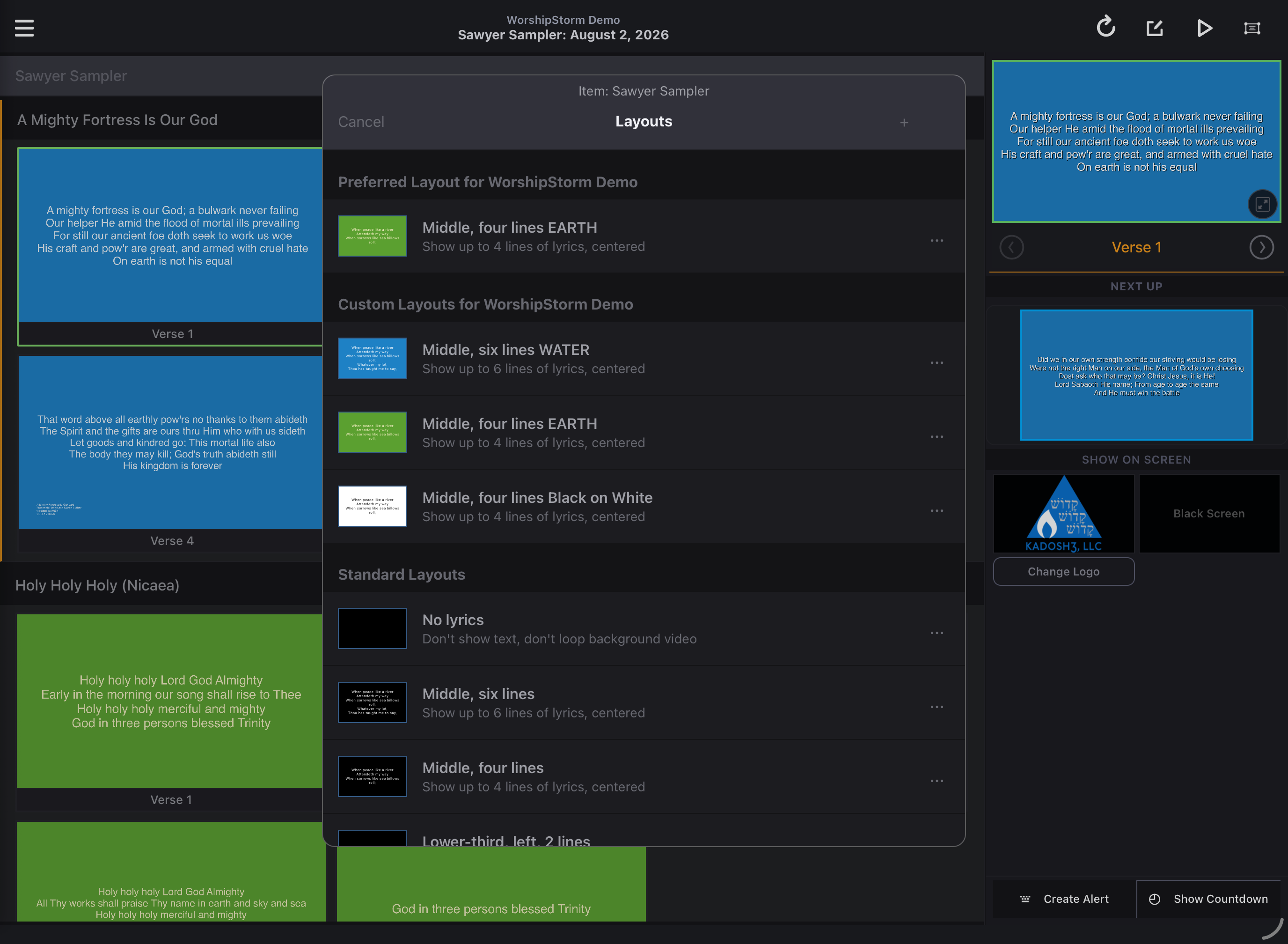
- If you changed the Preferred Layout while editing the Custom Layout, the newly selected Preferred Layout will appear at the top of the list. You cannot select it - it’s for information purposes only.
- Later in this example, we’ll tap on our new Custom Layout and add it to all the items in the plan.
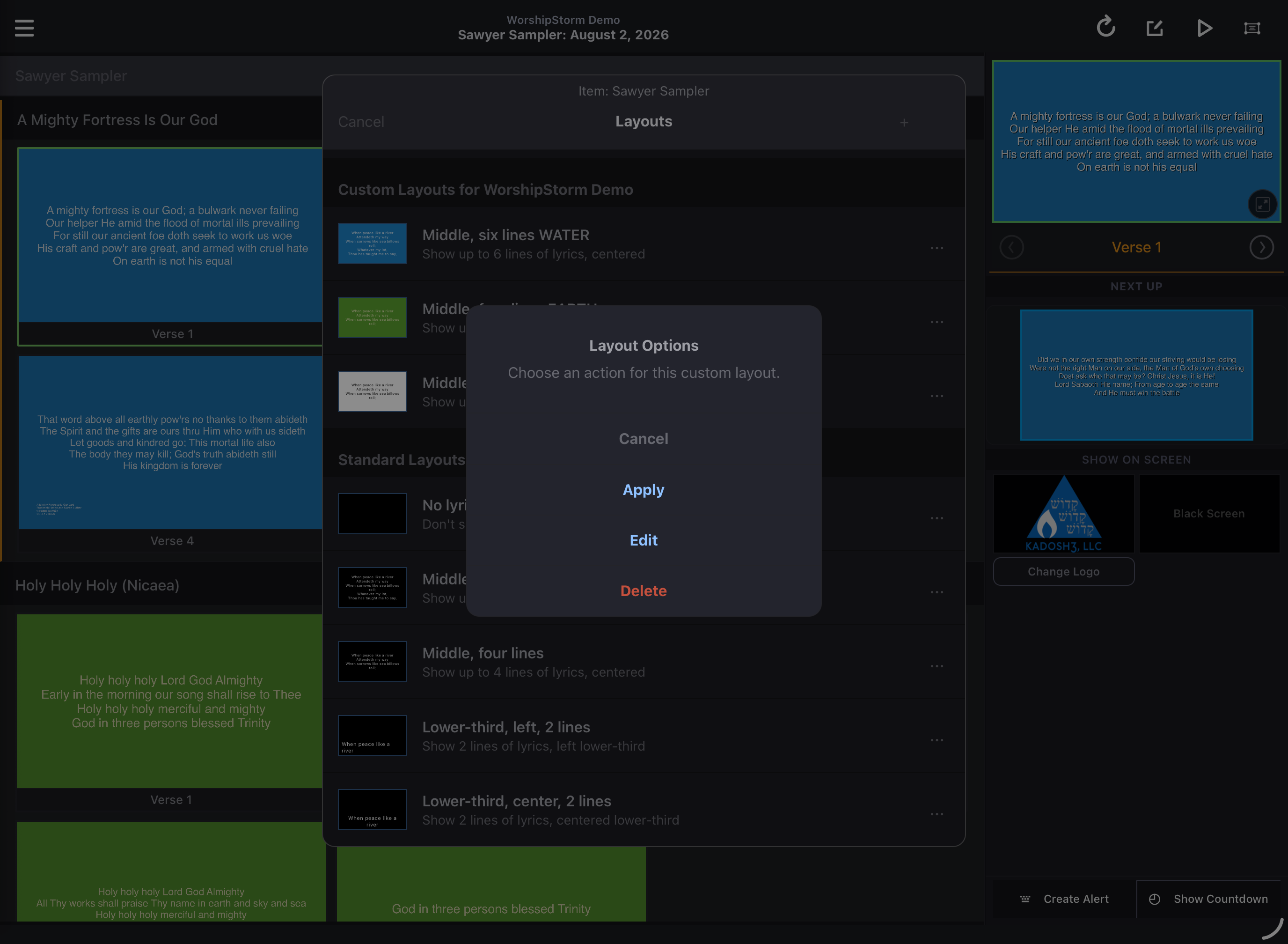
When you have tapped on a Custom Layout, you can select Apply to add it to all items, Edit to make any changes, or Delete to remove it entirely.
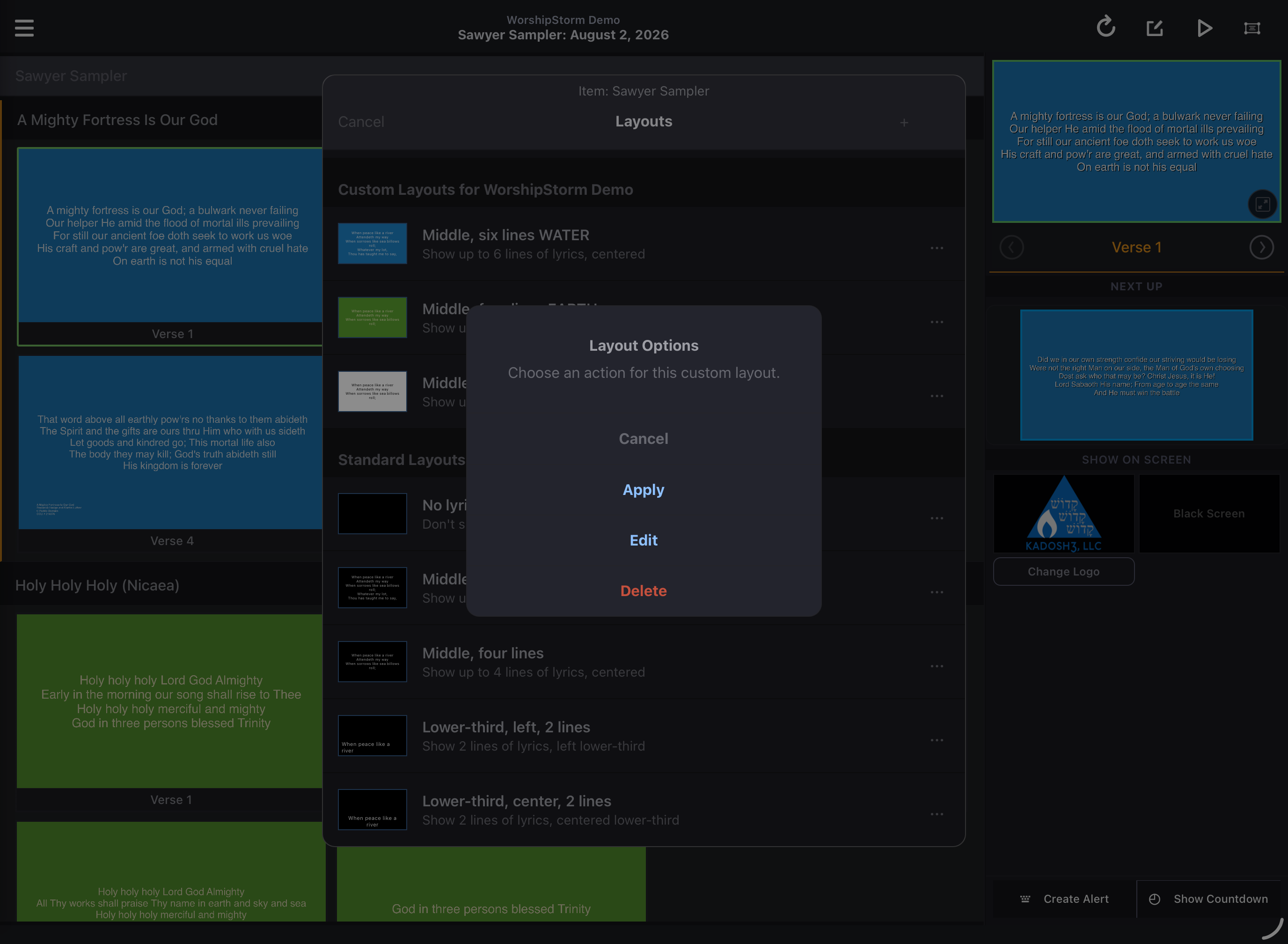
If you tap Apply, confirm you want to add the layout to all the slides in your plan.
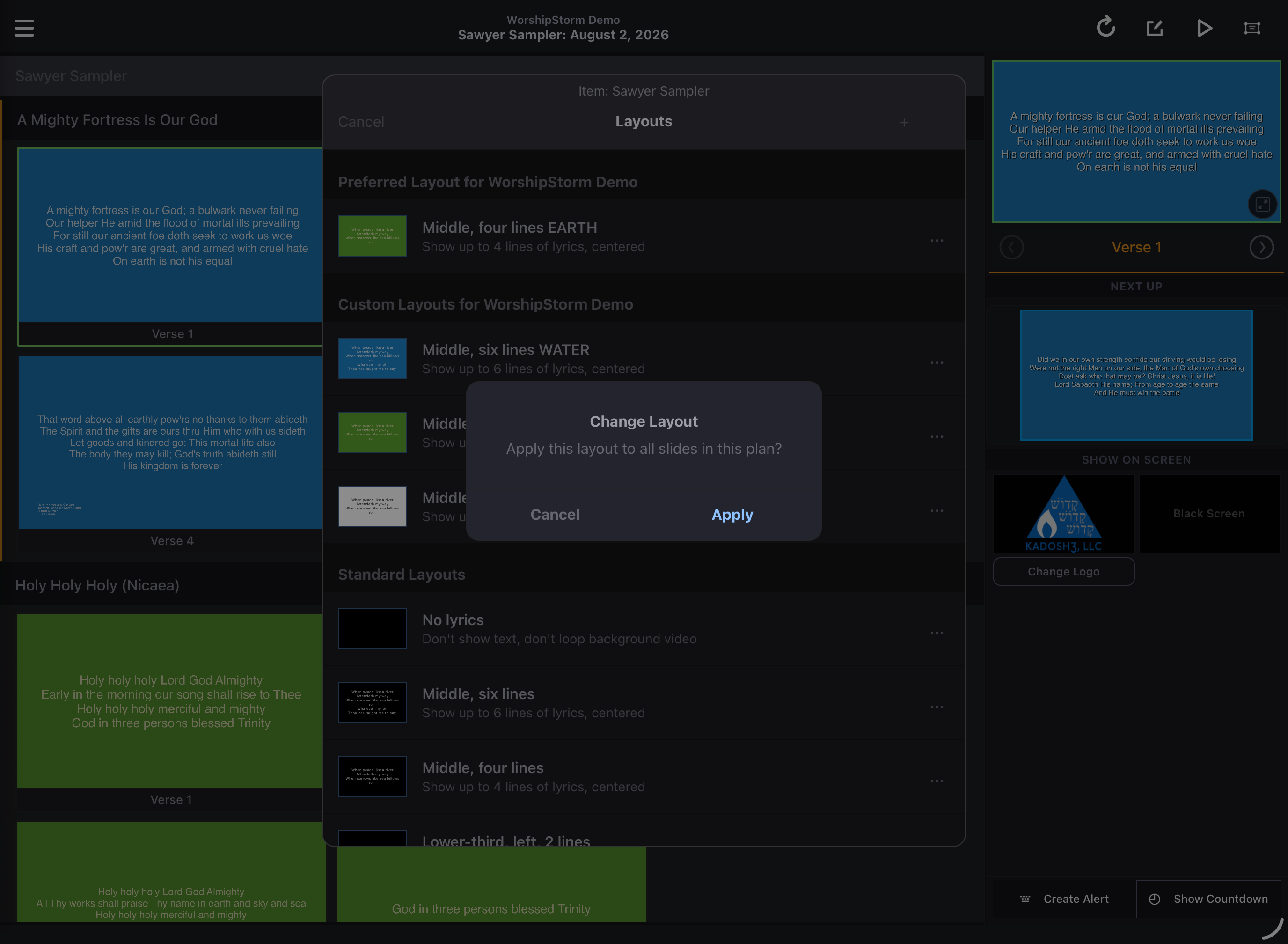
All slides will be updated with your new layout.
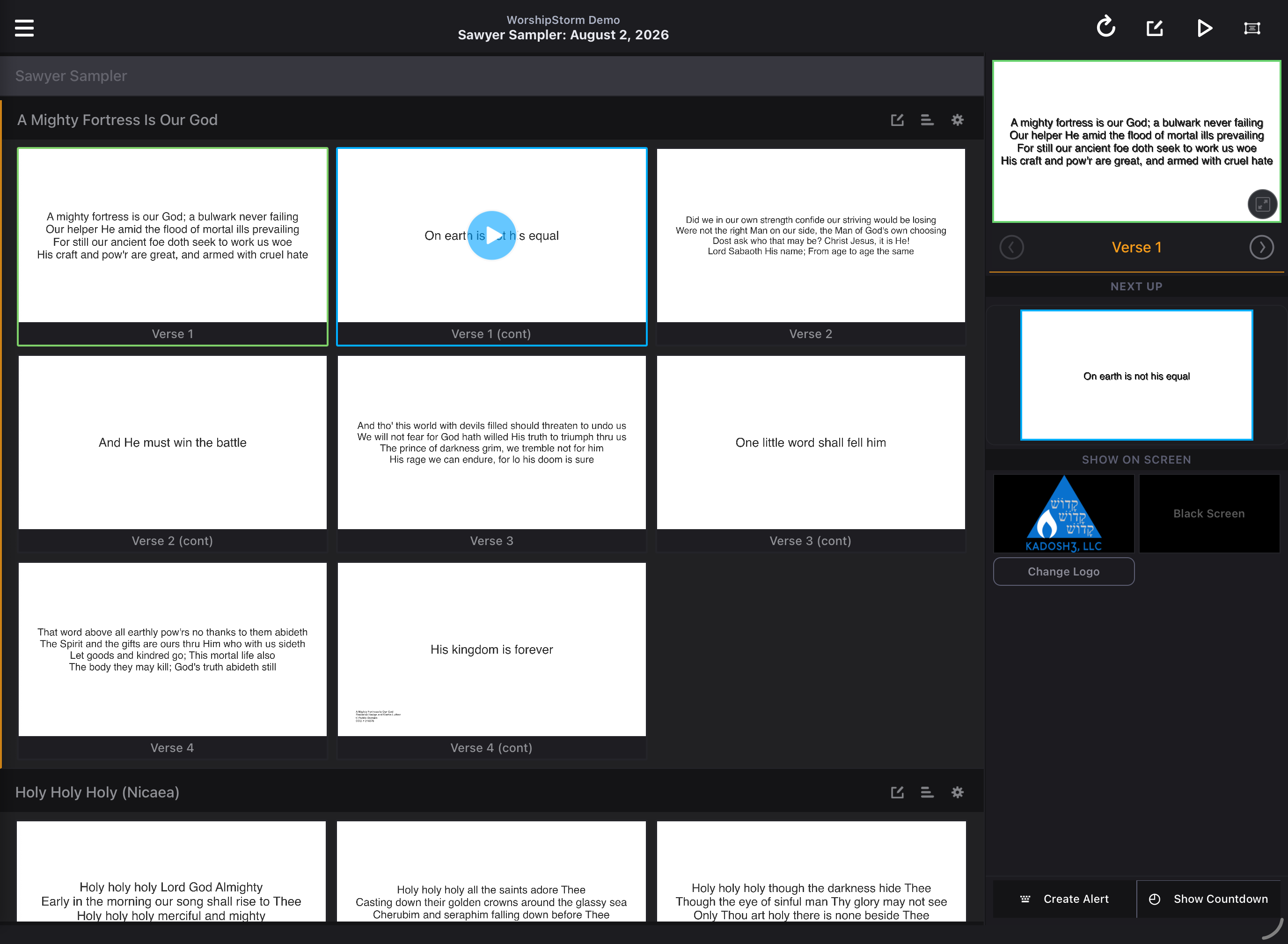
You can apply a layout to just one set of slides instead of the whole plan as well.