
Setting Slide Backgrounds
Each item in Projector Plus can have its own image, audio, video or slideshow background. Video backgrounds for Song Items will automatically loop.
Tap the settings icon to the right of any item
Tap the gear icon to the right of any item to open Item Settings, then tap the Selected Background row.
Add New Background (or choose existing)
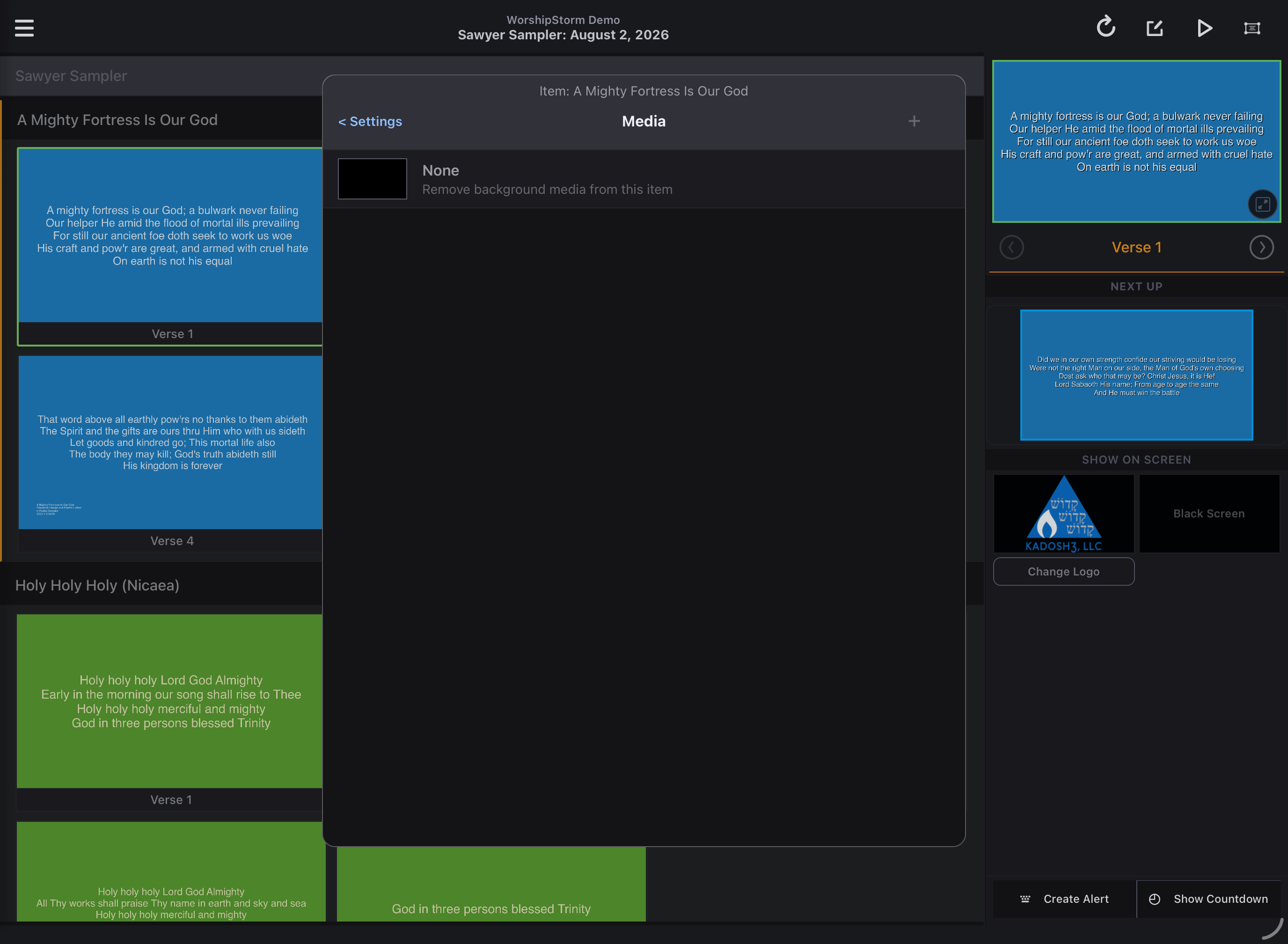
-
Any media already attached to this item will be shown here with the selected media checked. Tap a new one to select it or..
-
If you want to choose media you haven’t attached to this item, tap the plus button to attach new media from your Planning Center Media library to this item.
Choose where the media comes from
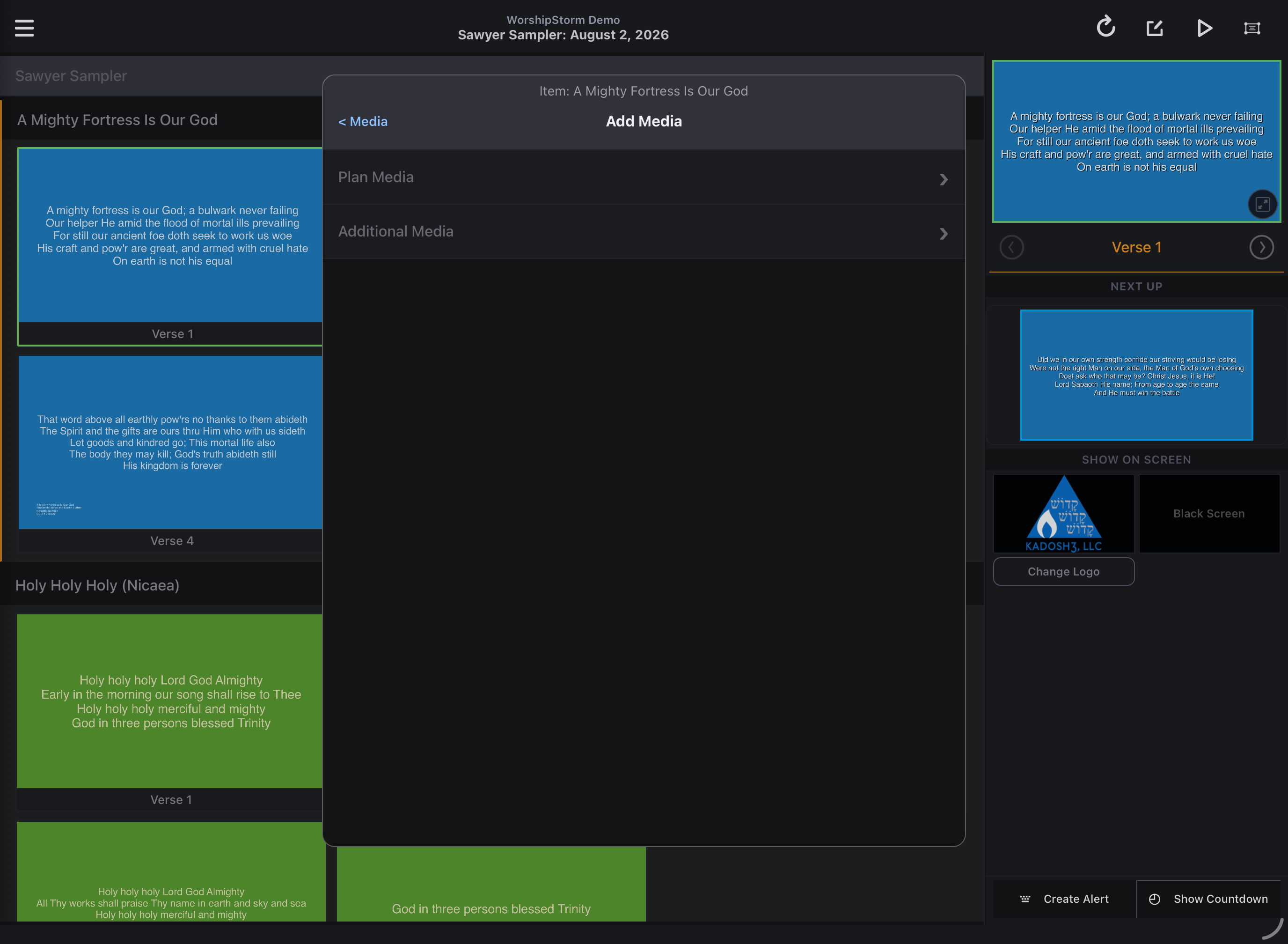
Projector Plus asks where the media should come from:
- Plan Media — everything already attached anywhere in this plan. Usually the quickest route, since it is the media your team has already gathered for this service.
- Additional Media — your organization’s wider Planning Center media library.
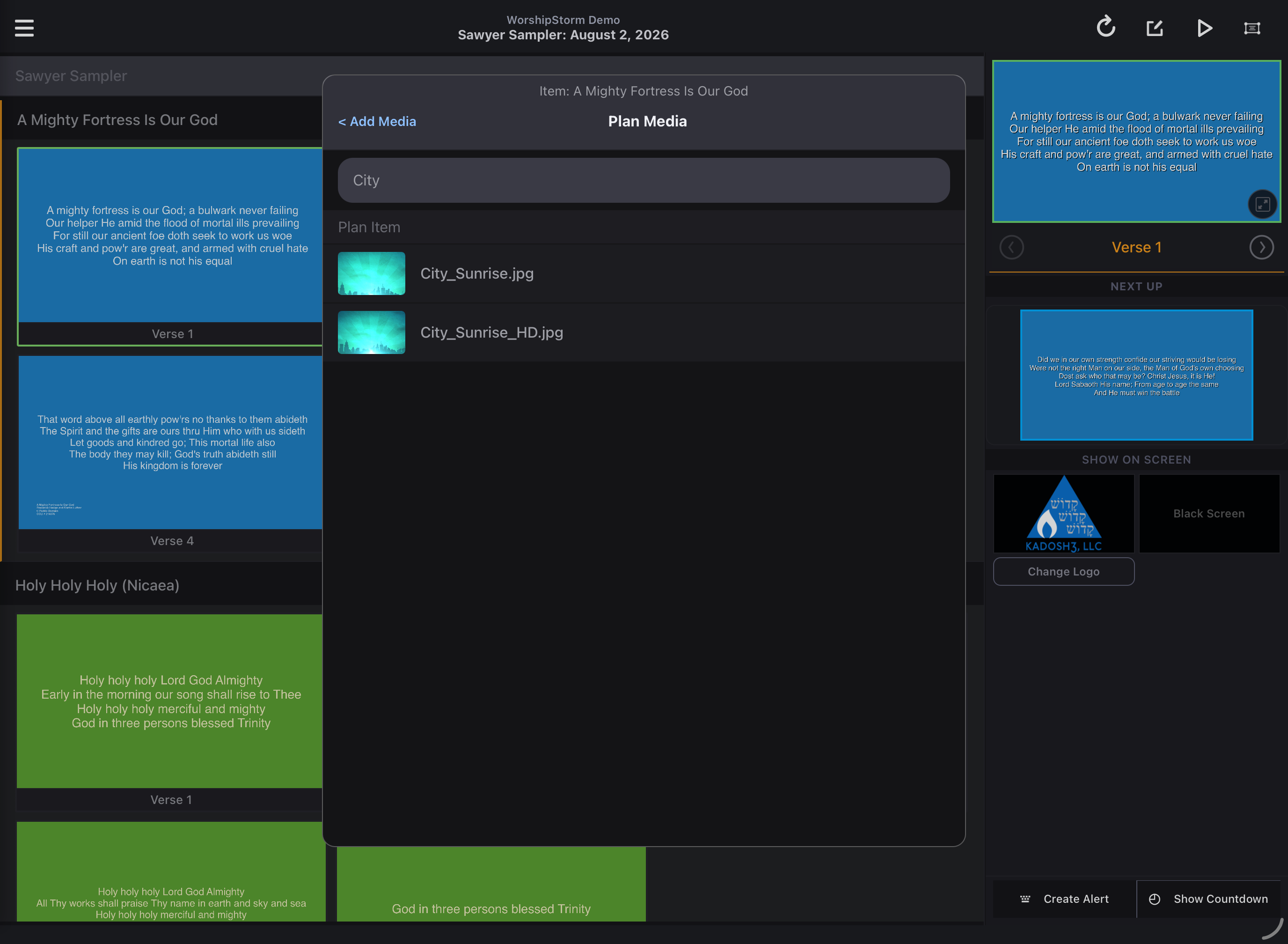
Both open a screen titled Media, so check the list itself to see which one you are in: Plan Media is grouped by plan item, while Additional Media is a grid with a result count and a Filter button.
Plan Media
The plan’s own attachments, grouped under the item each one belongs to:
Additional Media
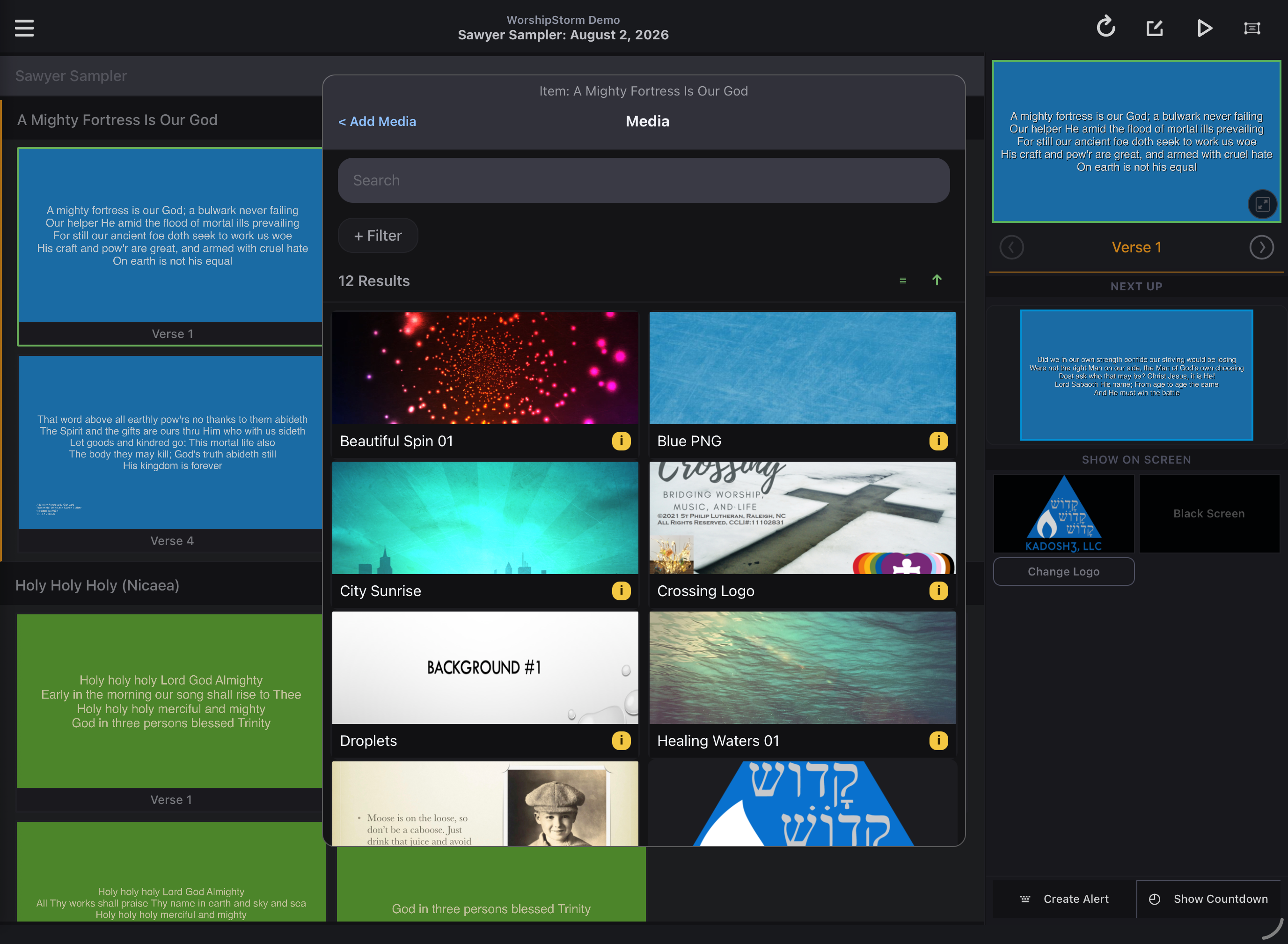
Your organization’s whole library, as a grid with a result count at the top:
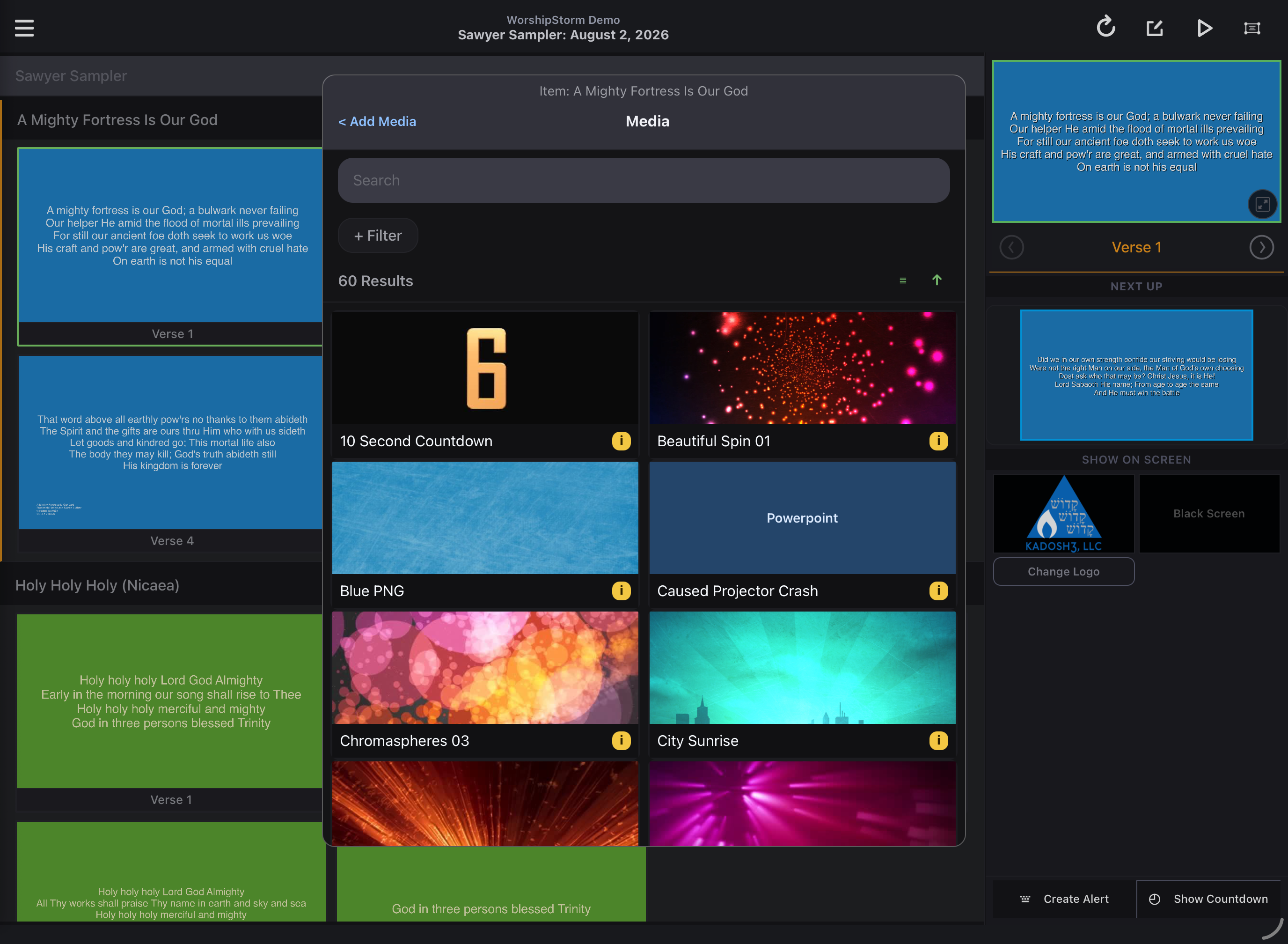
The ≡ and ↑ controls beside the count switch between grid and list, and change the sort. The i badge on each tile opens that item’s details.
Narrowing a large library
A search box matches on name, and + Filter does the rest — worth knowing about, because sixty results is a lot to scroll past when you want one background.
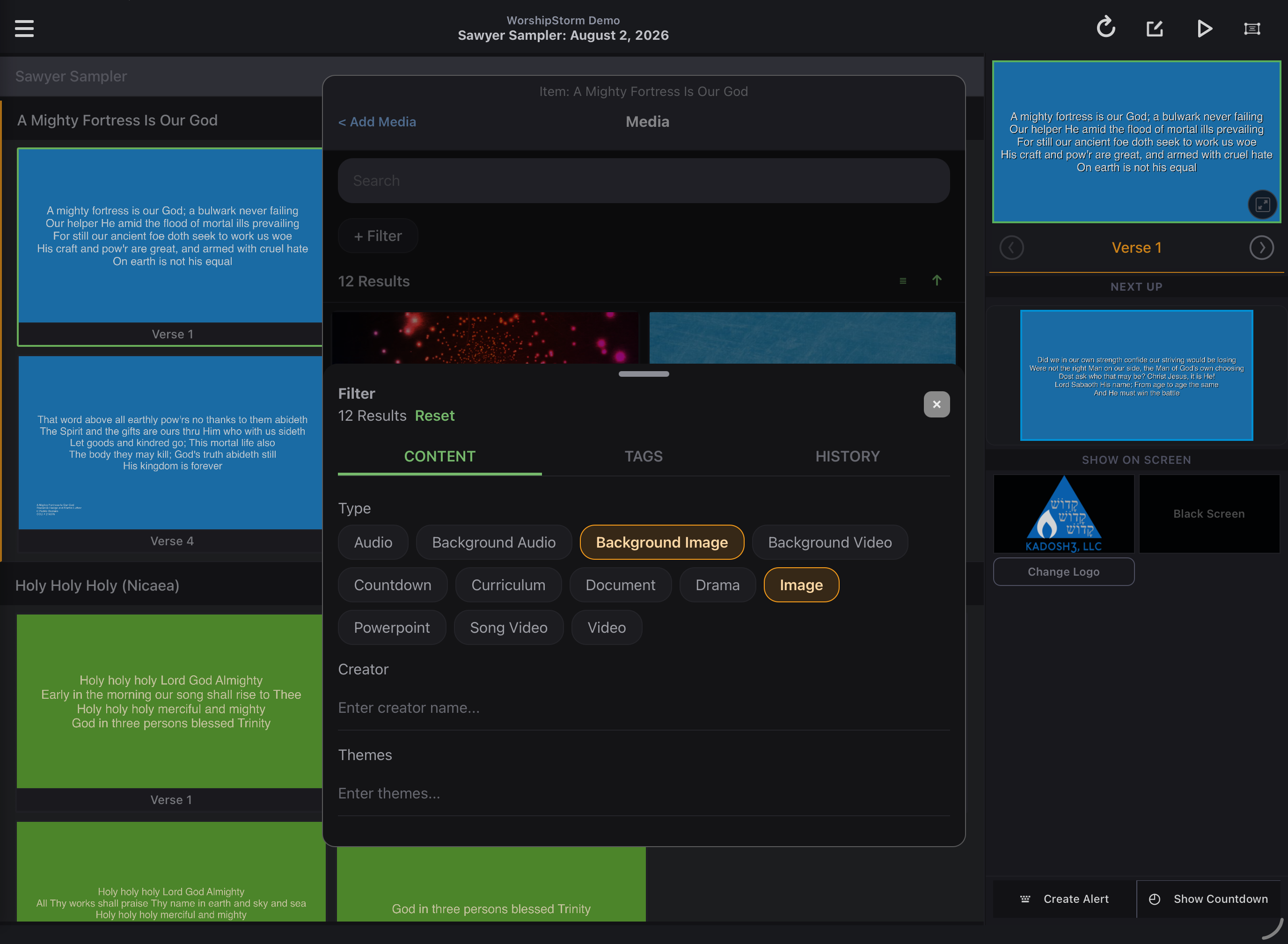
Under Content you can filter by Type — Audio, Background Audio, Background Image, Background Video, Countdown, Curriculum, Document, Drama, Image, Powerpoint, Song Video, Video — and by Creator or Themes. There are also Tags and History tabs. Selections combine, and Reset clears them all.
Watch the result count as you go. It updates live, at the top of the sheet as well as behind it, which is how you can tell a filter did something before you close the sheet:
Choose Media
Tap media to select it. Any media that is NOT on your device will have to be downloaded from the server. Items already stored on your device will be available immediately.
Save the Changes
When you have finished selecting the new item background, tap Save (upper right) to apply that background to the item slides. You can abandon the change by tapping Cancel (upper left). The item slides will automatically be refreshed with the newly selected background.
Audio file as background for Custom Slides deck
If you make an audio file the background for an item that has Custom Slides defined, that audio file will play when the first slide is presented and continue to play as the slides are shown. This is how you have background music playing over a manually created (Custom Slides) slideshow deck.
Pair this with Slide Looping to have the deck advance on its own while the audio plays.