Editing Song Sequences
Every Song Arrangement has its own sequence. Sequences link with lyrics to display slides in the right order. This lesson will show you how to edit sequences in Projector Plus to display your lyrics in order. First you’ll need to make sure you have Lyrics entered.
Tap the Sequence Viewer icon
The Sequence Viewer icon is available for items. If you don’t see this button, most likely you have added a Header item and not a regular or song item.
Adding, Deleting, and Item vs. Arrangement
-
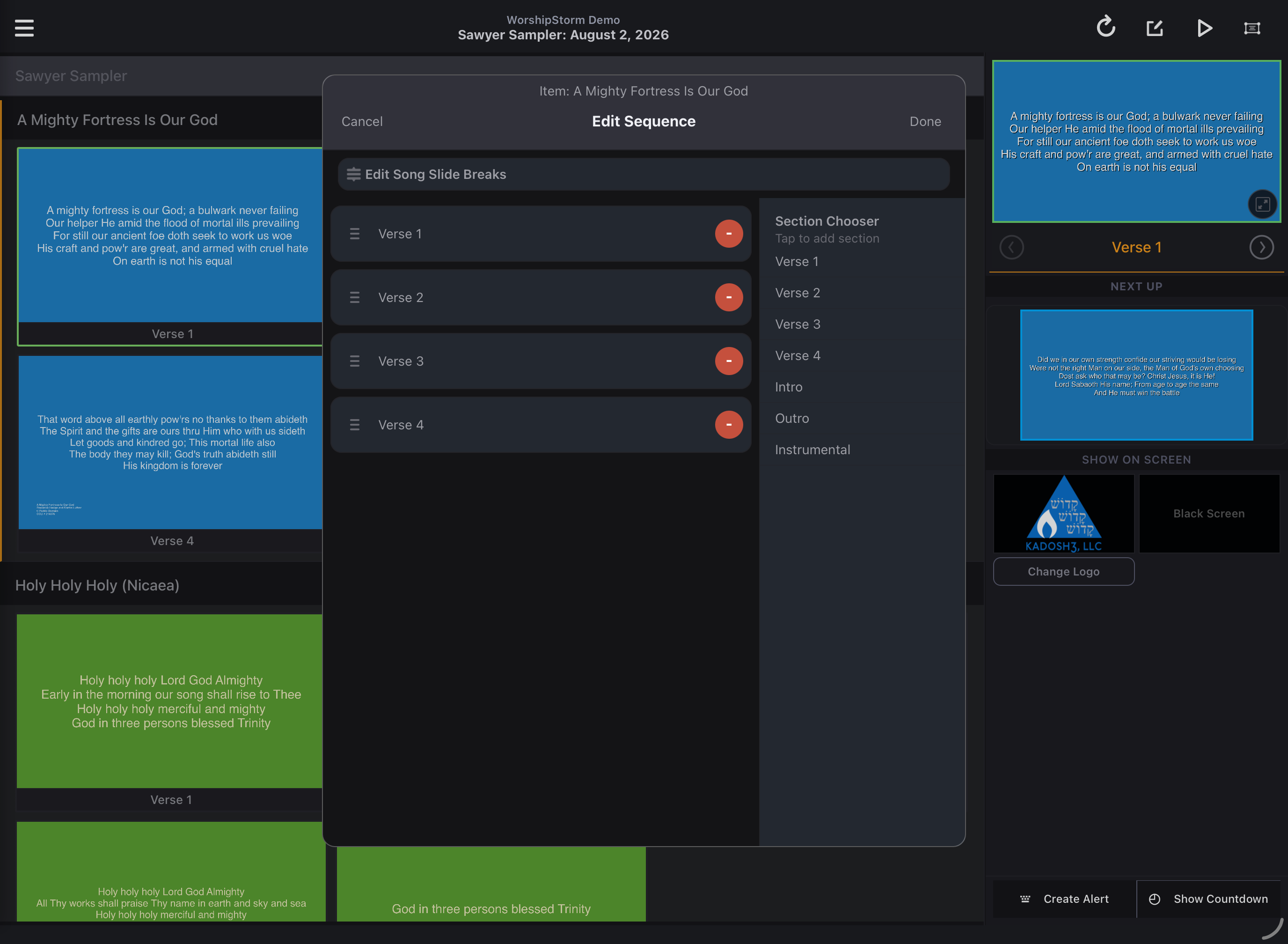
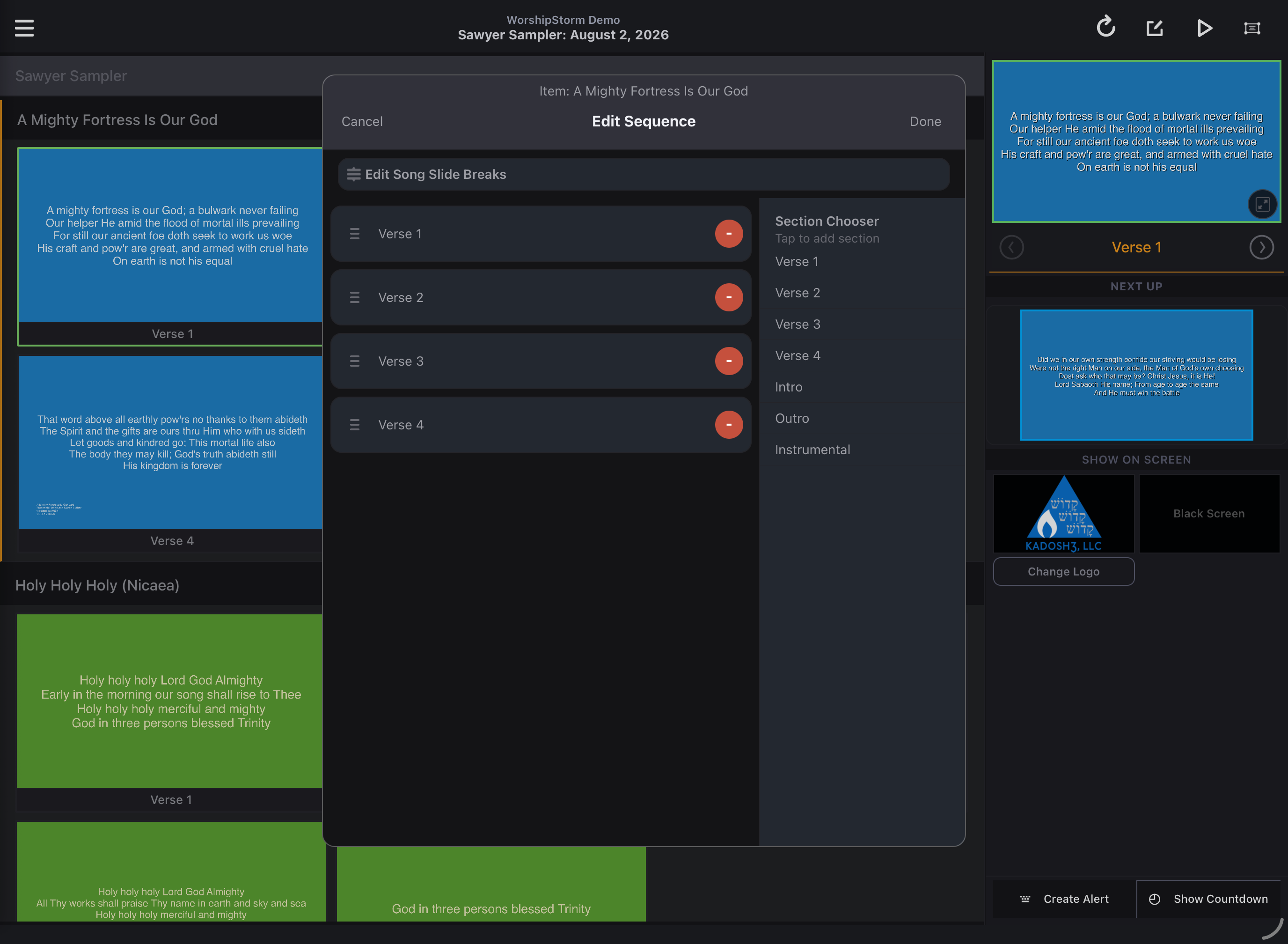
Your current sequence is listed on the left, with the Section Chooser alongside it on the right.
-
To add a section, tap it in the Section Chooser, or drag it across onto your sequence.
-
Use the drag handles to the left of each section to move it up or down in your sequence.
-
Tap the red ‘minus’ symbol, then tap Delete to remove a section from your sequence.
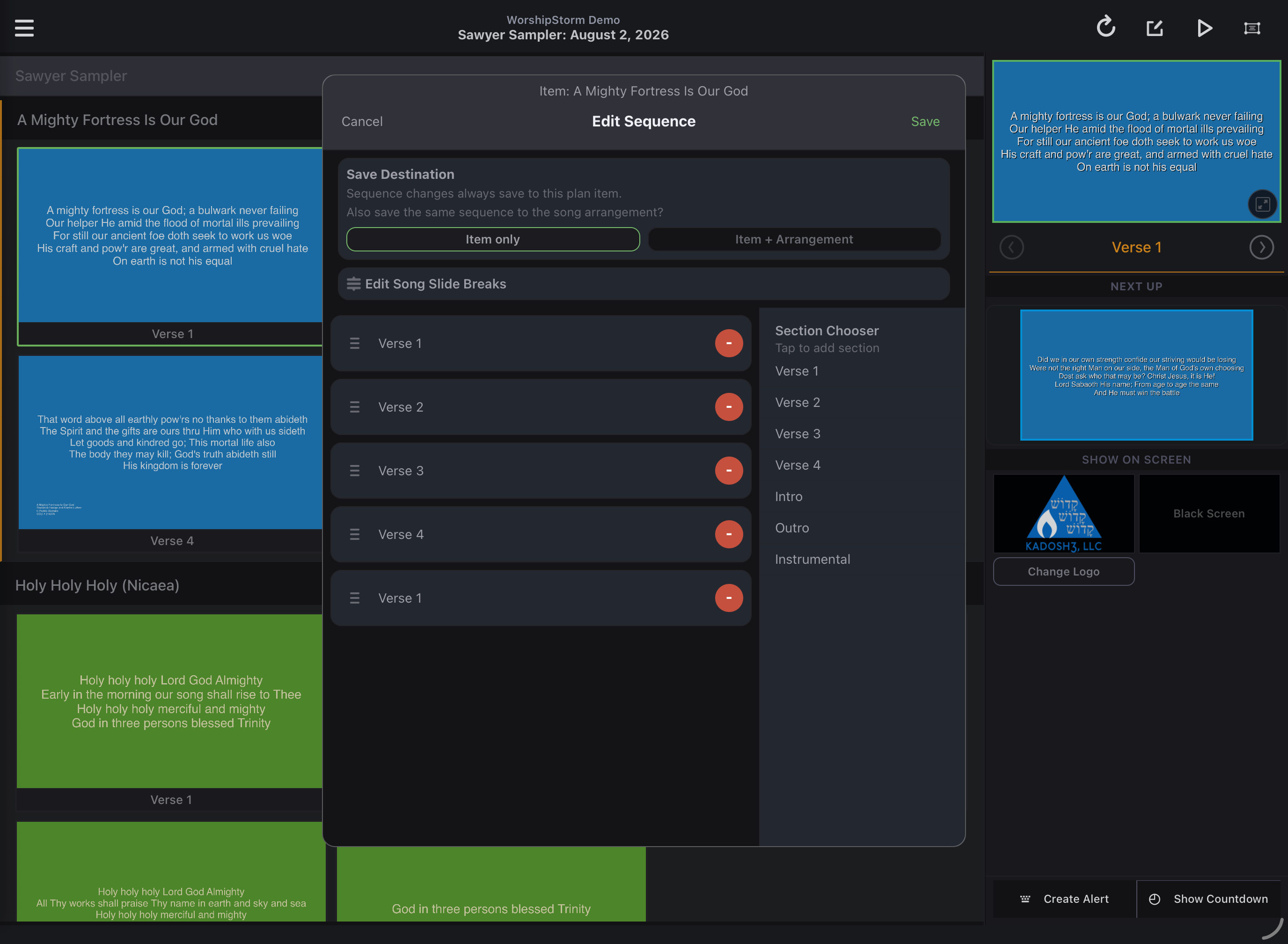
Where your changes are saved
Under Save Destination, Projector Plus tells you:
Sequence changes always save to this plan item.
So this is not an either/or choice — your edit always applies to the item you are working on. What you can choose is whether it also goes further:
Also save the same sequence to the song arrangement?
Turn that on when you want the arrangement itself updated, so future plans using this arrangement start with the same sequence. Leave it off for a one-off change to this service only.
The sections available in the section chooser come from your lyrics file and also always include Intro, Outro and Instrumental. If you would like a new section available, edit your lyrics and add that section in by typing it. When you come back to the sequence editor, the new section will be available.
Save
Tap Save at the upper right when you are done, and slides are updated using your new sequence. If you want to abandon changes you made, tap Cancel (upper left).
The button reads Save only while you have unsaved changes — if it says Done, there is nothing pending and you can leave the screen safely.