
An Introduction to Presenting Lyrics with WorshipStorm Projector Plus
WorshipStorm Projector Plus runs on iPhone and iPad and in a web browser, with an Android app coming, and connects directly to your PCO Services account to turn your videos, lyrics & slides into presentations. Open Projector Plus, select one of your dates, and slides are created and ready for presentation!
Add & Edit Your Song Lyrics From PCO Services
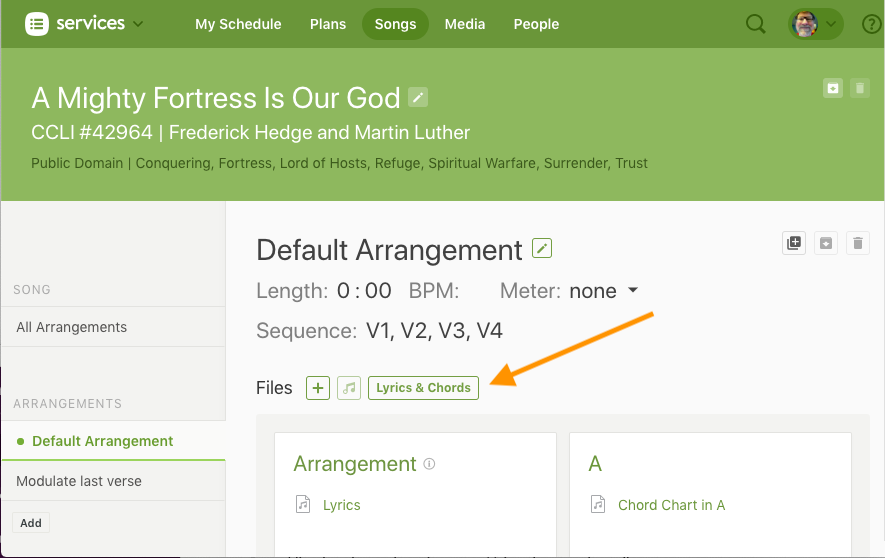
• Projector Plus is designed to present any lyrics you add into the Lyrics & Chords Editor on your song’s “Arrangment” page in PCO Services.
• If you already use this feature to create chord charts, you’ve already done 90% of the work, because Projector Plus will simply use those & strip out the chords to instantly create lyric slides for you.
To edit any of these lyrics from the app, see this article here.
Customize Slides Using Special Codes
You can use what Planning Center calls, “Special Codes”, in the Editor screen to do a little bit of customization that will only affect your slides and not your Lyric or Chord sheets, such as forcing a line break. See the PCO Services article here about “Special Codes for Lyrics, Chords & Slides”.
Organize Your Slides With A Sequence
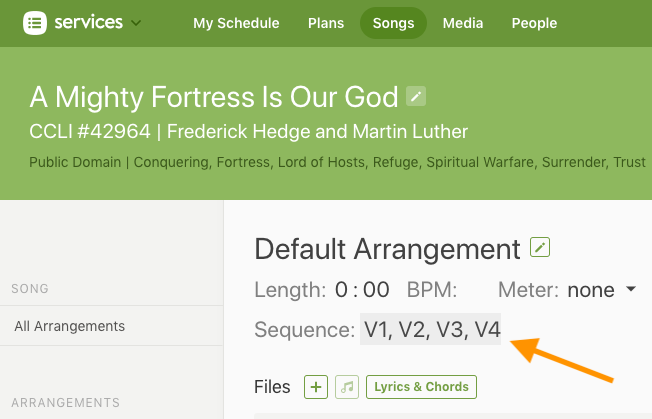
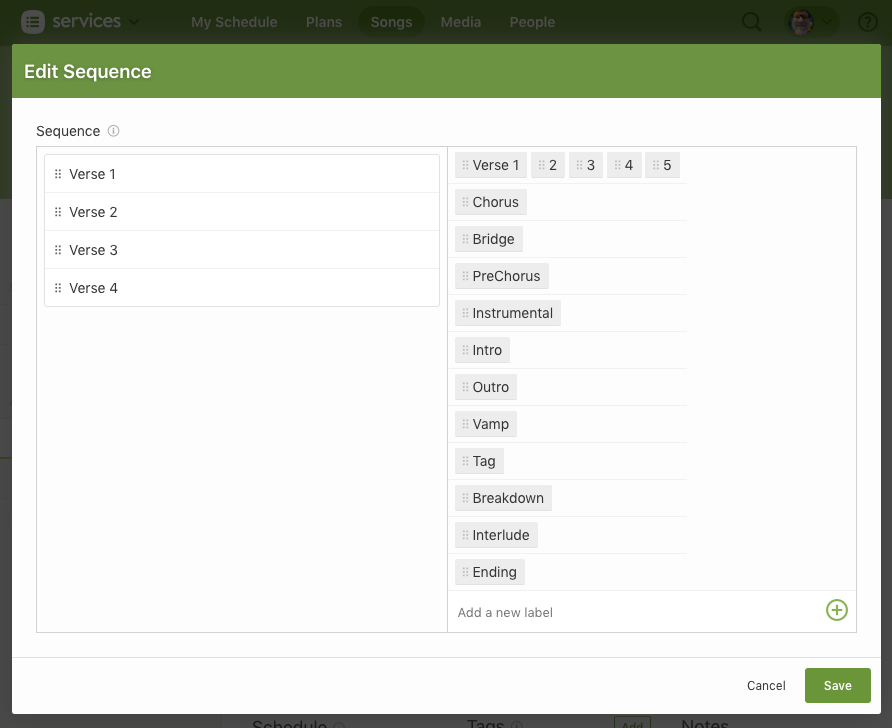
• Add your song’s sequence (roadmap) to the “Song Arrangement” page, to tell Projector Plus how to organize your lyric slides. Click “Create” (if no Sequence exists) or click the existing Sequence to edit.
• See the PCO Services full article on “Song Sequences” here.
• To edit the song’s sequence from the app, see Editing Song Sequences.