
Working offline
Church internet fails at inconvenient moments. Projector Plus is built so that a service already loaded onto your device keeps running when it does.
What works offline
Once your plan and its media are on the device, you can present without a connection:
- Start Projector Plus offline on a plan it has already cached — you do not have to have been online when the app launched
- Browse the loaded plan and move through its slides
- Show backgrounds, video and audio that have finished downloading
- Send output to an external display or over AirPlay
- Use the logo and black-screen buttons
- Show alerts and the service countdown
The presentation itself does not depend on the internet. If the wifi drops during the first song, keep going.
What needs a connection
| Why | |
|---|---|
| Loading a plan for the first time | The plan and its media come from Planning Center |
| Downloading media | Anything not yet on the device |
| Streaming media | YouTube, Vimeo and streaming links are deliberately never downloaded |
| Editing anything | Lyrics, slide breaks, sequences and custom slides all write back to Planning Center |
| Quick Song | It searches your whole song library |
| Sessions | Devices have to reach each other |
| Congregant Viewer | It refuses to start offline rather than showing a join code that could never work |
| Support requests | They upload logs |
| Subscription status | Cannot refresh offline — so a subscription bought moments ago will not appear until the device is back online |
How Projector Plus tells you
An Offline badge appears in the plan header whenever Projector Plus cannot reach the internet. It is deliberately small — it is there to explain, not to alarm you mid-service.

If you tap something that needs a connection, you get a plain message naming what you tried:
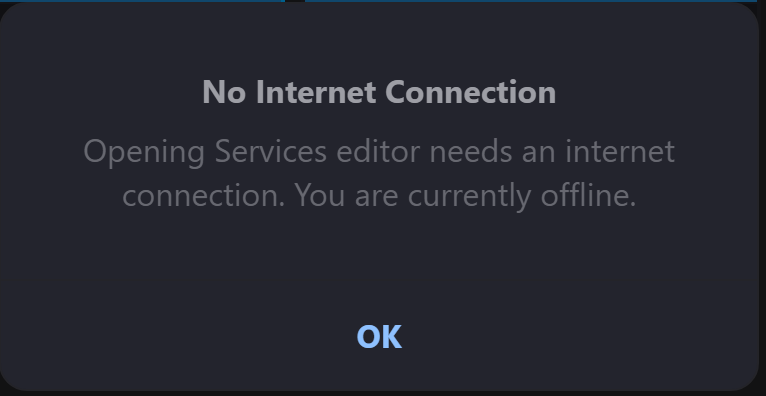
No Internet Connection
[What you tried] needs an internet connection. You are currently offline.
Nothing is broken and nothing is lost — the action simply cannot run yet.
Preparing for a service
The reliable approach is to load the plan while you still have a connection, ideally before people arrive rather than as the service starts.
- Open the plan you are presenting.
- Let the media finish downloading. Projector Plus shows download progress on the plan screen, on each item, and per background in item settings — wait for it to settle.
- Once it is quiet, everything you need is on the device.
When the connection comes back
Projector Plus notices on its own. The Offline badge disappears, downloads resume, and subscription status refreshes within seconds. There is nothing to restart and no need to sign in again.
If something still looks stale on one device, check that it is genuinely back on the network — a device connected to wifi that has no internet behind it will look online to the operating system.