
Signing in and out
Projector Plus signs in with your Planning Center account. There is no separate WorshipStorm password to create or remember.
Everything you see — plans, songs, media — comes from Planning Center, and your permissions there decide what you can do here.
Signing in
Tap Log in and sign in with Planning Center. Projector Plus never sees your password; Planning Center handles that and tells us only that you are who you say you are.
Sign-in happens slightly differently per platform, which matters mainly for password autofill:
| Platform | Where sign-in happens |
|---|---|
| iPhone / iPad | A secure Safari sheet, so your saved Planning Center password is offered — and a new password can be saved back to your keychain |
| Android | A secure web view that works with Android’s autofill |
| Browser | A normal browser window, with whatever password manager you already use |
Staying signed in
You stay signed in between services. Projector Plus refreshes its access to Planning Center quietly in the background, so a volunteer arriving on Sunday should find the app ready rather than asking for a password.
A brief loss of network does not sign you out.
Signing out
Sign out from Settings. This clears Projector Plus’s access on that device.
On iPhone, iPad and Android
That is all there is to it. Signing out is complete.
In a browser or installed web app
Signing out of Projector Plus does not end your Planning Center Services session in the browser, because we cannot clear another site’s session for you. If someone else uses the same browser afterwards, they could still reach Planning Center.
So after signing out, Projector Plus offers to help:
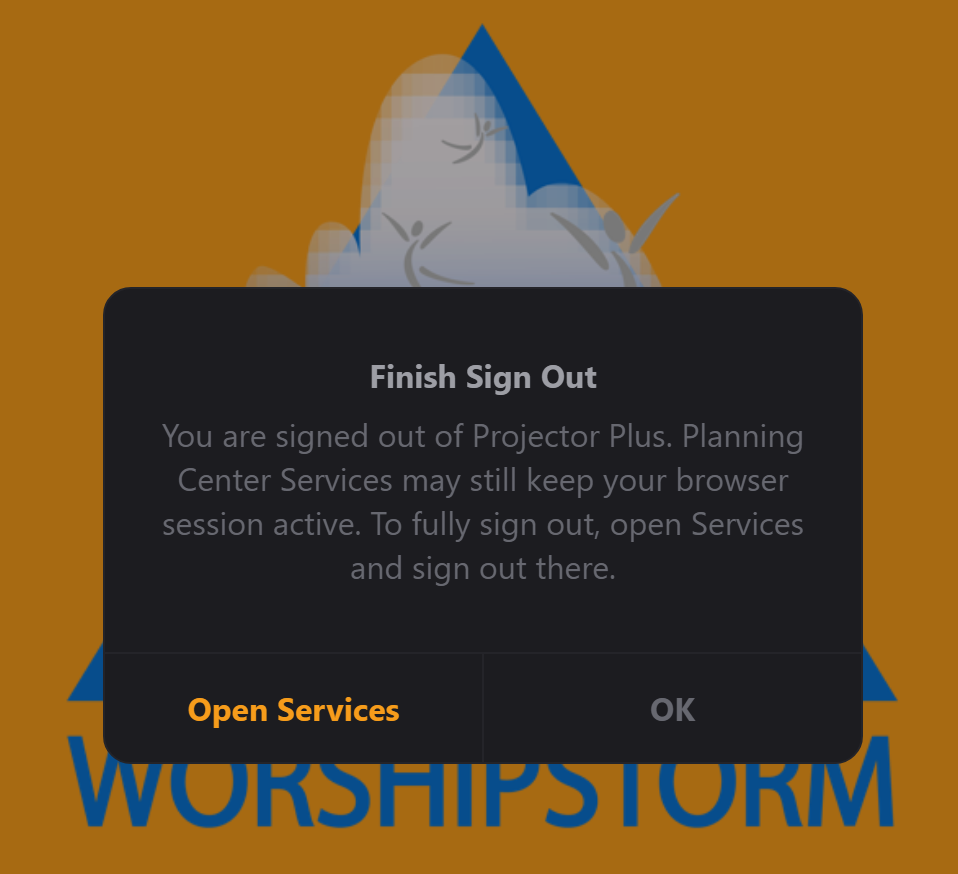
On a shared or public computer, use Open Services and sign out there too. On your own laptop, staying signed in to Planning Center is usually what you want, so OK is fine.
What “Open Services” does
This varies by how you are running Projector Plus, and both outcomes are normal:
- Installed as an app — Services opens in its own window, offset slightly down and to the right of Projector Plus so you can see it belongs to it. Some browsers give that window a title bar showing the address; others show no chrome at all. Sign out, close the window, and Projector Plus is still there behind it.
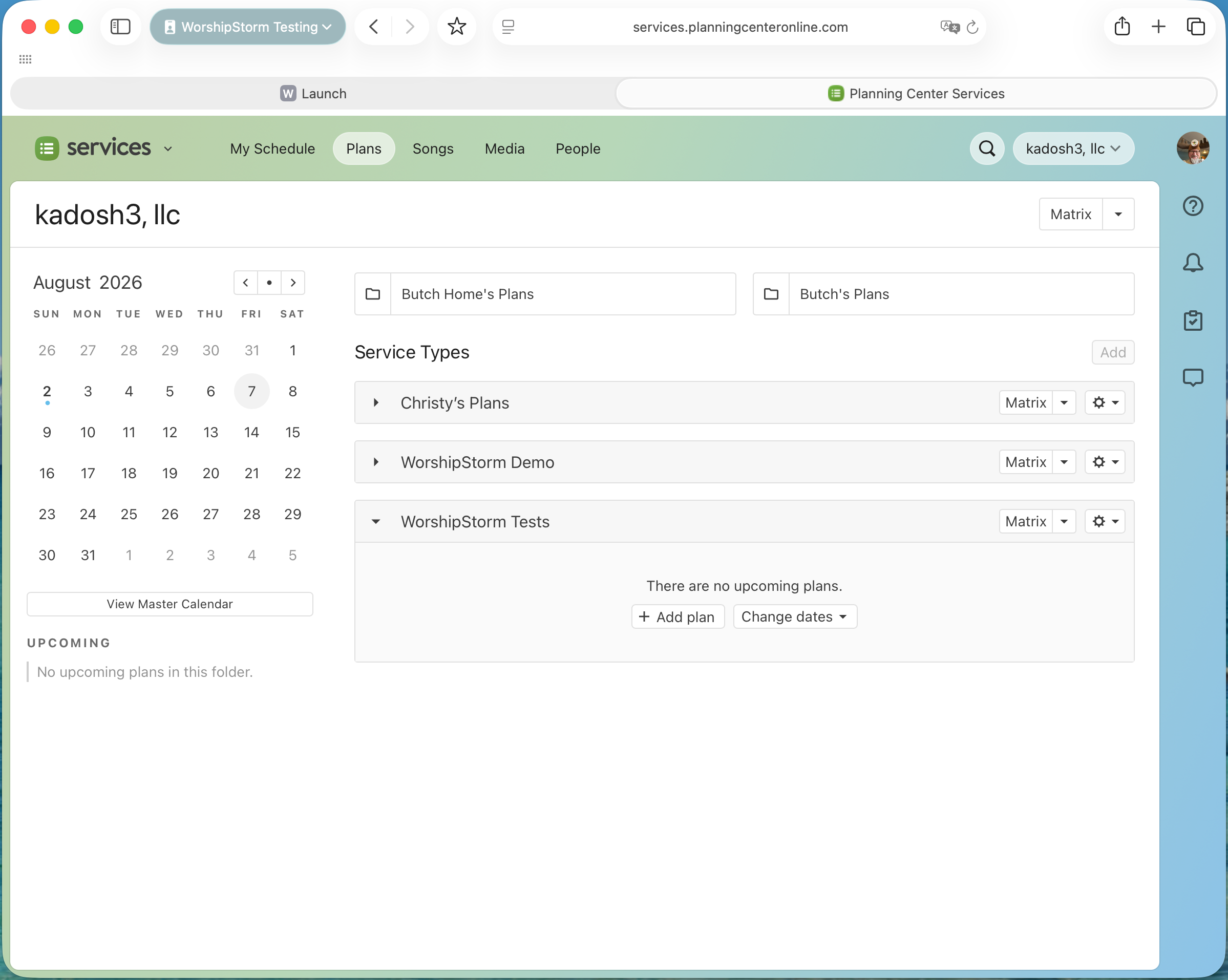
- In a browser tab — Services opens in a new tab. Sign out there, then close the tab.
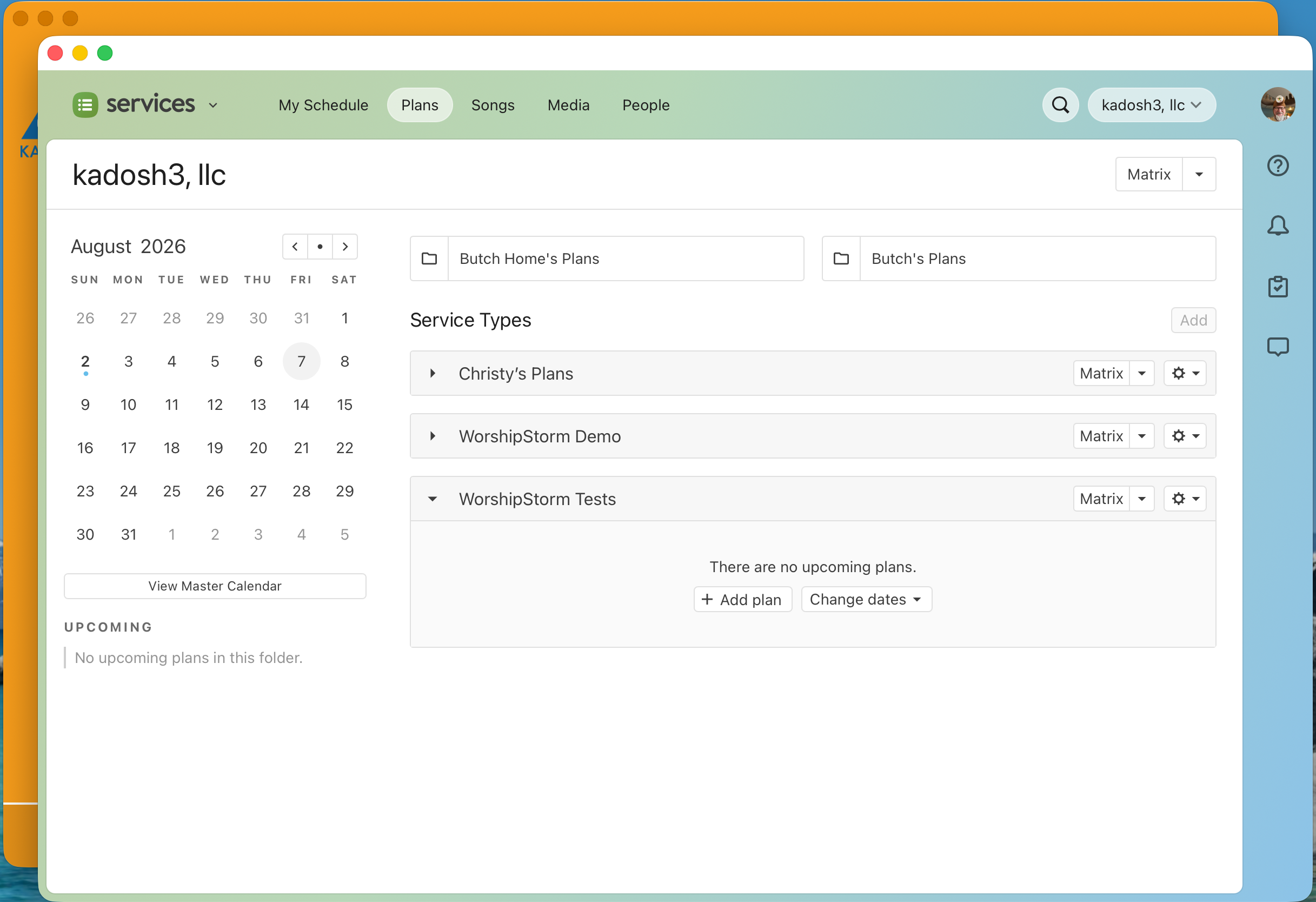
In an ordinary browser it is simply the next tab along:
Either way you stay signed in to Planning Center in that window, so the sign-out you do there is the real one.
Switching accounts or organizations
Your organization comes from your Planning Center account, so to work with a different one, sign out and sign back in as a user of that organization.
If you belong to more than one Planning Center organization, note that the subscription is per organization — see Subscription lifecycle.
If sign-in fails
- Check the account works in Planning Center itself — sign in at https://services.planningcenteronline.com in a browser. If that fails, the problem is with the Planning Center account rather than Projector Plus.
- Check your internet connection. Sign-in cannot work offline, even though presenting a downloaded plan can.
- Check your permissions. Signing in successfully but seeing no plans usually means the account does not have access to the service types you expect. A Planning Center administrator can check this.