Sessions: Syncing multiple devices
Sessions let you run one device as the host and connect others as clients. When you change slides on the host, every connected client follows. A client can show the same output as the host, or a confidence view for your on-stage musicians.
Any devices running Projector Plus can join the same session — an iPhone, an iPad and a browser can all be in the same one.
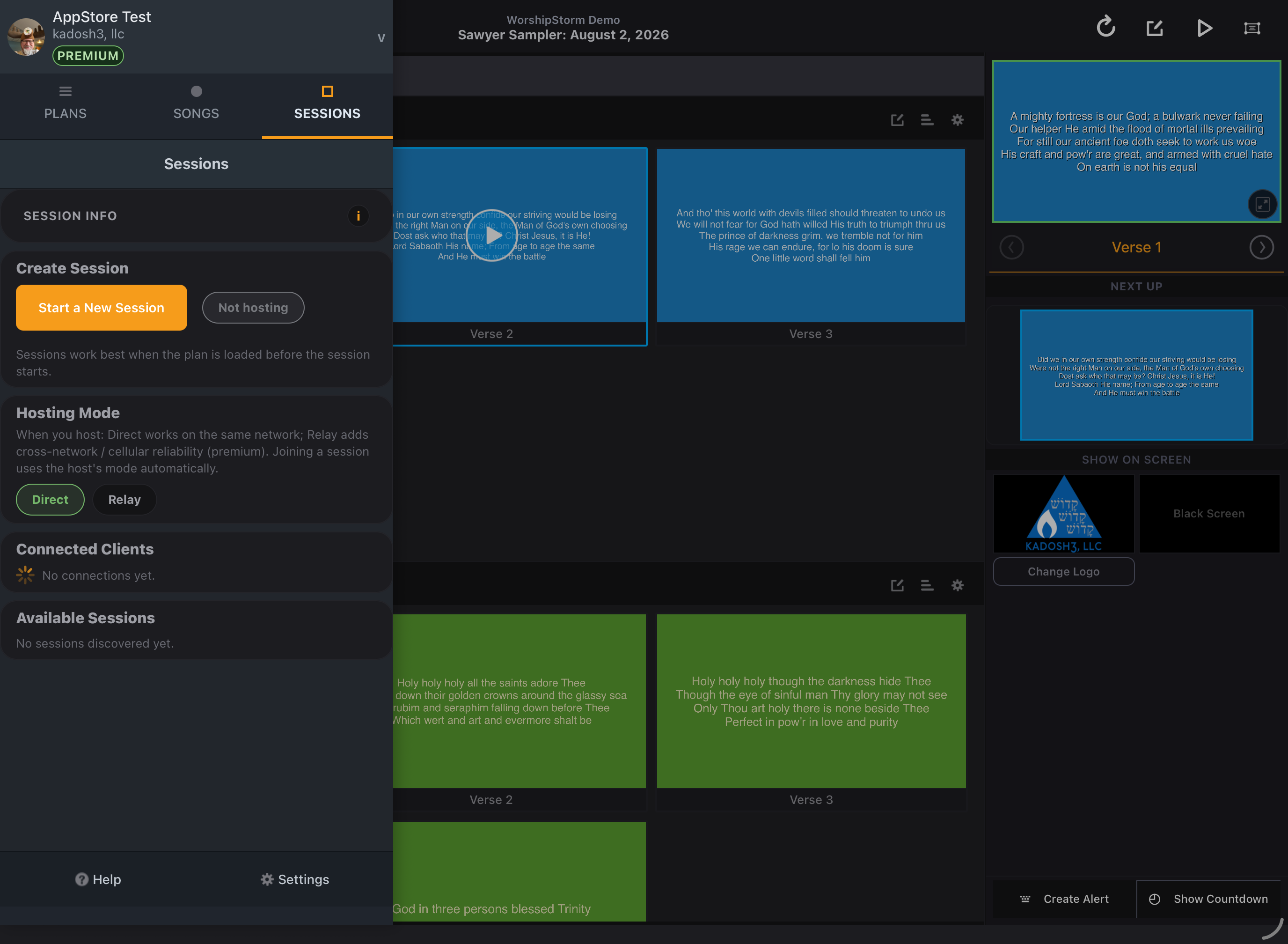
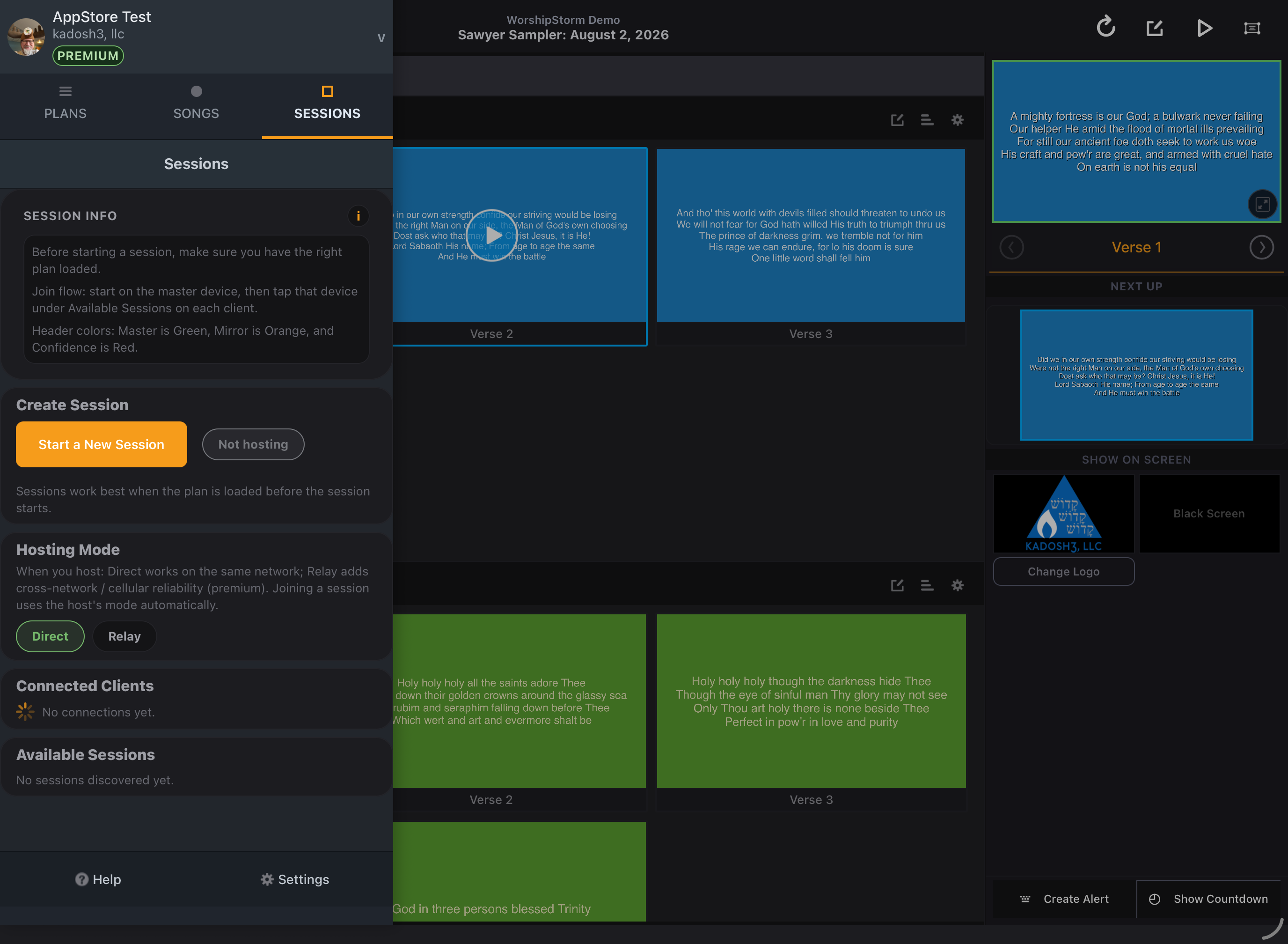
Start a session on your host device
Make sure the right plan is loaded first, then:
- Open the sidebar
- Open the Sessions panel
- Tap Start a New Session
To finish later, the same button becomes End Session.
Choose a Hosting Mode
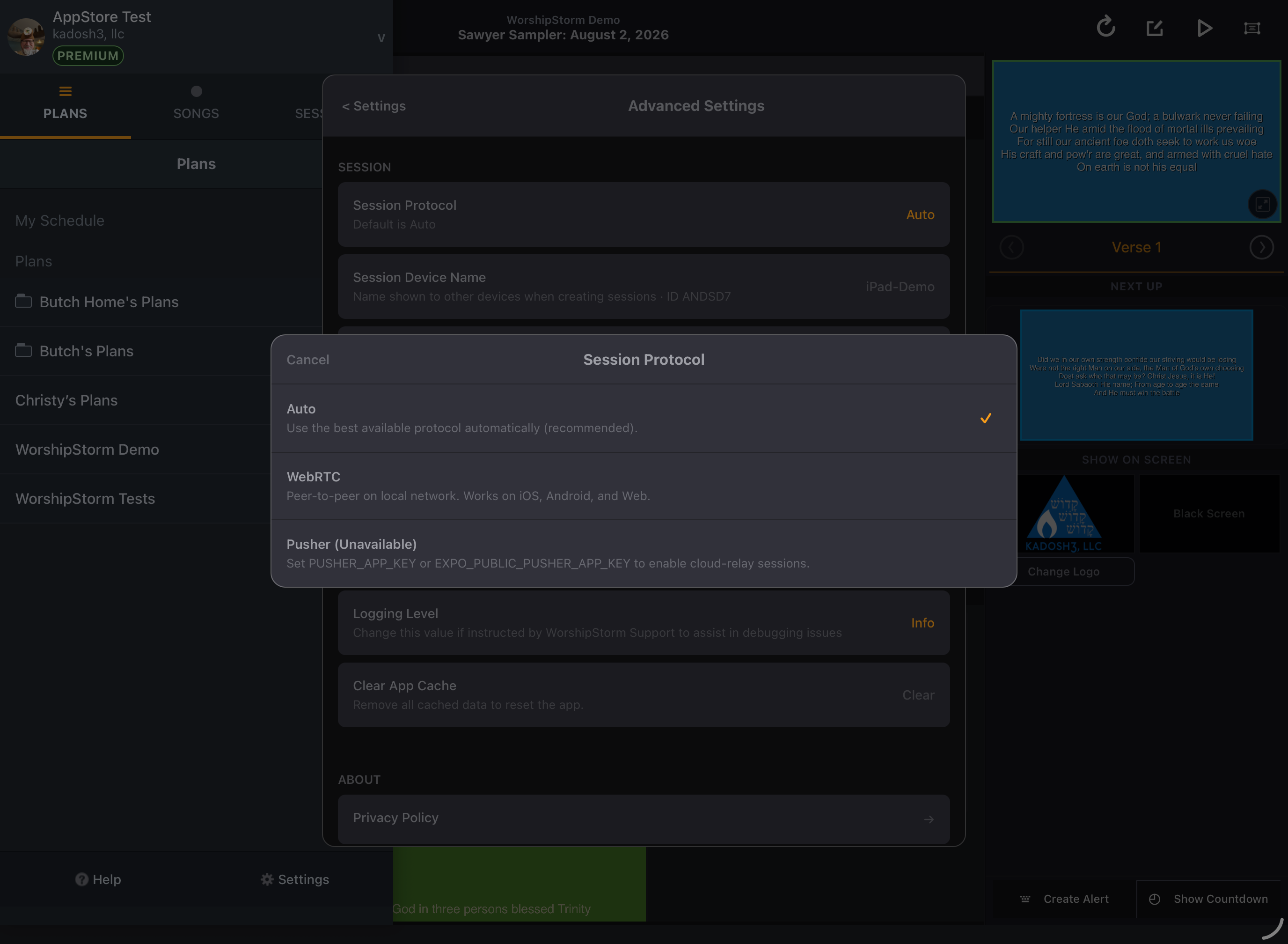
Before you start, pick how clients will reach you:
- Direct — devices connect to each other on the same network. No relay server involved.
- Relay — connections go through a relay server, which is what makes joining work across different networks or over cellular. Relay is a premium capability and your organization has a limit on how many relay sessions can run at once.
Clients do not choose this. Joining a session automatically uses whatever mode the host advertised, and the Available Sessions list badges each host as Direct or Relay so you can see before joining.
If someone cannot reach a Direct session — a common case when they are on guest WiFi or cellular — Projector Plus offers a Try Relay action rather than just failing. If your organization is already at its relay limit, you will be offered Use Direct instead.
Join a session on another device
Open the Sessions panel on the second device and tap the host device’s name under Available Sessions.
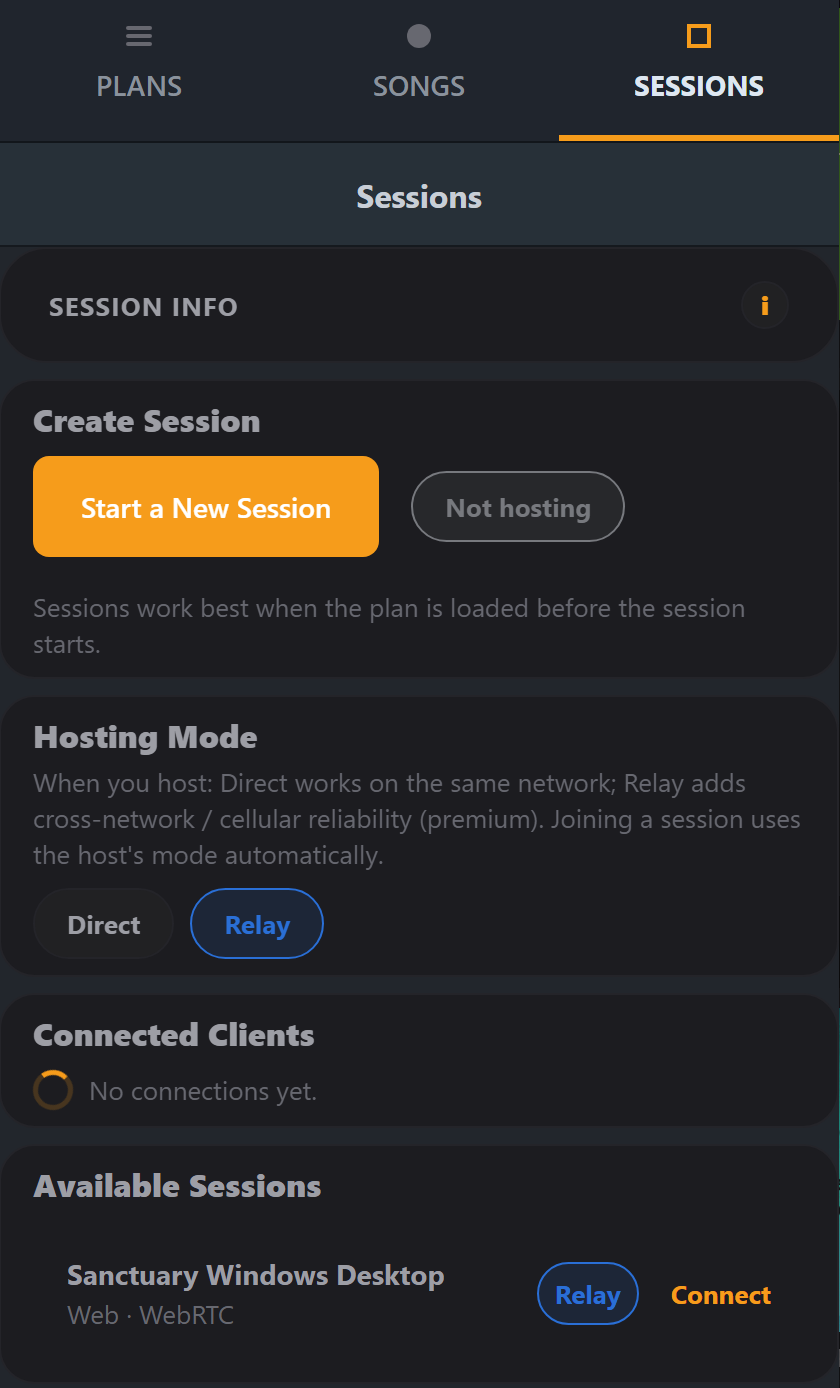
Each entry shows the host’s device name, how it is reachable — Direct or Relay — and how it is connecting underneath. Tap Connect.
Choose the Display Mode
Once a client is connected, it picks how it wants to display:
- Mirror — (default) shows the same output as the host.
- Confidence — shows the current lyrics plus the next line on a black background, for on-stage musicians.
Display Mode is chosen on the client, and each client can choose differently.
Reading the session status
The Sessions panel is color-coded so you can tell a device’s role at a glance:
- Green — this device is the host, or is hosting a Direct session
- Orange — connected as a client in Mirror mode
- Red — connected as a client in Confidence mode
- Blue — hosting a Relay session
The host’s Connected Clients list shows every client that has joined, with its device name:
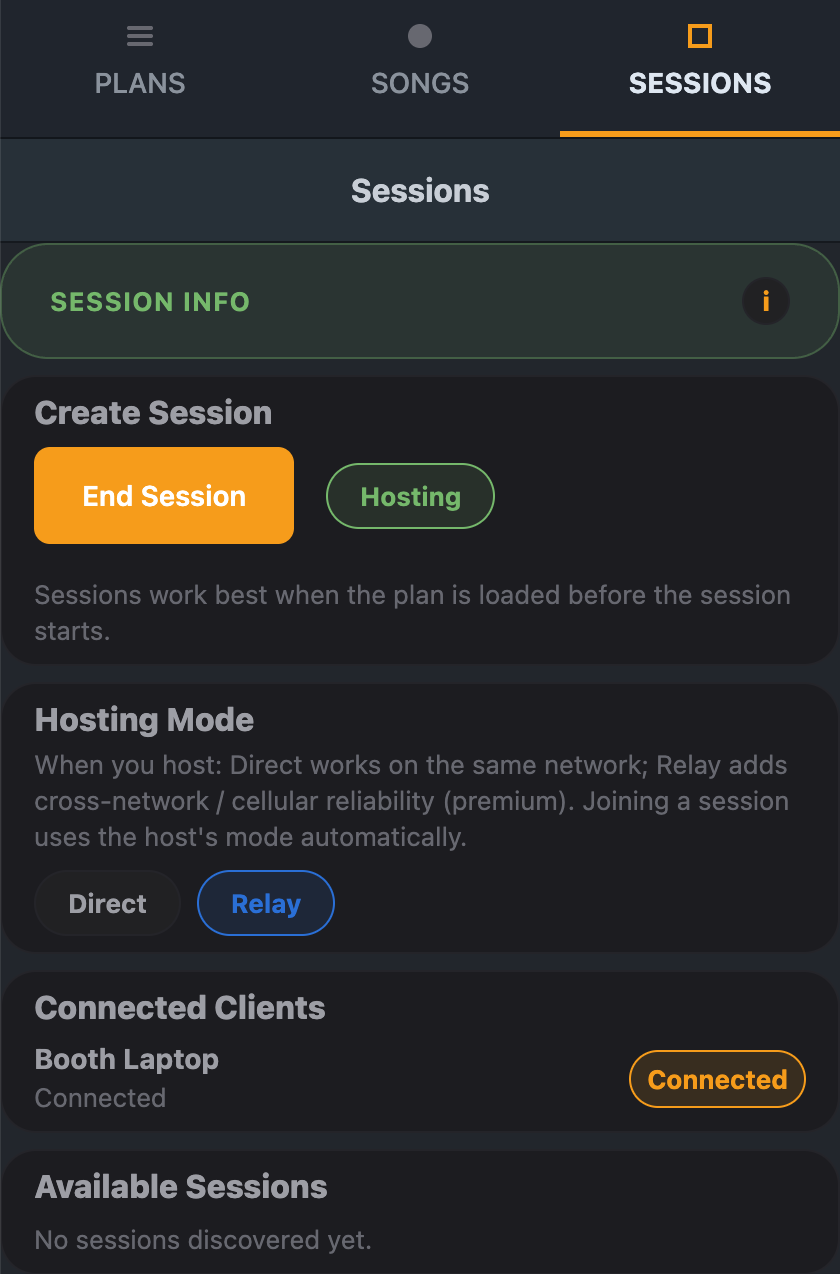
On the host the panel changes to match: End Session replaces Start a New Session, the badge reads Hosting, and Session Info turns green. That is the quickest way to confirm which device is actually hosting when two of them are in the room.
If the host never appears on the other device
This is a different problem from a session that dropped — here the two devices never found each other.
- Give it a moment. Discovery is not instant; the host has to advertise itself before the client can list it.
- Keep Projector Plus open and in front on the host device while the others join. Leave it on the Sessions screen rather than switching to another app or letting the screen lock — the host needs to be running to stay listed.
- Check the Hosting Mode matches the situation. A Direct host is only reachable by devices on the same network. If the joining device is on guest wifi or cellular, the host needs to be on Relay.
- Check both devices are signed in to the same Planning Center organization. The session list is per organization.
- If it still does not appear, tap End Session on the host and start a new one, then have the others look again.
If a session drops
While connected, the panel offers:
- Retry Join — reconnect to the same host
- Reset Transports — tear down and rebuild the connection
- Diagnostics — transport health, reconnect attempt count, session ID and device name
Reach for Diagnostics when contacting support; the transport health rows show which transport is carrying the session and whether it is healthy, unstable or degraded.
Changing the Session Device Name
Clients identify the host by its device name, so a recognizable name helps — Booth iPad tells a volunteer more than a model number does. Go to Settings → Advanced Settings, and edit Device Name under Sessions.
Names do not have to be unique. Two devices can share one — or a laptop running Projector Plus installed alongside Projector Plus in a browser tab — and Projector Plus tells them apart with a short ID, shown next to the name in Advanced Settings and used to disambiguate the session list. Name them for where they sit, not for being distinct.

If you change the name, restart Projector Plus so Sessions picks it up.
Session Protocol
Advanced Settings also lets you choose which transport Sessions uses: Auto, WebRTC, or Pusher. Leave this on Auto unless support asks you to change it.