
Using Text and Number Alerts
The On-Screen Alert feature allows you to quickly display a text or number alert on all slides. Use the “Create Alert” button to immediately place a message on the screen on top of anything already being displayed. Alerts stay on screen until you dismiss them. Alerts are most commonly used when you need to alert a parent that their child needs attention.
Tap the Create Alert button
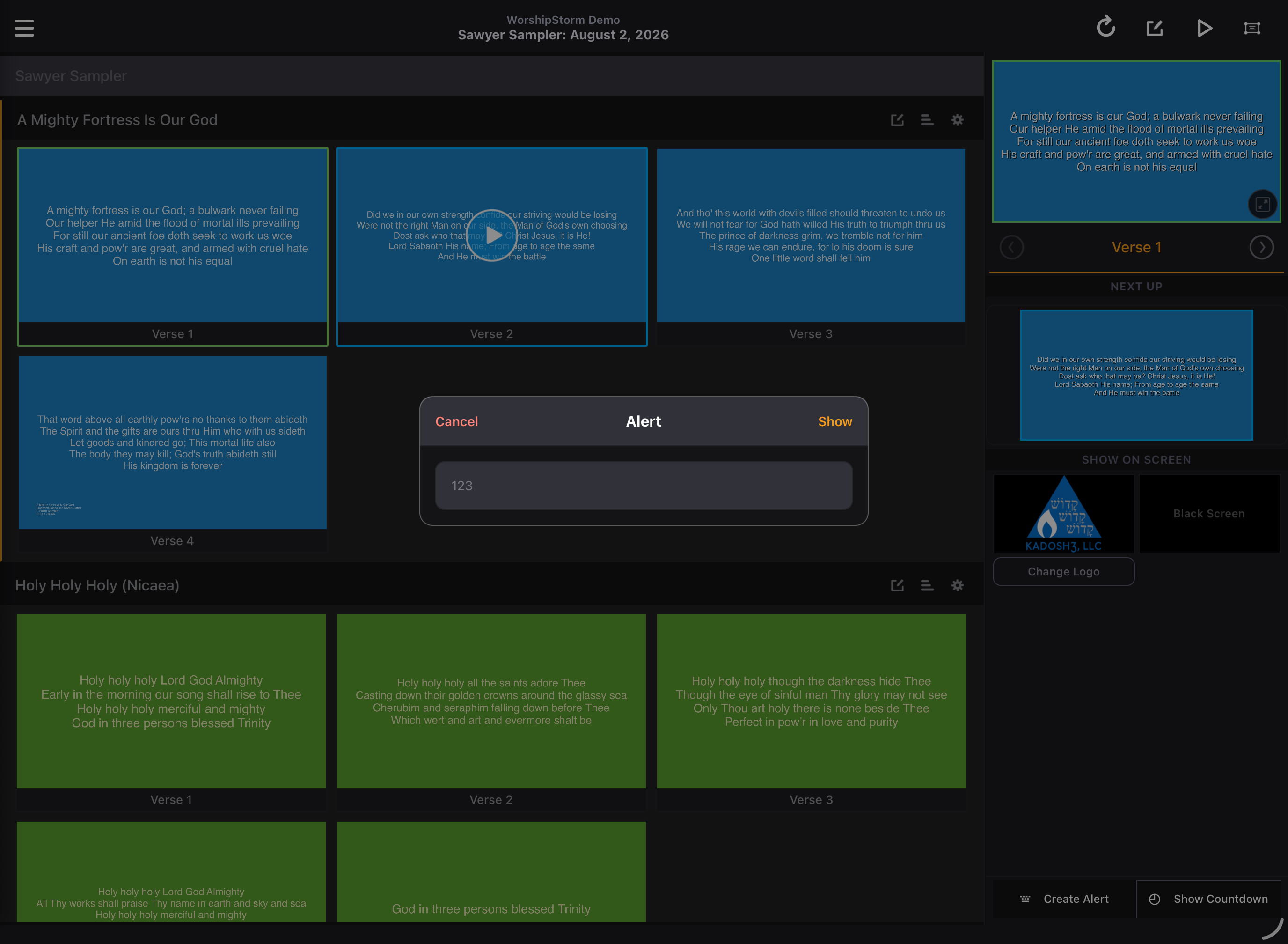
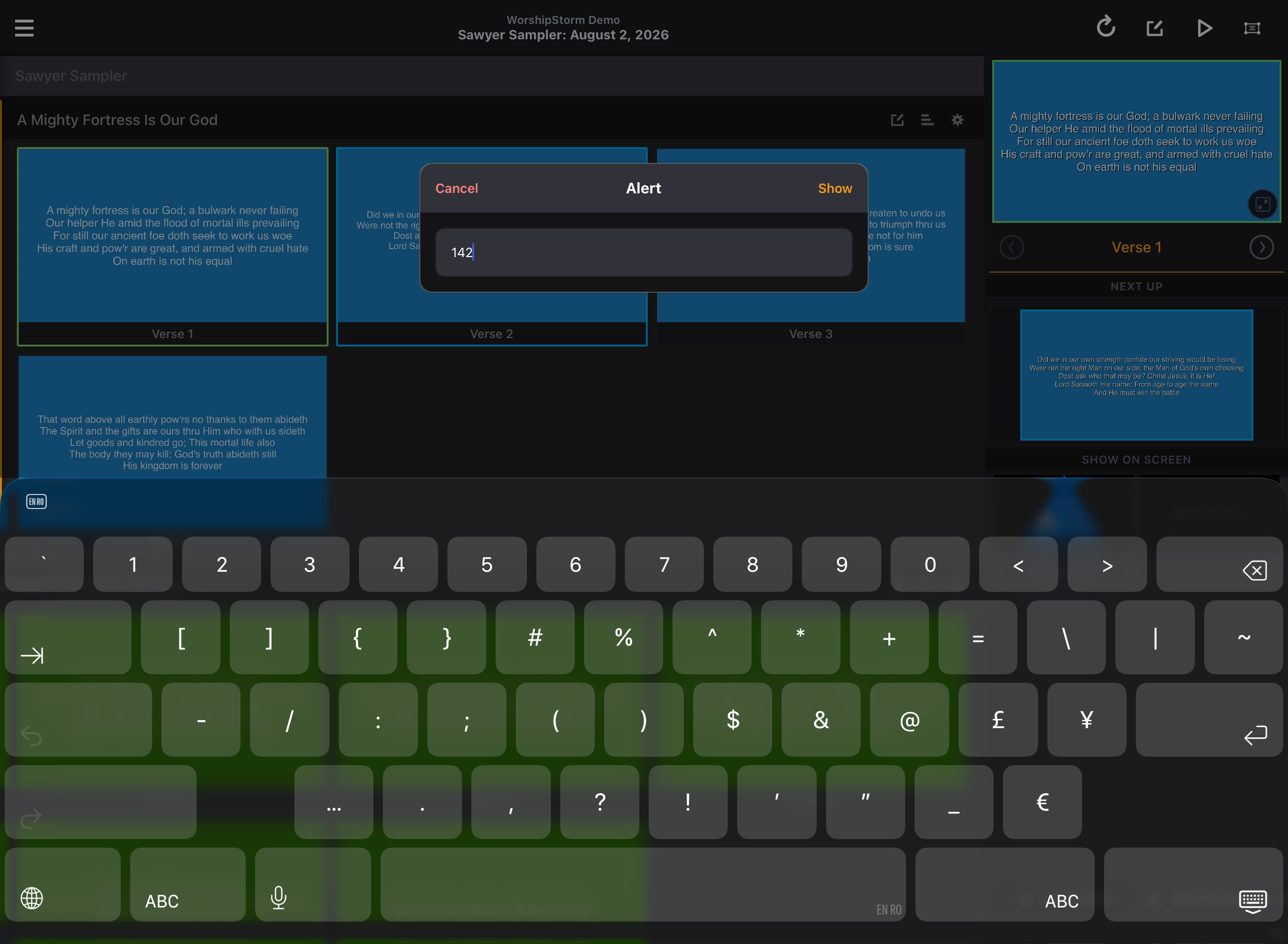
Type in your alert and tap “Show” (or the Return key)
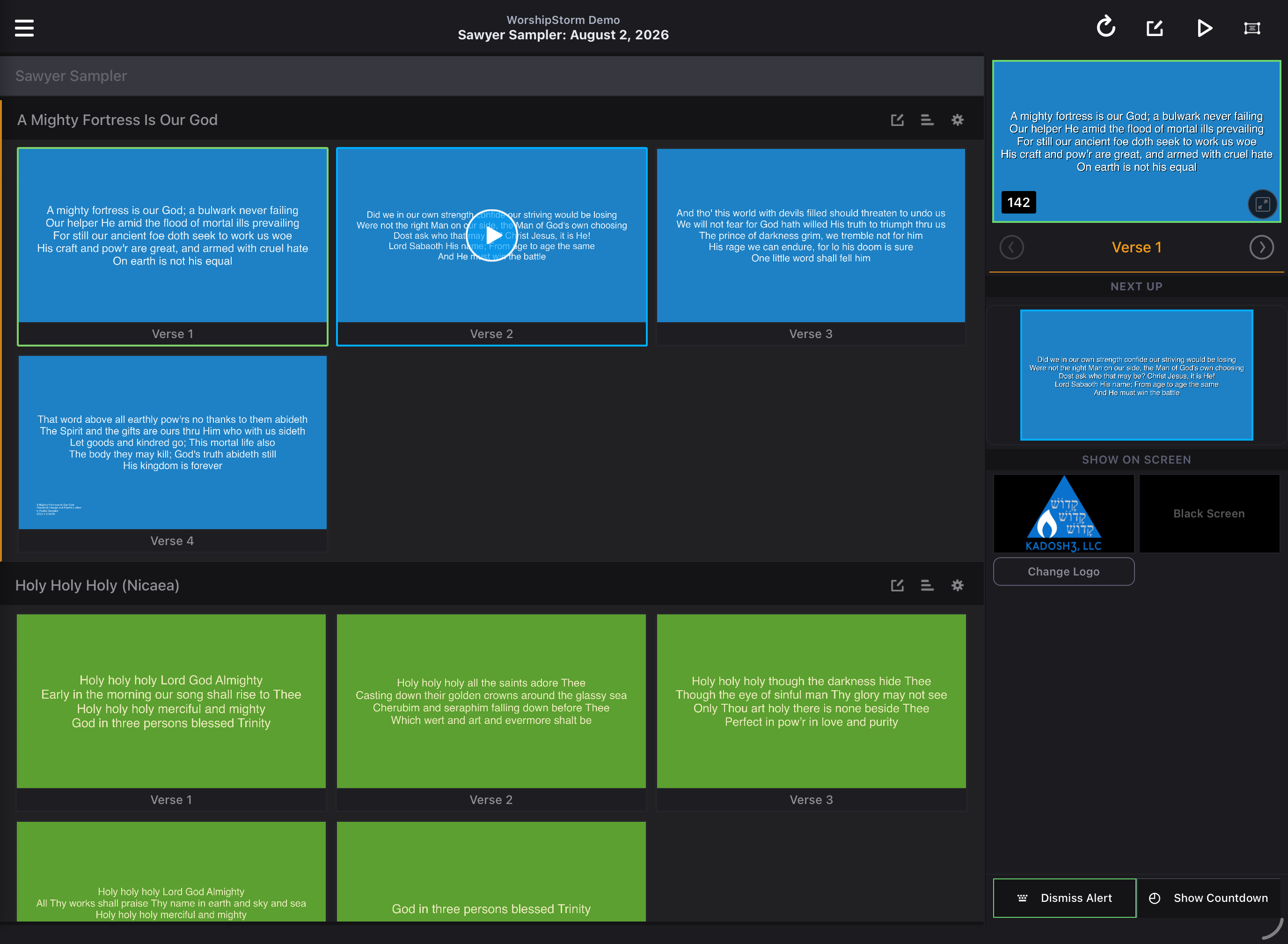
Your alert message is shown
-
On a tablet, the alert button now reads Dismiss Alert and is outlined in green while an alert is on screen. Tap it again to turn the alert off.
-
On a phone, the A button is outlined in green while an alert is on screen. Tap it again to turn the alert off.
Alert Settings
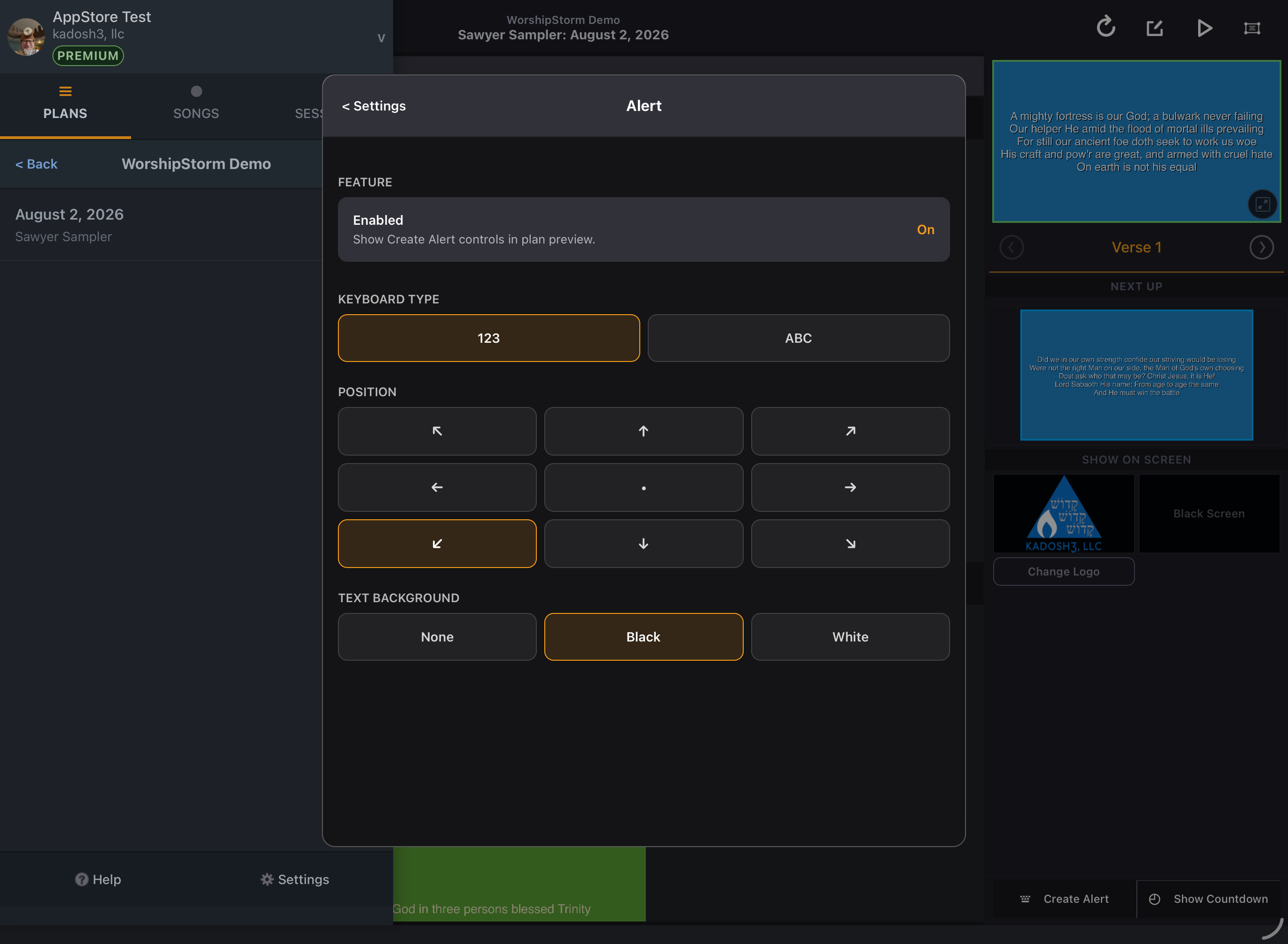
The On-Screen Alert can be adjusted in Projector Plus Settings.
-
Feature — Enabled. On by default. Turn it off to hide the Create Alert controls from the plan preview, which prevents triggering an alert by accident.
-
Keyboard Type. Choose 123 for a number pad or ABC for a text keyboard. The default is 123. If you need both, start an alert and use the keyboard’s own number/letter switch.
-
Position. The alert defaults to the bottom left. Tap any of the nine cells in the grid to move it.
-
Text Background. Choose None, Black, or White for the area behind the alert text. The default is Black.
All four settings are on the one screen shown above — Feature, Keyboard Type, Position and Text Background — so there is nothing to scroll to.