
Managing the Projector Classic Subscription
Projector Classic Subscription Details
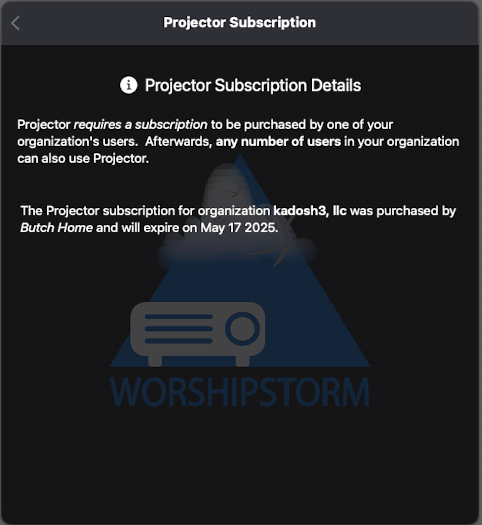
Any device running Projector Classic (and any of your Planning Center Services users) can view the details of your organization’s Projector Classic Subscription. Choose Settings -> Projector Classic Subscription and the Projector Classic Subscription Details screen will appear. This information can be useful to determine “who” purchased the subscription in case you need to track them down (like to find the Apple ID / device that was used to purchase the subscription), as well as when the subscription expiration date is:
If the Projector Classic app if it is running on a device that is signed into the Apple ID that owns the Projector Classic Subscription, an additional Manage Subscription button will appear:
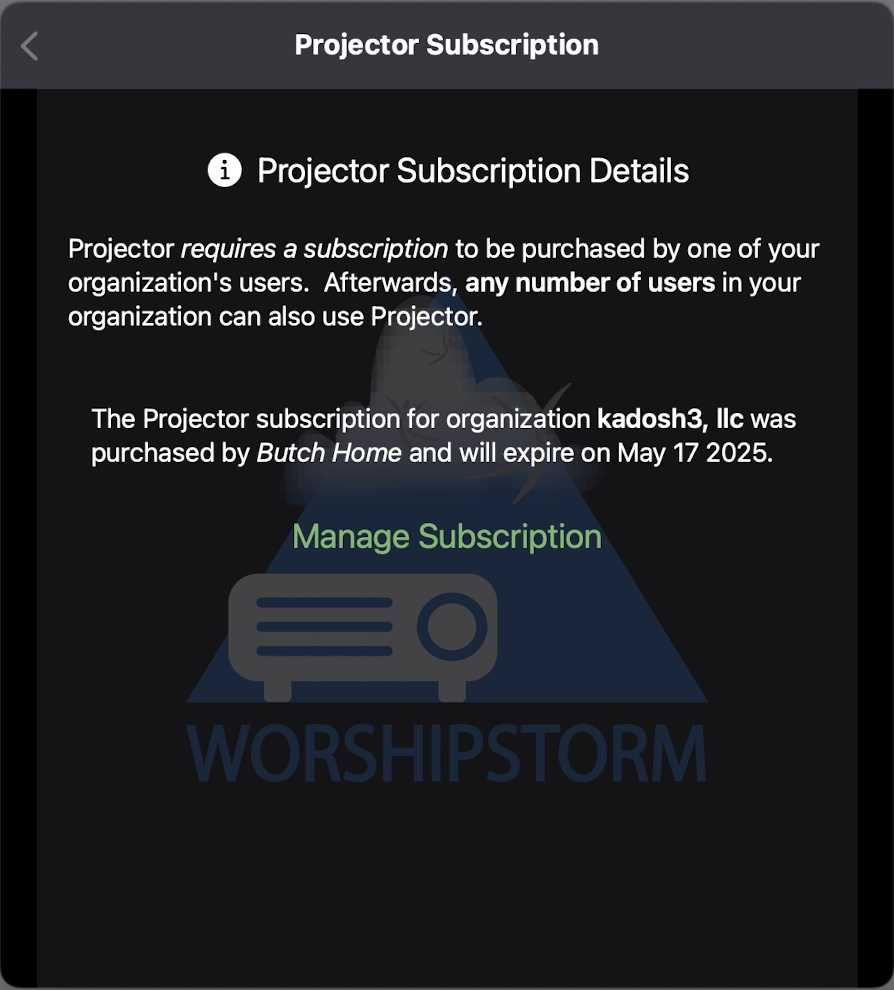
When you click on the Manage Subscription button, the following How can we help? screen will appear:
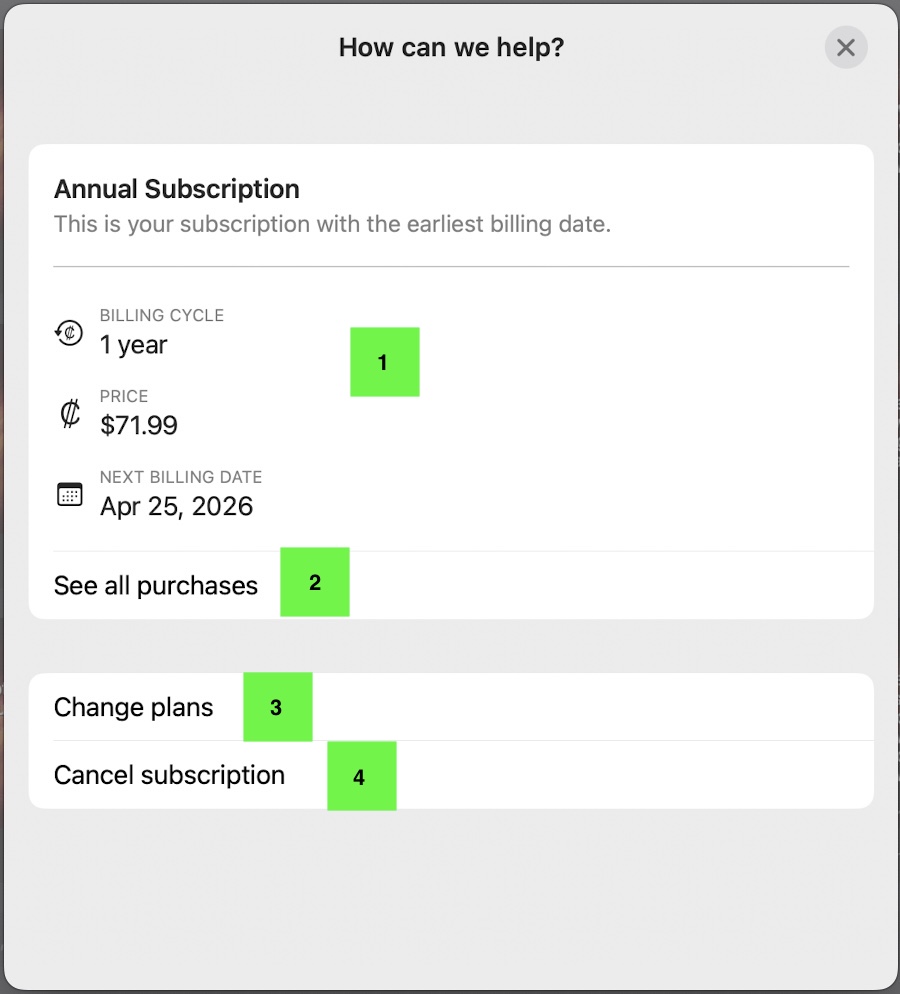
- The details of the current subscription are shown
- Click See all purchases to view which subscription purchases have been made in the past
- Click Change plans to open up the Apple screen that allows you to choose between the Projector Classic subscription options
- Click Cancel subscription to open up the Apple screen that allows you to cancel your subscription
Steps to change your Projector Classic Subscription plan
You can change your Projector Classic Subscription plan by following these steps:
From the Projector Classic App
- Open the Projector Classic app on a device that is signed into the Apple ID that currently owns the Projector Classic Subscription
- Click Settings -> Projector Classic Subscription -> Manage Subscription to open the How can we help? screen
- Click Change plans
- An Apple screen will open next:
- For iOS/iPadOS, the Edit Subscriptions screen will open. Click See All Plans>, choose the plan that you want to switch to, then follow the prompts to purchase the new plan.
- For macOS, the App Store app and Subscriptions screen will open. Choose WorshipStorm Projector Classic, then click See All Plans…, choose the plan that you want to switch to, then follow the prompts to purchase the new plan.
From the device Settings App (iOS) or System Settings (macOS)
On a device that is signed into the Apple ID that currently owns the Projector Classic Subscription:
- Open the Settings app on a (iOS or iPadOS device) and click the Apple ID, then Subscriptions, or on a Mac, open the System Settings from the Apple menu, click the Apple Account, then Media & Purchases, and under Subscriptions click the Manage… button
- Choose the WorshipStorm Projector Classic subscription
- Click Cancel Subscription
Steps to cancel your Projector Classic Subscription
You can cancel your Projector Classic Subscription by following these steps:
From the Projector Classic App
- Open the Projector Classic app on a device that is signed into the Apple ID that currently owns the Projector Classic Subscription
- Click Settings -> Projector Classic Subscription -> Manage Subscription to open the How can we help? screen
- Click Cancel subscription, choose a reason for the cancellation
- For iOS/iPadOS, the Edit Subscription Apple screen opens next, click Cancel Subscription and confirm the cancellation.
- For macOS, the Subscriptions Apple screen opens next. Choose WorshipStorm Projector Classic, then click Cancel Subscription and confirm the cancellation.
From the device Settings App (iOS) or System Settings (macOS)
On a device that is signed into the Apple ID that currently owns the Projector Classic Subscription:
- Open the device Subscriptions screen:
- For iOS/iPadOS, open the Settings app, click the Apple Account, then Subscriptions
- For macOS, open System Settings from the Apple menu, click the Apple Account, then Media & Purchases, and under Subscriptions click the Manage… button
- Choose the WorshipStorm Projector Classic subscription
- Click Cancel Subscription and confirm the cancellation.
Once the subscription is canceled, it no longer auto-renew when the current subscription term expires, but will remain active until the expiration date.
Projector Classic Subscription expiration
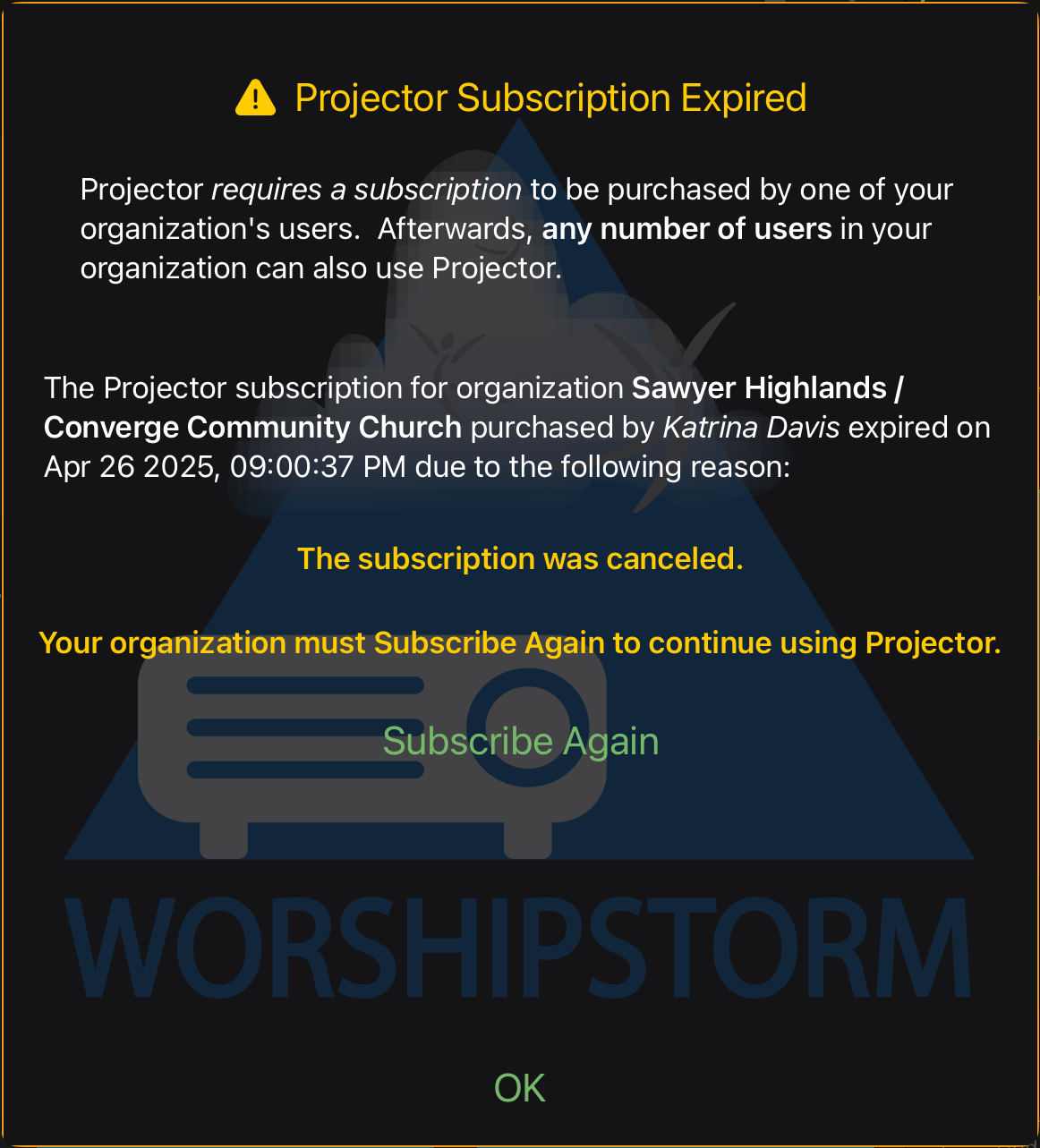
When your Projector Classic Subscription has expired, Projector Classic will enter a 28-day grace period that you can still use the app and re-subscribe with the same or another Apple ID, if you wish to keep using Projector Classic. The Projector Classic Subscription Expired screen will popup when Projector Classic is launched and once a day thereafter (if left running) to alert you to the expired subscription and allow re-subscribe:
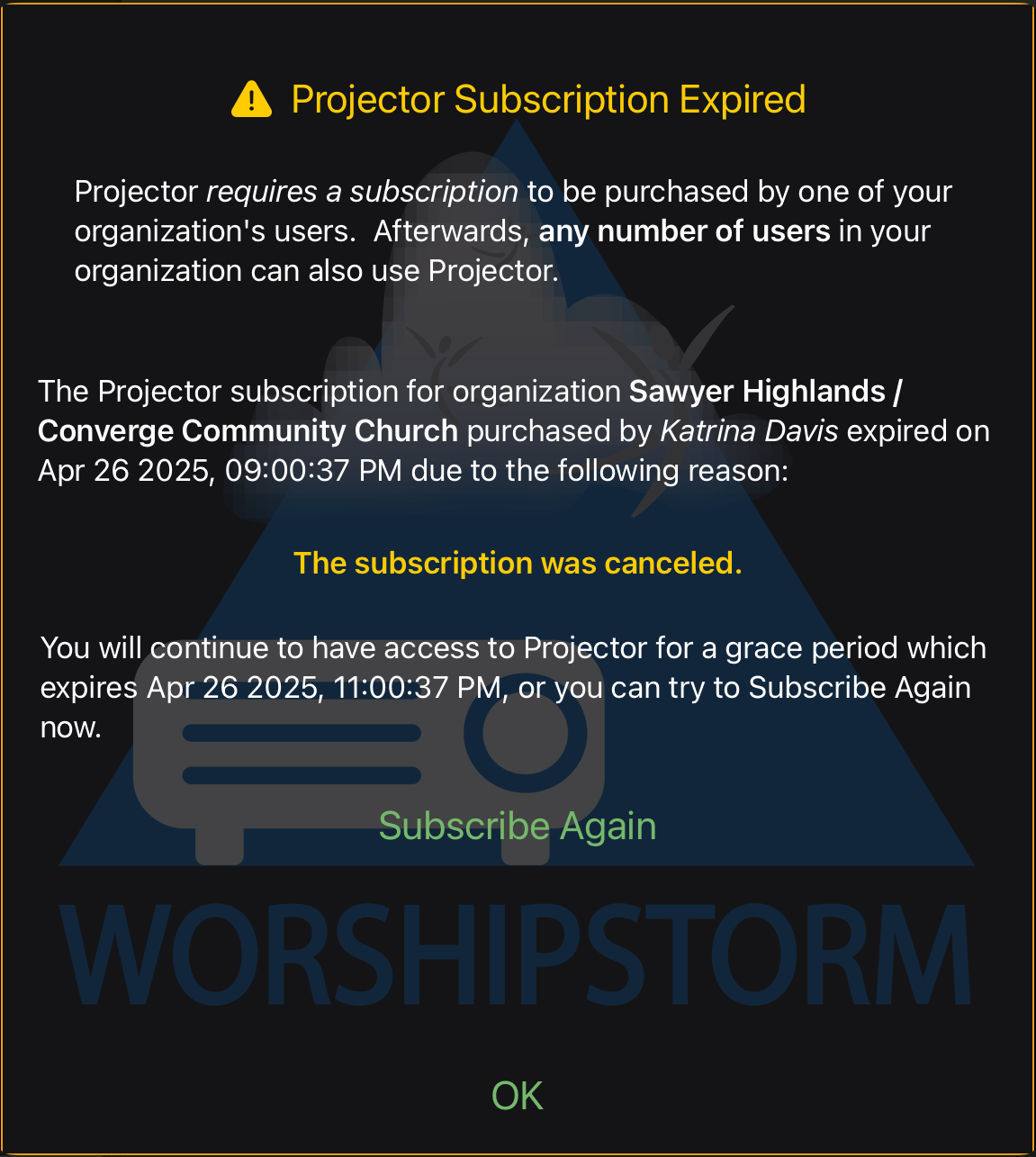
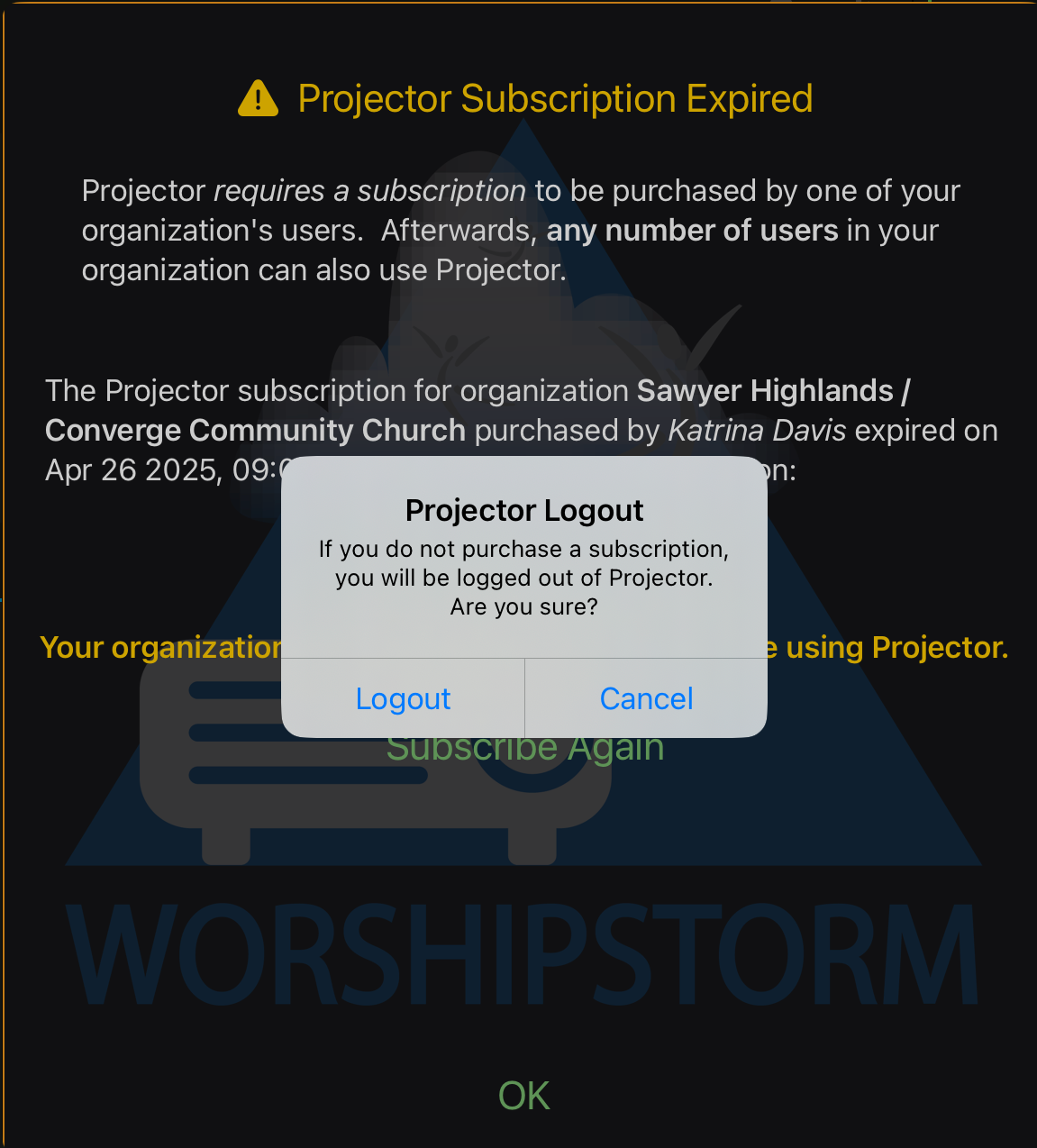
The Projector Classic Subscription Expired screen can also be accessed through Settings -> Projector Classic Subscription. The reason for the subscription expiration will be stated (usually canceled or unable to process payment). Once the grace period has lapsed, the *Projector Classic Subscription Expired *screen will emphasize that you must re-subscribe to Projector Classic to continue using. If you choose to not Subscribe Again (click OK), an alert will warn you that Projector Classic will logout unless you re-subscribe.
Steps to move your Projector Classic Subscription to another Apple ID
You can “move” your Projector Classic Subscription from one Apple ID to another by following these steps:
- On the current device / Apple ID that currently owns the Projector Classic Subscription, follow the Steps to cancel your Projector Classic Subscription listed above.
- Wait until the existing Projector Classic Subscription has expired and the 28-day grace period has begun.
- Once Projector Classic informs you that you are in the 28-day grace period you can purchase the subscription again on a new device / Apple ID. Simply login to Projector Classic on that device and click the Subscribe Again button when the Projector Classic Subscription Expired screen appears (either the periodic popup or from Settings -> Projector Classic Subscription).
- Your new Apple ID will now own the Projector Classic Subscription for your Planning Center Services organization!