
Setting Multiple Backgrounds for Custom Slides
By default, each item in your plan has a single background. However, you can add Custom Slides to use multiple images, videos or audio for a single item.
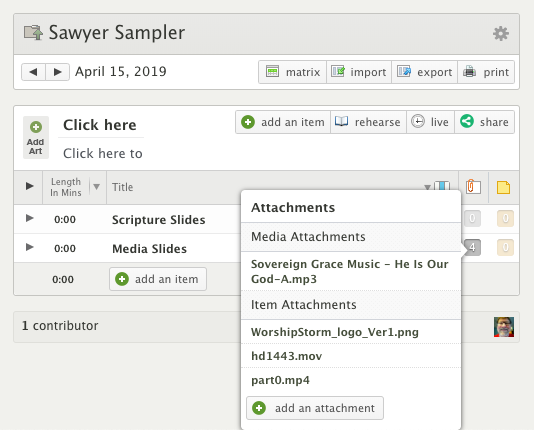
Create a new Item in Services and link Media or item attachments that you want to use for your Custom Slide backgrounds. This step is optional, but makes creating a custom slide media deck easier.
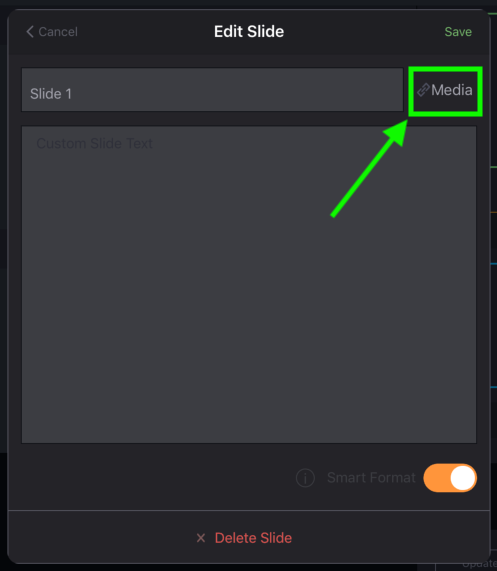
Follow the Custom Slides steps to begin editing your slides. Each custom slide will initially share the item background that you have set. To link a different background for each slide, tap the link Media button on the slide.
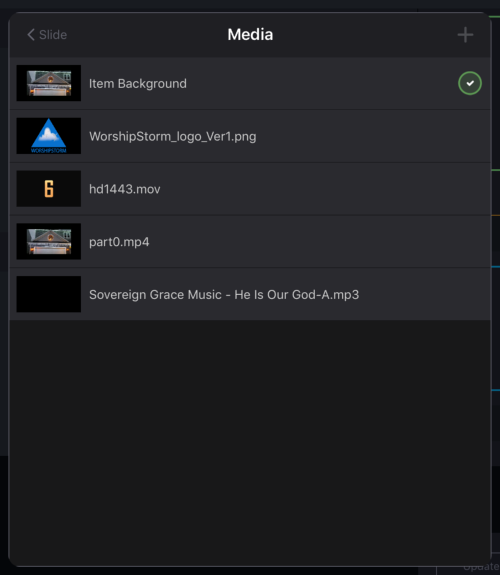
If you linked Media or attachments to the item, you will see them listed. Tap the background that you want to link to the slide
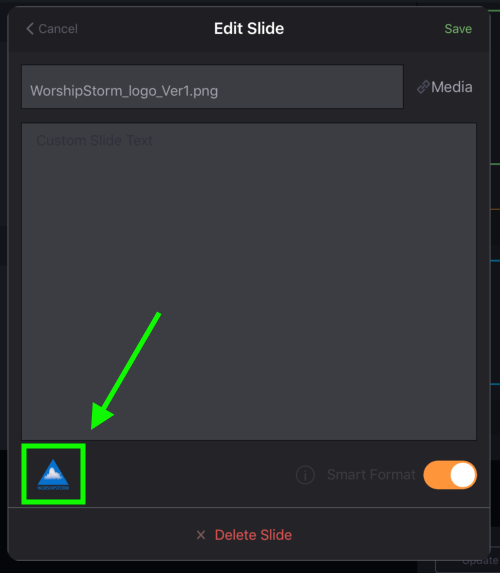
The slide editor will appear with the selected background thumbnail in the lower left corner. The slide title will also be changed to the file name of the selected background, but you can change it to anything.
Tap Save to complete the editing of that new media slide. You can also change the linked media for any already-created custom slide using the same process.
Repeat the steps for all custom slides in your deck. Each slide that has a background will appear in the Custom Slide list with the background thumbnail (if the media type has a thumbnail image). You can also mix media and text Custom Slides in your slide deck.
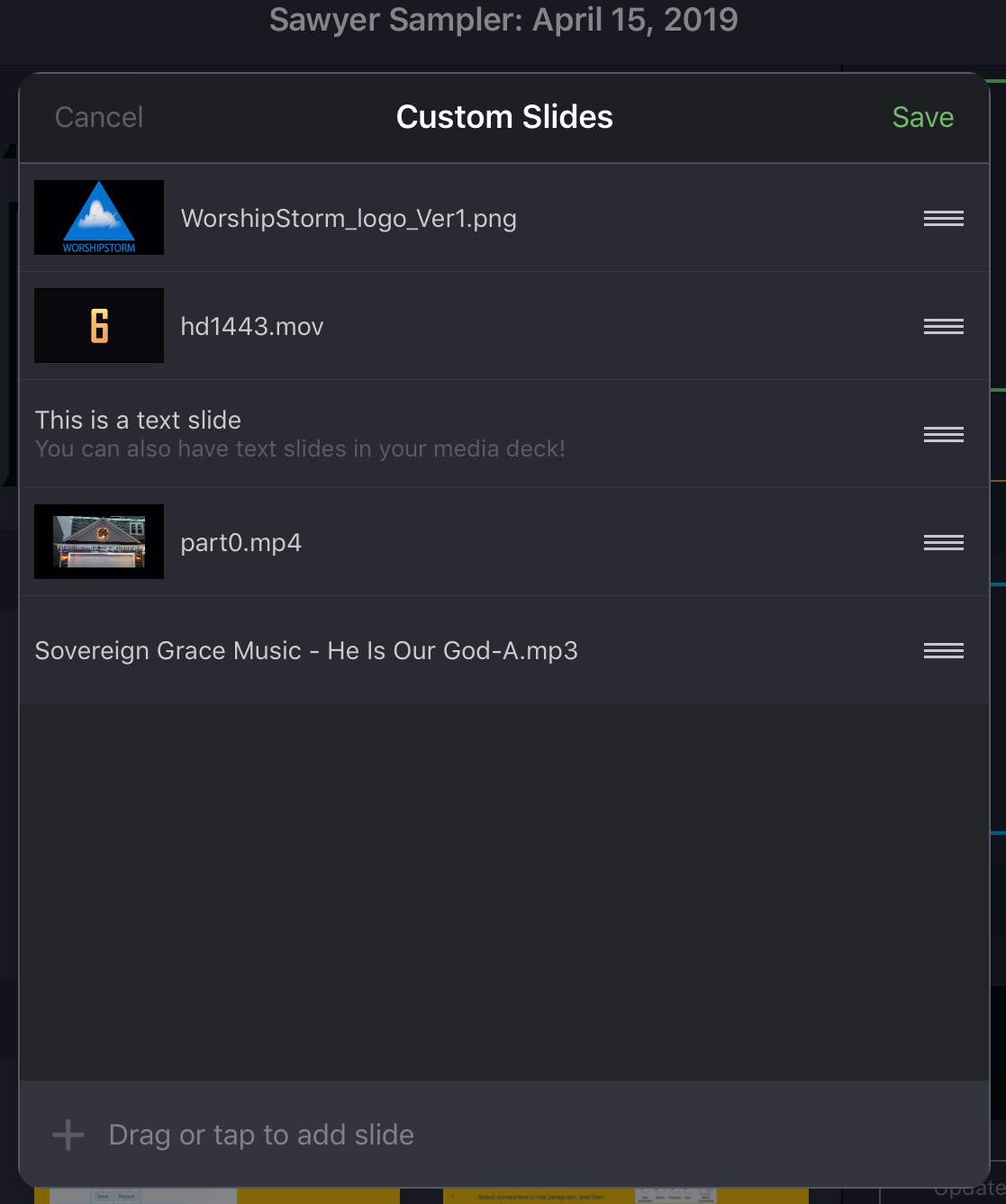
Tap Save to complete the creation of your Custom Slide deck.