
Quick Song: add a Song to the plan...fast!
Let’s say that you are happily projecting away in your service and the Worship Leader or Pastor unexpectedly says “Hey! Let’s now sing…”, Projector Classic can help you be a tech hero with the Quick Song feature!
Tap the sidebar menu button
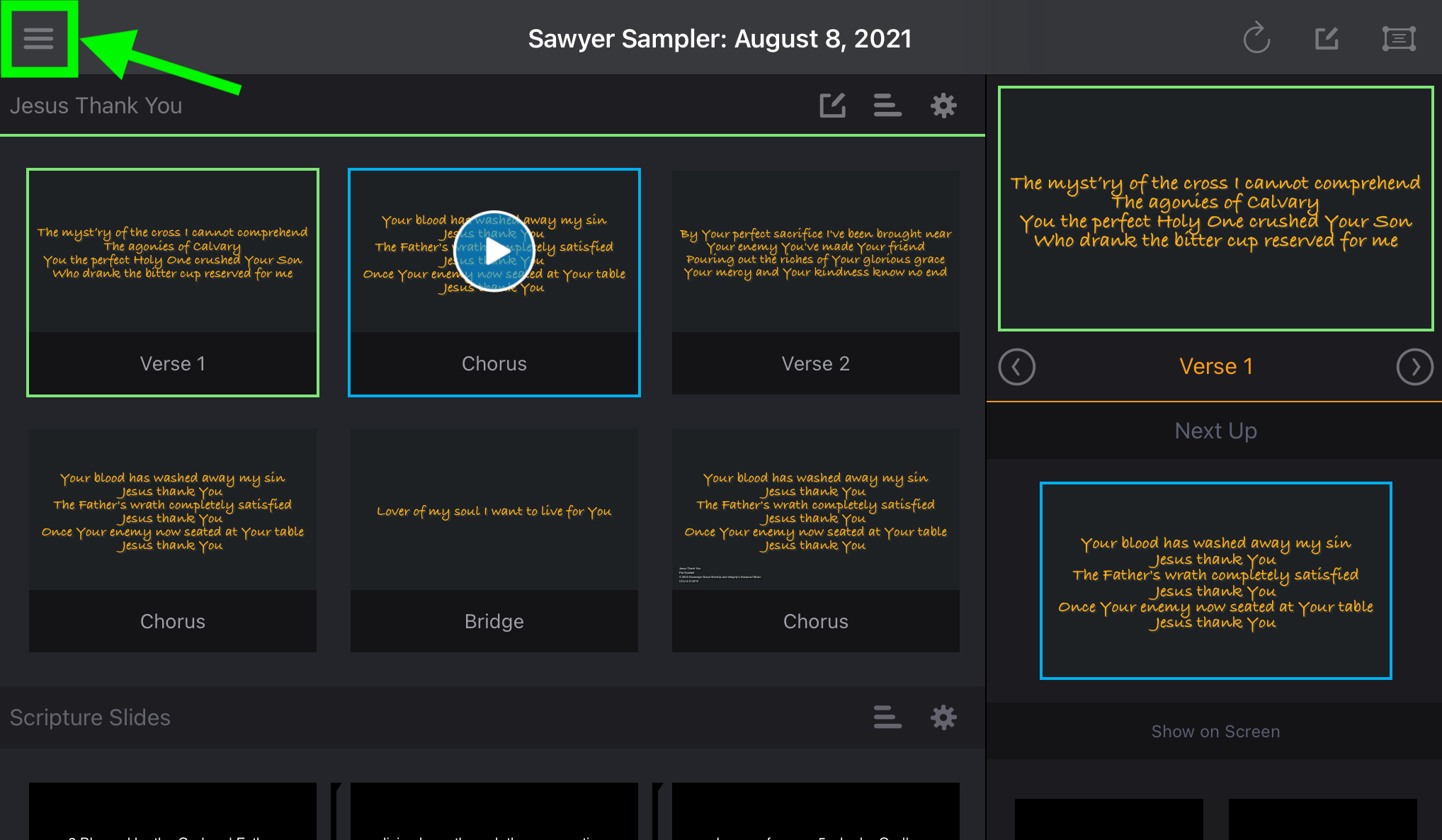
The left sidebar view will appear.
Tap the Quick Song button
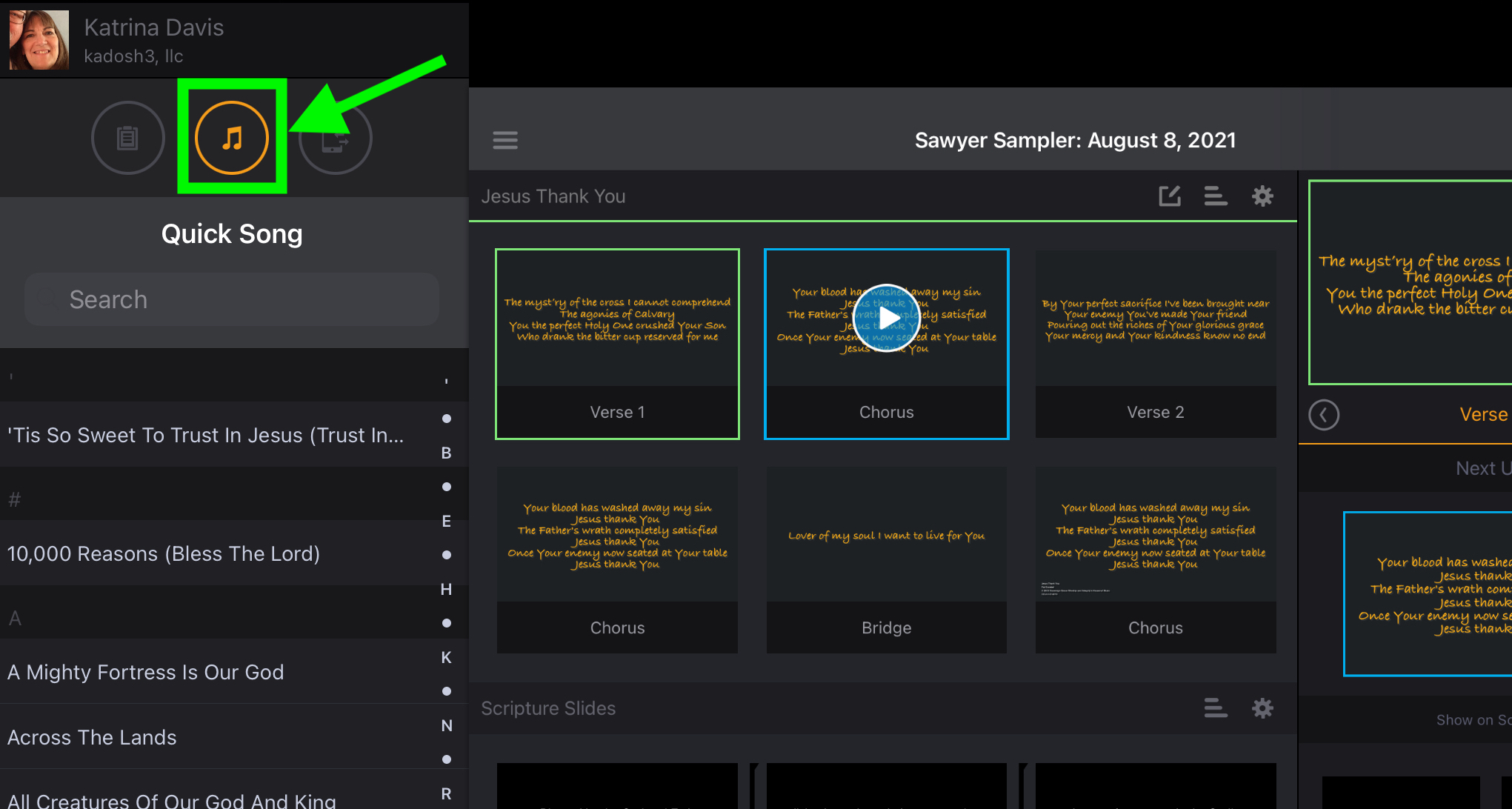
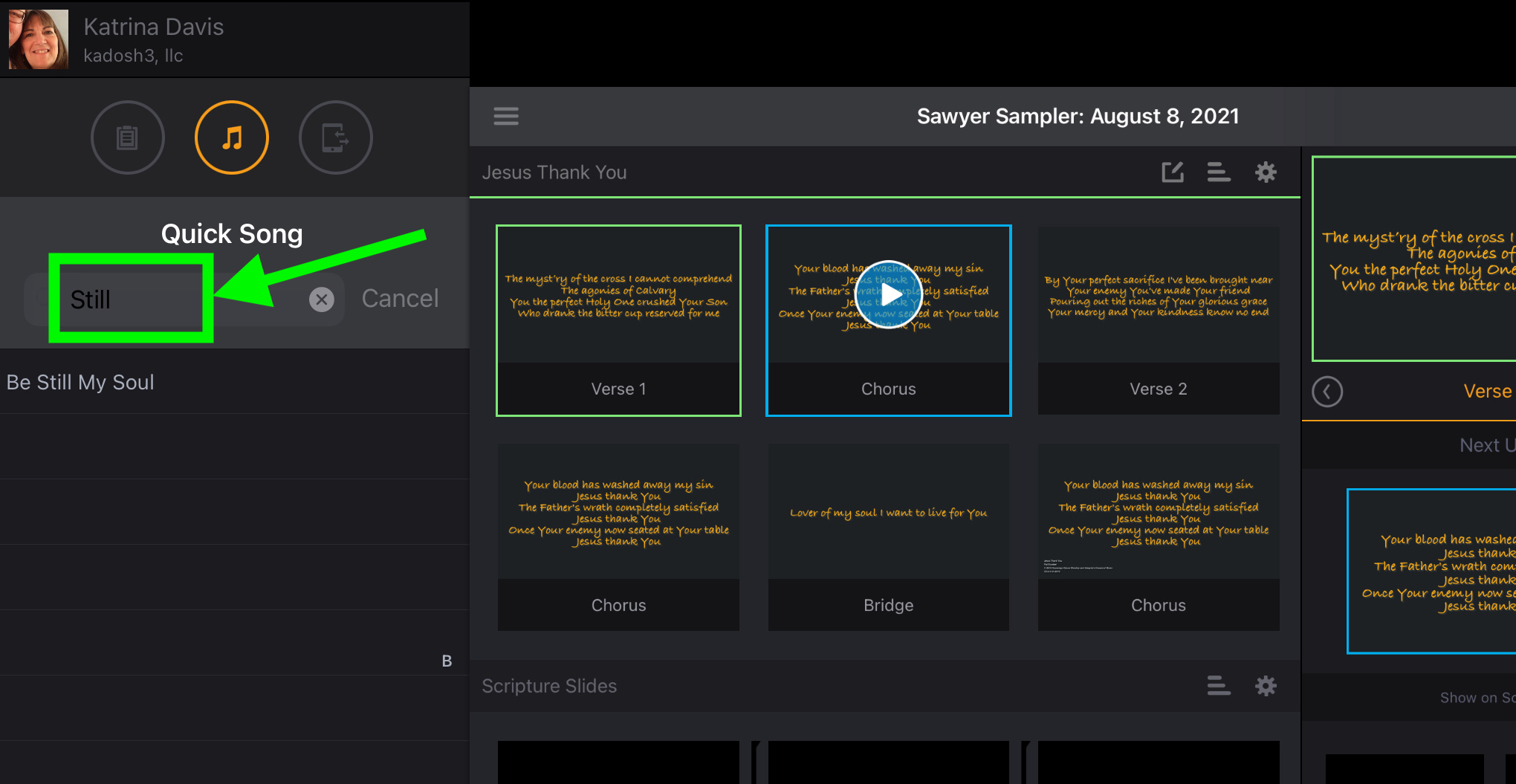
All of the songs in your PCO Services account will appear in the list. You can either scroll through the list to choose the song that you want (perhaps using the quick alphabet buttons to the right of the list), or tap the Search field an type in a word or phrase to narrow down the songs.
Tap the song that you want to add. If the song has more than one Arrangement, a second screen will appear to allow you to choose the Arrangement you want. Once the Song (Arrangement) is chosen, the Add button will appear:
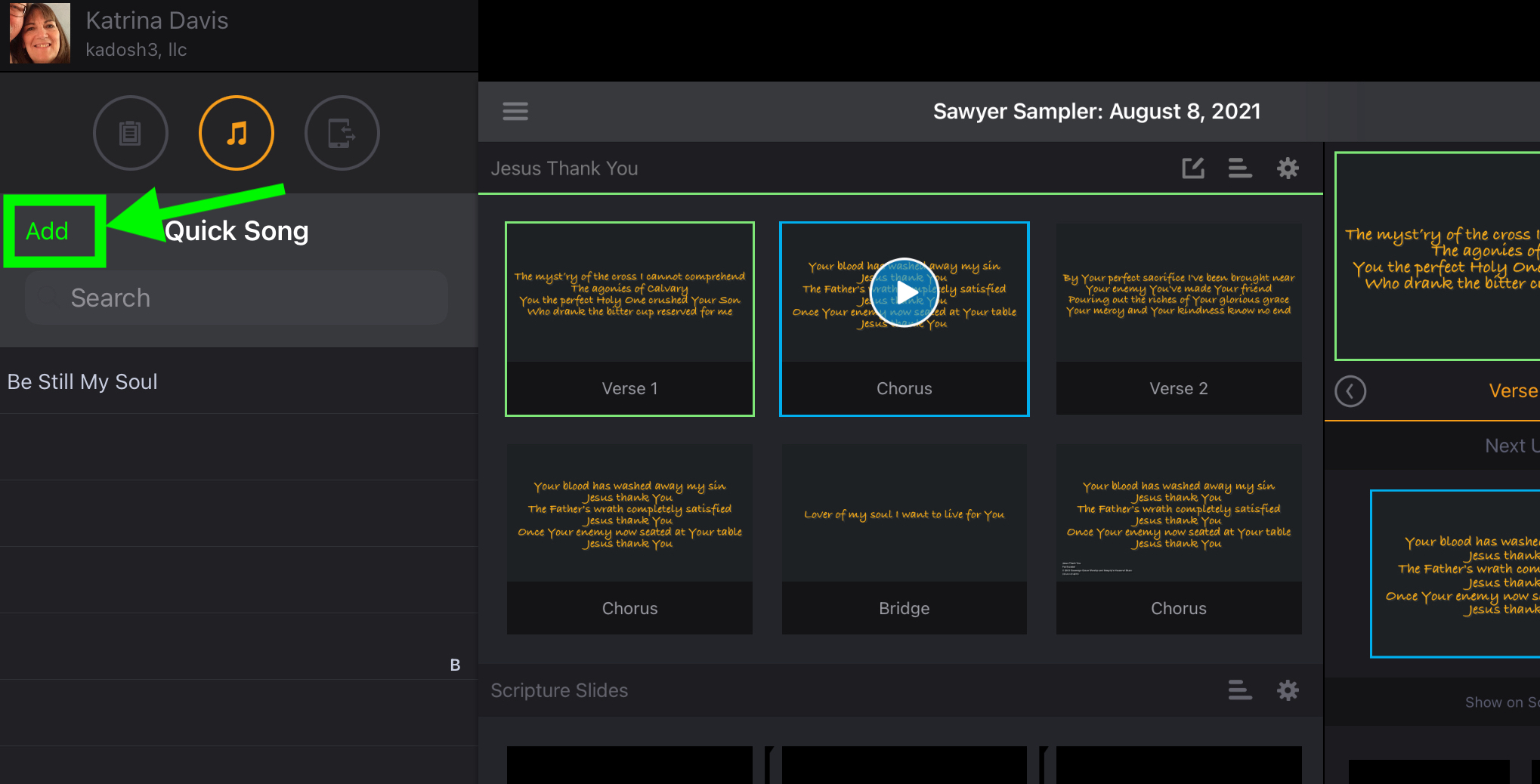
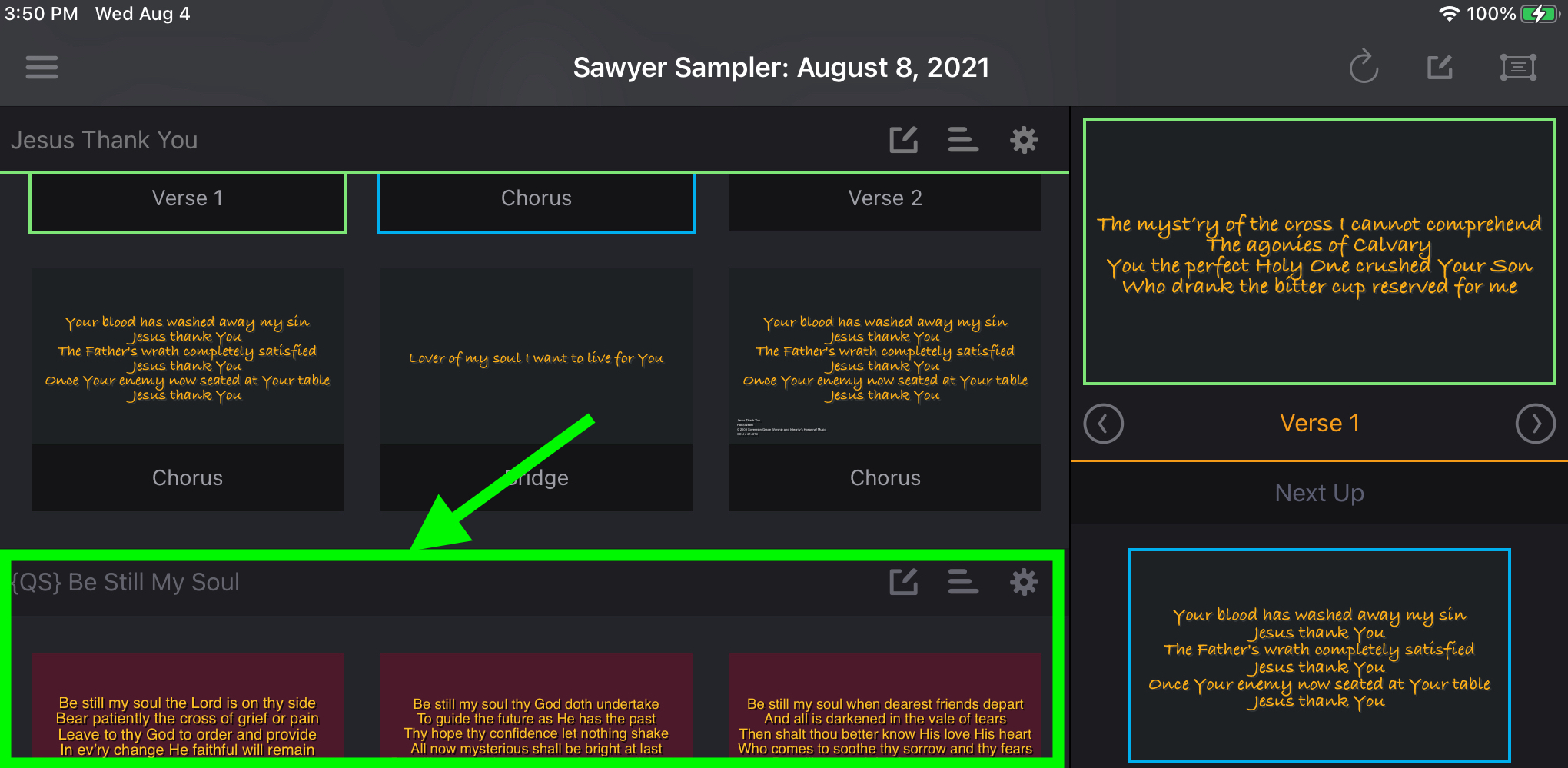
Once you tap the Add button, the left sidebar will close and Projector Classic will refresh, adding the Song as the next Item in the plan. The Item name will be the Song name with {QS} as a prefix, which will let you easily see what songs (items) were added by Quick Song.
Some important things about Quick Song:
- You must have a Plan loaded to use Quick Song.
- You must be connected to the Internet to use Quick Song.
- You must be logged in with permissions to Edit the current plan to use Quick Song (sorry, Viewers)