
Item Settings

Each item has a settings button used to select a background, choose a layout, and turn on slide looping.

Note: Song type items in your Plan are automatically populated with slides consisting of the lyrics for the song.  To easily display a slideshow or video in your plan, in Services you would:

1) Add an item with the generic “Item” type to your plan
2) Attach your PDF or ZIP file to that item
3) Projector Classic will then populate the slides from the  slideshow to display them

Tap the Settings Icon and Choose Options
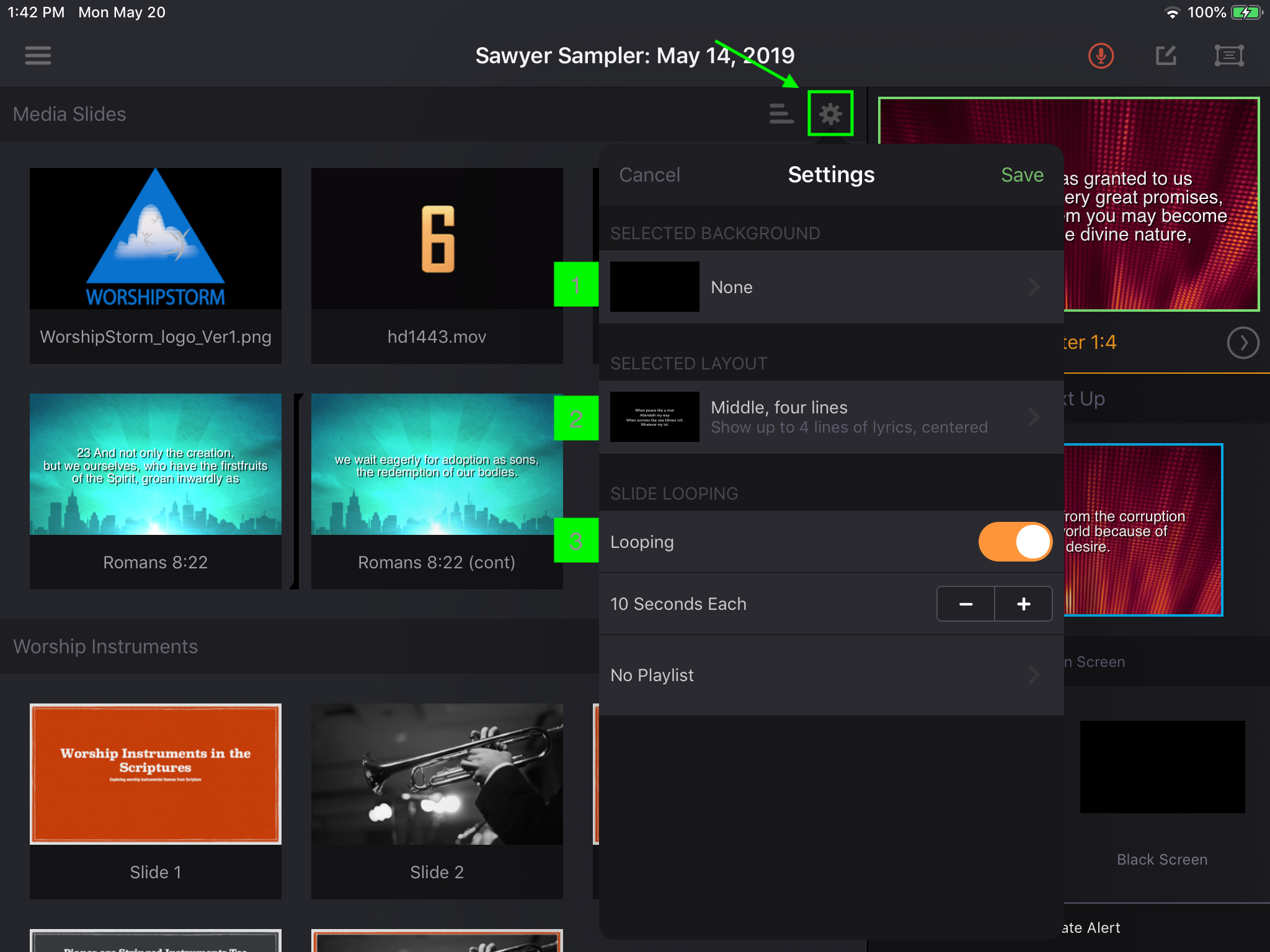
The item Settings panel opened from the gear icon, with the Selected Background, Selected Layout and Slide Looping sections marked, and Looping switched on with a 10 Seconds Each duration

Tap the gear icon to the right of any item to open the settings view.

  1. Choose and image, video, or slideshow background.
  2. Select a layout to update the look and number of lines per slide (for Custom Slide or Song items).
  3. Enable or Disable Automatic Slide Looping for the selected item.