
Using Text and Number Alerts
The On-Screen Alert feature allows you to quickly display a text or number alert on all slides. Use the “Create Alert” button to immediately place a message on the screen on top of anything already being displayed. Alerts stay on screen until you dismiss them. Alerts are most commonly used when you need to alert a parent that their child needs attention.
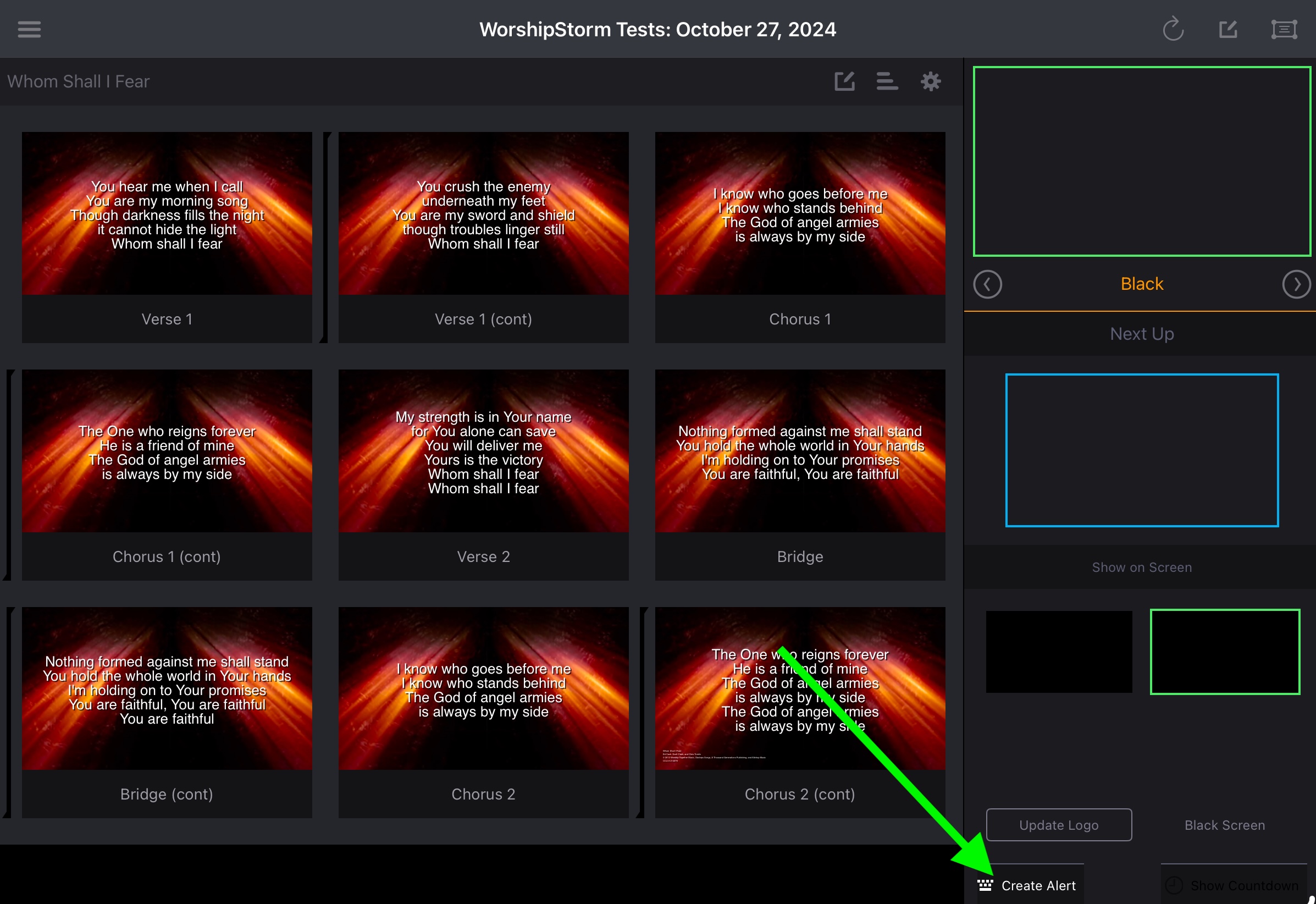
Tap the Create Alert button
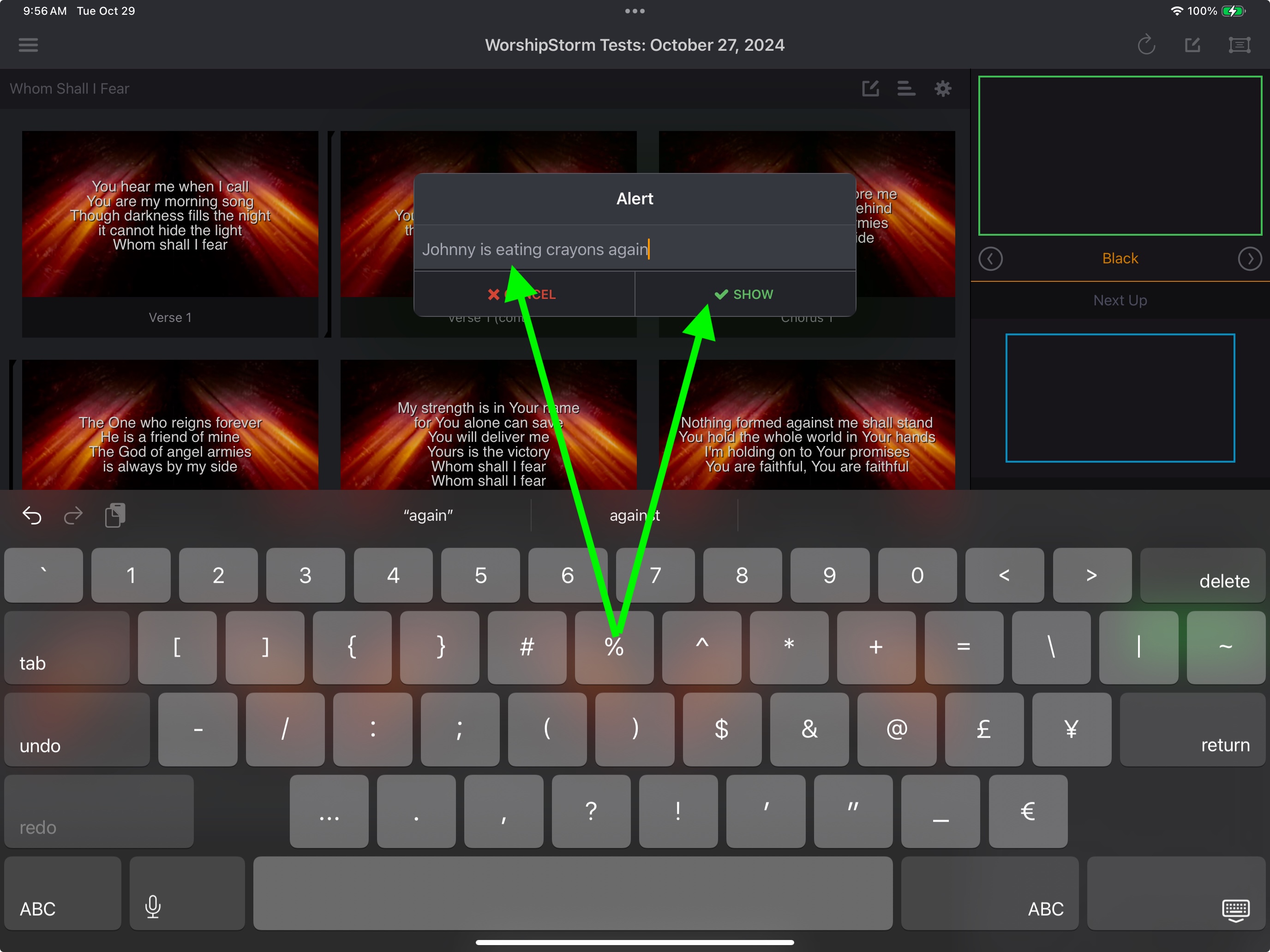
Type in your alert and tap “Show” (or the Return key)
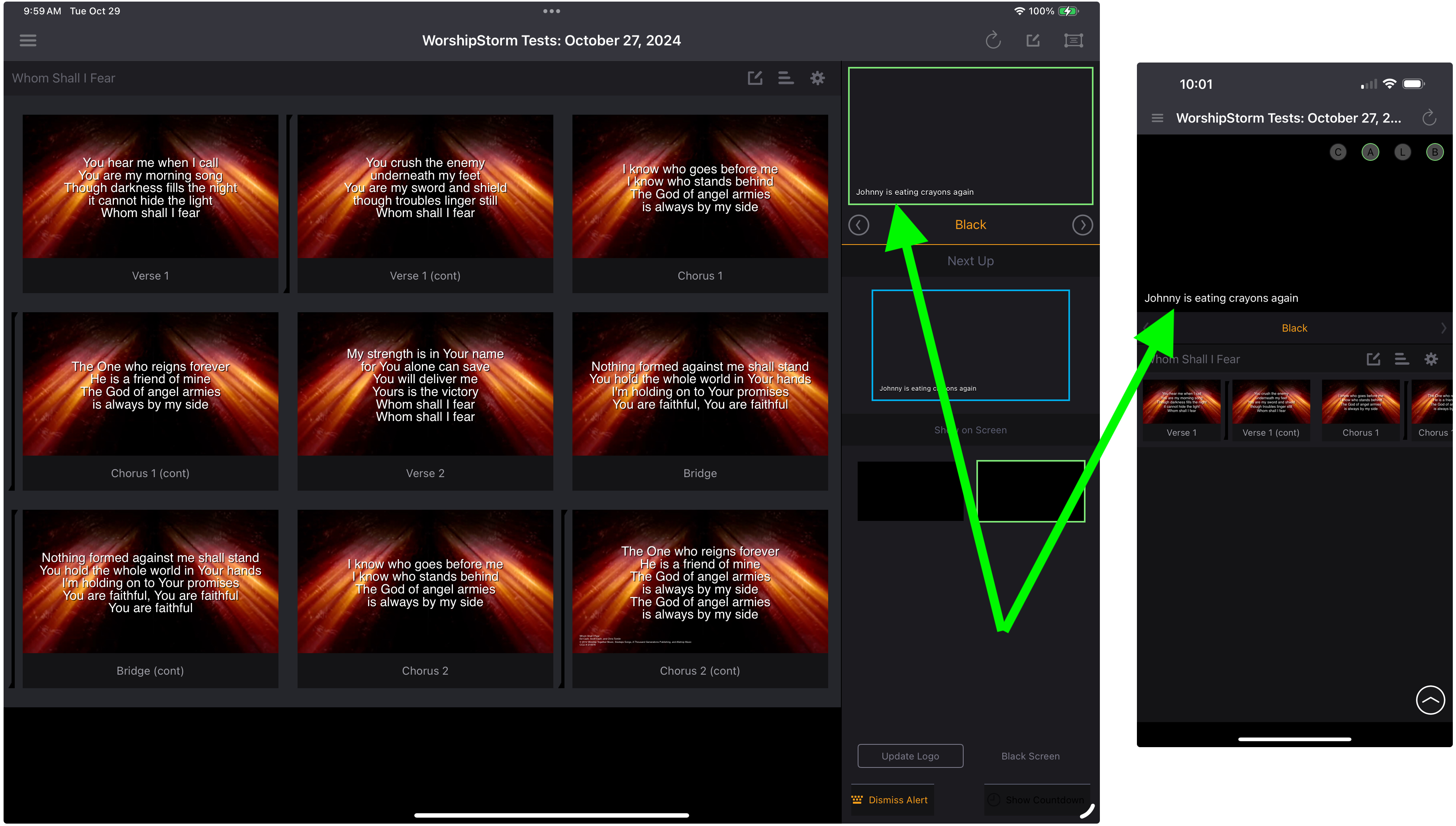
Your alert message is shown
-
On the iPad, the alert button now says, “Dismiss Alert”, and is highlighted in orange when an alert is shown on the screen. Tap the button again to turn the alert off.
-
On the iPhone, the “A” button is highlighted in green when an alert is shown on the screen. Tap the button again to turn the alert off.
-
(On the Mac, you can also use the Edit -> Dismiss Alert menu item)
Alert Settings
The On-Screen Alert can be adjusted in Projector Classic Settings.
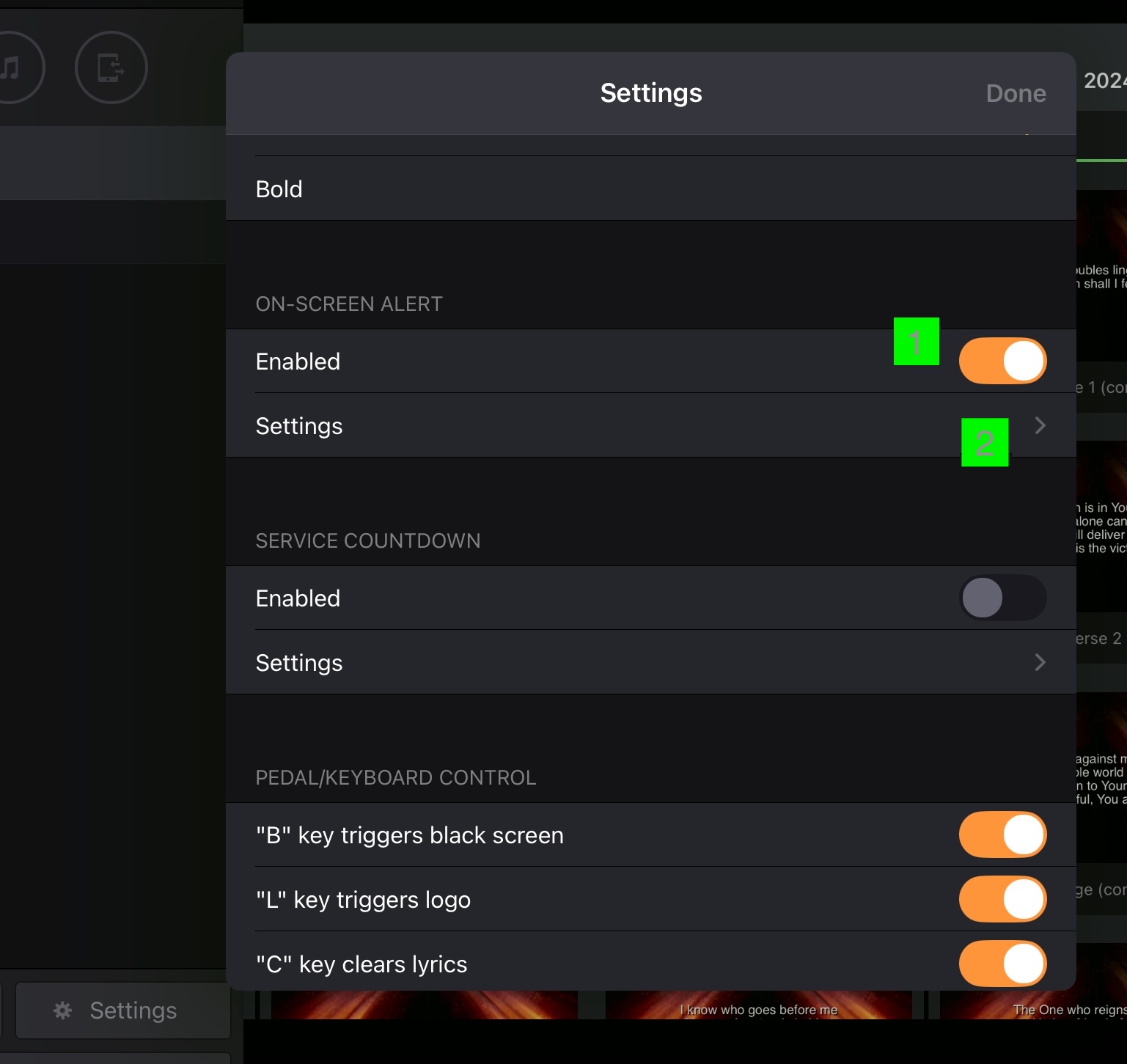
- By default, the On-Screen Alert feature is Enabled. You can toggle the switch to disable the feature if you don’t want to use it, which can prevent accidental triggering of the Alert popup screen.
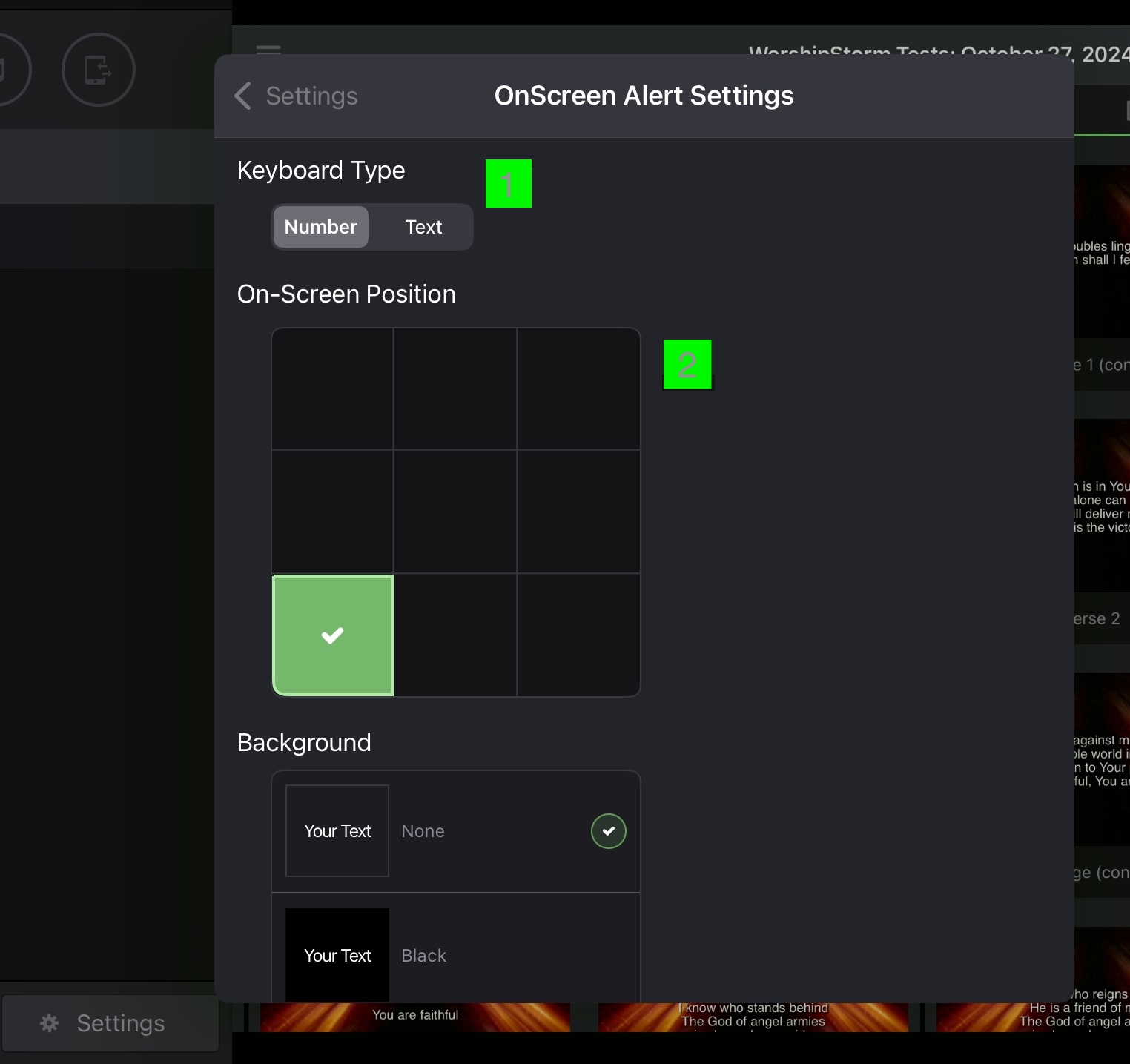
- Tap Settings to adjust the On-Screen Alert:
-
By default, the Keyboard Type is set to Number. If you typically need to present Text alerts during your service, you can change the default to Text. If you need a combination, begin creating an alert, and use the keyboard’s built-in text/number buttons to switch.
-
In this picture, the alert is in the default position of the bottom left. Tap any of the nine sections in the grid to move the alert to a different area on the screen.
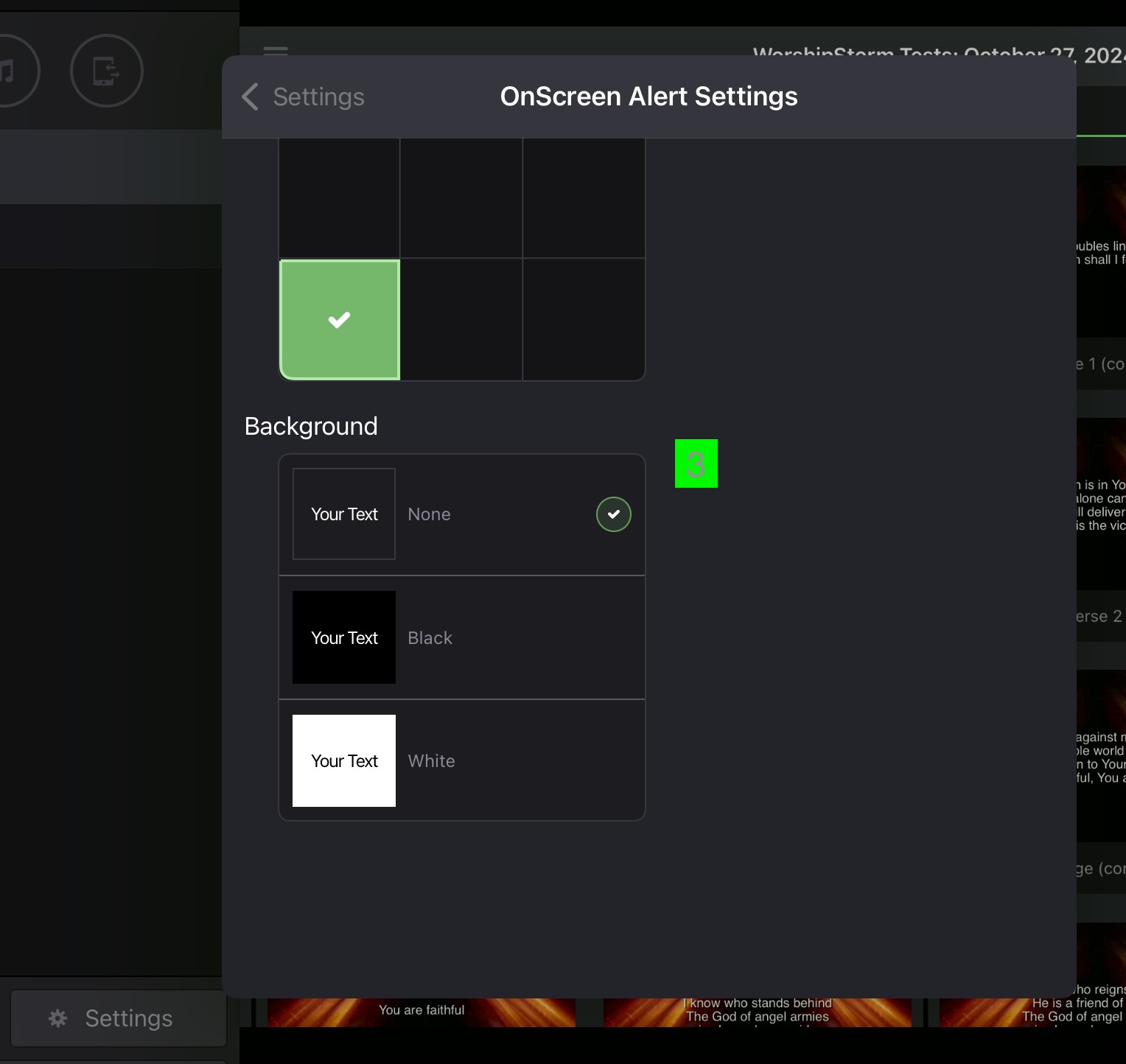
(scroll down to see the Background setting)
3. The default is white text with no background but you can also choose to show a black background around the alert or a white background with black text.